

Create a Google Calendar event for each new PeopleForce employee first date
When PeopleForce records a new hire through its Employee First Date event, this workflow creates a Google Calendar event, so managers and HR see the start on their calendar.
 PeopleForce
 Google Calendar
2 steps Setup ~5 min Used on 3.4k sites Free to import
What this workflow does
A new starter's first day involves several people: the manager, HR, IT and often a buddy. If the date only lives in PeopleForce, someone has to copy it to a calendar and invite everyone. This workflow puts it on Google Calendar when PeopleForce reports the hire.
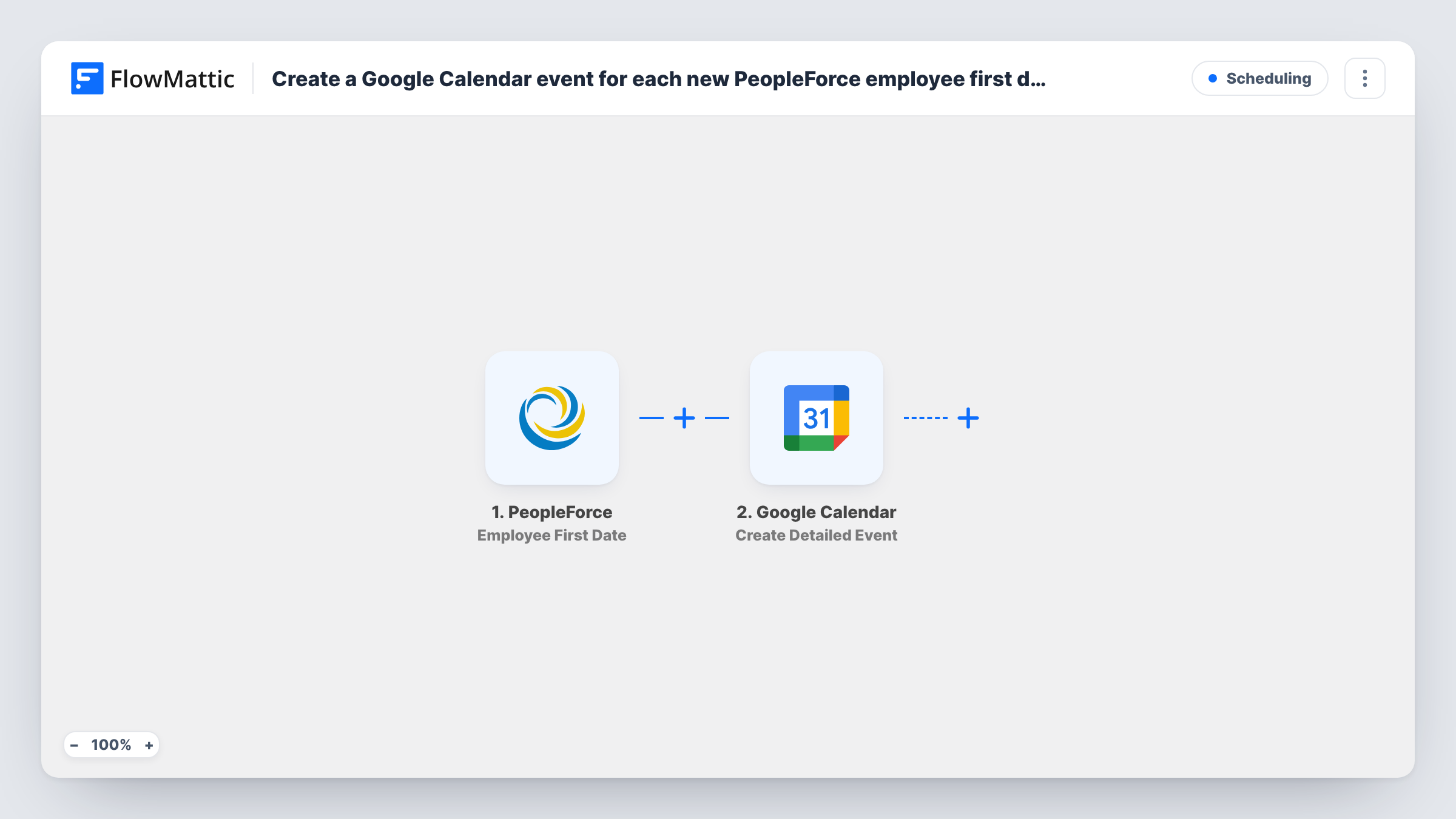
The PeopleForce trigger is Employee First Date, which PeopleForce describes as firing when an employee is hired. FlowMattic receives the employee data and passes it to Google Calendar. The Create Detailed Event step creates an event on the calendar you pick, with the title, time and description you map from the employee record.
Map the event's start to the date that holds the employee's first working day. Run a test to see which dates PeopleForce sends with this event. Task History lists each run with the data that came in and the response from Google Calendar.
Shared onboarding calendar
HR keeps a team calendar of first days, so anyone planning desk setup, laptops or welcome lunches can see who starts and when.
Reminder for the hiring manager
The event lands on a calendar the manager follows, giving them a visible marker for the day their new team member arrives.
IT account preparation
The IT team watches the onboarding calendar and uses each event as the cue to have accounts and equipment ready before the start date.
How this workflow runs
What happens at each step once the workflow is on, and what you need before you import it.
 PeopleForce Employee First Date
Runs on PeopleForce's Employee First Date event, which fires when an employee is hired. The employee data it carries is available to map in the calendar step.
- Google Calendar Create Detailed Event
Creates an event on the Google Calendar you choose. Connect your Google account and map the employee's name to the title and their first-day date to the event start.
What you need
- FlowMatticCore
- PeopleForce AccountAccount
- Google Calendar AccountAccount
After importing, map your own data. To keep the template universal, not every step is pre-filled. Open each step in the builder and connect your accounts and fields (channels, lists, sheets, recipients) before you switch the workflow on.
Make it yours
Changes worth making after you import it.
- Put the employee's job title and department in the event description, so people reading the calendar know who is joining which team.
- Use a dedicated onboarding calendar rather than a personal one, then share it with the managers and teams who need to see first days.
- Hire a test employee in PeopleForce, or wait for the next real hire, and check the event in Google Calendar before relying on it.
Questions about this workflow
When does the PeopleForce Employee First Date trigger fire?
PeopleForce describes it as firing when an employee is hired. The calendar event is created at that point, dated by whatever date field you map to the event start.
Does it invite the new employee to the Google Calendar event?
The template doesn't set any attendees. Check the Create Detailed Event step after import to see what it offers, and test with one hire before adding attendees.
What happens if the start date changes in PeopleForce?
The existing calendar event is not updated by this workflow. Edit the event by hand, or build a separate workflow for changes.
More Scheduling workflows
Other ready-to-import templates from the same category.






Import this workflow into your WordPress site
Download the JSON, import it from the Workflows screen and connect your accounts. Every run stays on your server, with no per-task fees.
30-day money-back guarantee Unlimited workflows and runs Self-hosted