

Create a Google Calendar event when a Join.me meeting starts
Each time a Join.me meeting starts, FlowMattic adds an event to your Google Calendar from the meeting’s details, so your calendar records the calls that actually happened, including ones never scheduled there.
 Join.me
 Google Calendar
2 steps Setup ~5 min Used on 2.6k sites Free to import
What this workflow does
Ad hoc Join.me calls rarely make it into a calendar. You open a meeting for a quick screen share, and a week later there's no record of when it happened or who it was with. This workflow writes an entry to Google Calendar every time one of your Join.me meetings starts.
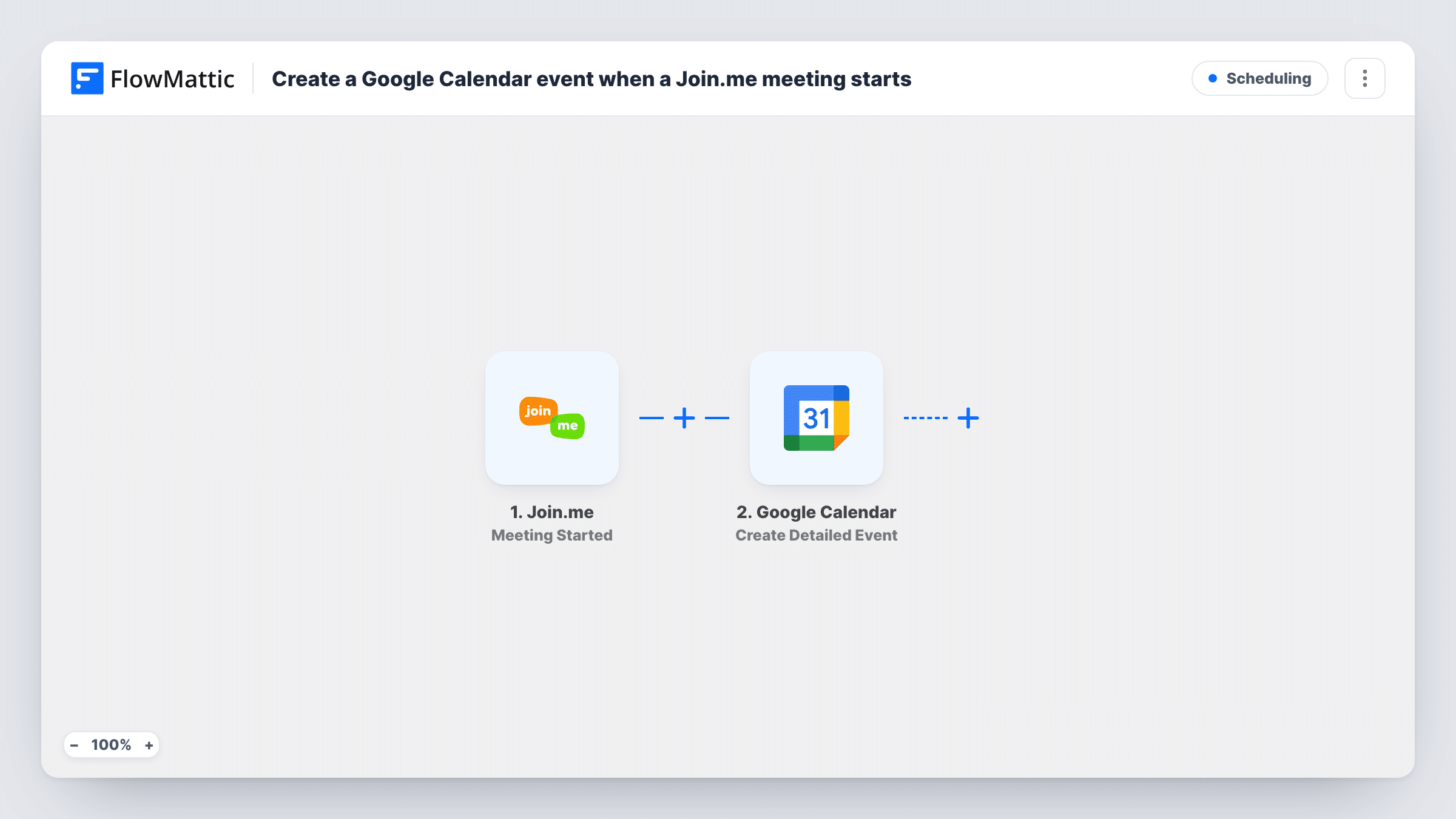
The Join.me trigger, Meeting Started, fires when a meeting is started. The meeting's details become data you can map. FlowMattic then runs Create Detailed Event in Google Calendar, which creates a new event on the calendar you choose. Map the meeting's name or ID into the title and its start time into the event time, so the entry sits where the call took place.
The event is made when the meeting begins, not before, so it works as a log rather than a reminder. Because Join.me's trigger fires at the start, the end time isn't known yet. Check a test event to see how its end is set, and build a second workflow on the Meeting Ended trigger if you need the real finish.
Logging unscheduled support sessions
A support agent starts Join.me screen shares on the spot. Each one appears in a shared Google Calendar, so the team lead can see when sessions ran.
Billable time records for consultants
Every client call you open in Join.me lands on a dedicated Google Calendar, giving you a dated list of meetings to check against your invoices.
Keeping a manager's calendar accurate
Calls started from Join.me show up on the calendar even when they weren't planned, so nobody books over time that was actually spent in meetings.
How this workflow runs
What happens at each step once the workflow is on, and what you need before you import it.
 Join.me Meeting Started
Fires when one of your Join.me meetings is started. The meeting's details are passed on so you can map them into the Google Calendar event.
- Google Calendar Create Detailed Event
Creates a new event in the Google Calendar you pick. Map the Join.me meeting details into the title and start time, then look at a test event to check how it appears.
What you need
- FlowMatticCore
- Join.me AccountAccount
- Google Calendar AccountAccount
After importing, map your own data. To keep the template universal, not every step is pre-filled. Open each step in the builder and connect your accounts and fields (channels, lists, sheets, recipients) before you switch the workflow on.
Make it yours
Changes worth making after you import it.
- Point the step at a separate Google Calendar, such as Join.me log, so these records don't clutter the calendar you use for planning.
- Send a test meeting after import and look at Task History to see which date and time format Join.me returns before mapping it into the event's start.
- Add a Filter after the trigger on the meeting name if you only want certain kinds of Join.me calls, such as client sessions, recorded in the calendar.
Questions about this workflow
Will this create duplicates of meetings already in my Google Calendar?
It can. The workflow doesn't check for an existing event; each Join.me meeting start makes a new one. Use a separate calendar for the log if you already schedule some calls.
Does the Google Calendar event show how long the Join.me meeting lasted?
Not on its own. The event is created when the meeting starts, so the end time isn't known then. The Join.me Meeting Ended trigger can feed a separate workflow for that.
Are attendees invited to the new calendar event?
Not as imported. The template creates the event from the meeting details only. Check a test run to see whether the trigger data includes any participant details you could map.
More Scheduling workflows
Other ready-to-import templates from the same category.




Import this workflow into your WordPress site
Download the JSON, import it from the Workflows screen and connect your accounts. Every run stays on your server, with no per-task fees.
30-day money-back guarantee Unlimited workflows and runs Self-hosted