

Create an onboarding task in ClickUp for each new Keka HR hire
Set Keka HR to send its new-hire event to this workflow, and each new hire creates an onboarding task in ClickUp, so the people who prepare a start date see the job in their workspace.
 Keka HR
 ClickUp
2 steps Setup ~5 min Used on 984 sites Productivity Free to import
What this workflow does
A new hire needs a laptop, accounts, a desk and a first-day plan. HR records the hire in Keka, but the people who set all that up often plan their work in ClickUp. This workflow turns each new hire into a ClickUp task so onboarding starts from one place.
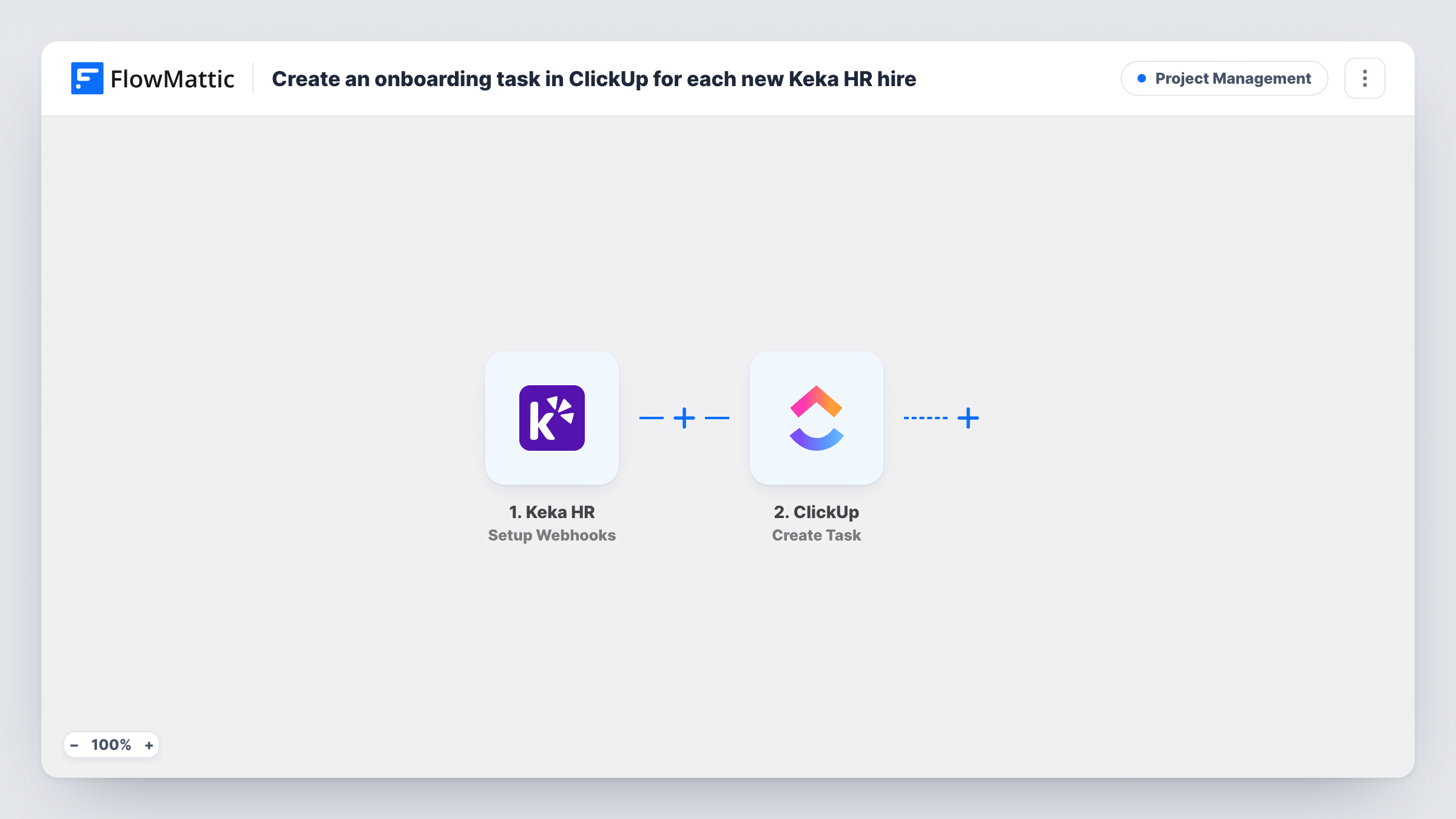
The Keka HR trigger fires for the events you specify when you set up its webhook in Keka. For this template, choose only the event for a new hire, so other HR events don't create tasks. FlowMattic passes the employee details to ClickUp, where Create Task adds a new task from the values you map.
Each event Keka sends creates one task. If you subscribe the webhook to more events, every one of them makes a task too. For every Keka event received, Task History lists the run and what ClickUp sent back.
IT setup before day one
When HR adds a hire in Keka, the IT team's ClickUp space gets a task with the new person's name, so accounts and a laptop are ready on time.
Managers planning a first week
The hiring manager receives a ClickUp task for each new team member and can attach the first-week plan to it.
Office admin for growing teams
An office manager handling desks and access cards sees every new hire as a task, instead of waiting for an email from HR.
How this workflow runs
What happens at each step once the workflow is on, and what you need before you import it.
 Keka HR Setup Webhooks
Fires for the Keka HR events you select when you register the webhook in Keka. Pick only the new-hire event so the task step runs for new employees alone.
- ClickUp Create Task
Creates a new task in ClickUp from the Keka employee data. Map the hire's details into the task, connect your ClickUp account, and test to confirm where the task appears.
What you need
- FlowMatticCore
- Keka HR AccountAccount
- ClickUp AccountAccount
After importing, map your own data. To keep the template universal, not every step is pre-filled. Open each step in the builder and connect your accounts and fields (channels, lists, sheets, recipients) before you switch the workflow on.
Make it yours
Changes worth making after you import it.
- In Keka, subscribe the webhook to the new-hire event only. Other events, such as profile changes, would each create their own ClickUp task.
- Send a test event from Keka after import, so FlowMattic captures the employee data and you can see what to map into the task.
- As a safety net, add a Filter after the trigger on the event type, if Keka includes one in its data, so only new-hire events reach ClickUp.
Questions about this workflow
Which Keka HR events start this workflow?
The ones you choose when you set up the webhook in Keka. Choose only the new-hire event for this template, or other events will create tasks too.
Can one Keka hire create a checklist of several ClickUp tasks?
As imported, each event creates one task. Add more ClickUp Create Task steps after the first if you want separate tasks for IT, the manager and the office.
Does the ClickUp task change if the hire's details change in Keka?
No. The task is created once from the event. Later changes in Keka don't update it.
Do I need a Keka HR account with webhook access?
Yes. The trigger relies on Keka sending events to FlowMattic, so you need access to set up its webhooks, plus a ClickUp account for the task.
More Project Management workflows
Other ready-to-import templates from the same category.






Import this workflow into your WordPress site
Download the JSON, import it from the Workflows screen and connect your accounts. Every run stays on your server, with no per-task fees.
30-day money-back guarantee Unlimited workflows and runs Self-hosted