

Create a ClickUp fulfilment task for every WooCommerce order
Every new WooCommerce order creates a ClickUp task named Fulfil order plus the order number, with the customer’s billing name and the order total in the description, so packing work shows up where your team plans.
 WooCommerce
 ClickUp
2 steps Setup ~5 min Used on 3.2k sites Productivity Free to import
What this workflow does
If the people who pack and ship your orders plan their day in ClickUp, they need each order there as a piece of work they can assign, comment on and close. Checking the WooCommerce orders screen and retyping each one is slow and easy to forget on a busy day. This workflow creates the task for them as soon as an order is placed.
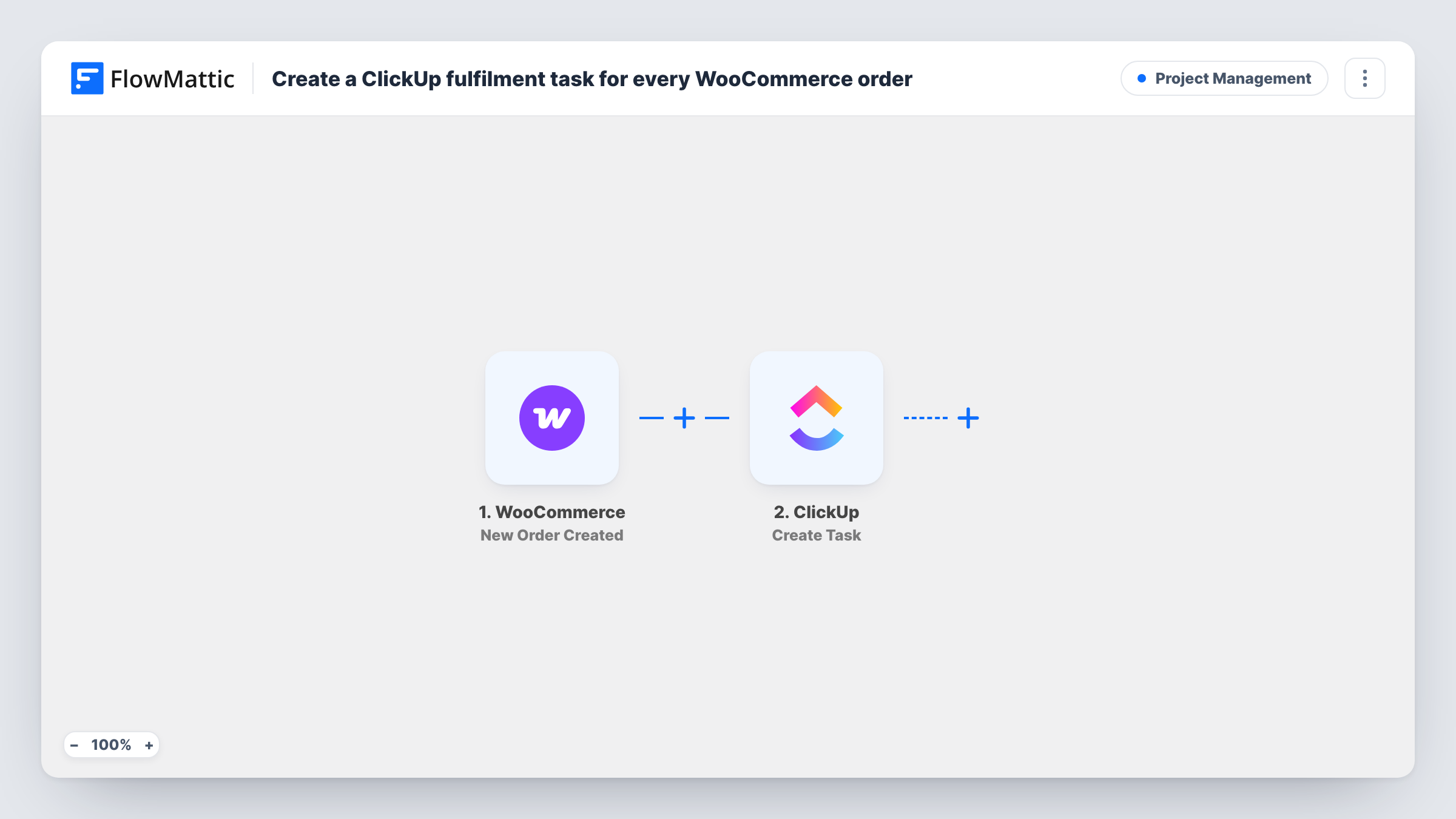
The WooCommerce trigger fires when a new order is created in your store. FlowMattic passes the order details to the Create Task action in ClickUp. The task is named Fulfil order followed by the order number. Its description lists the customer's billing first and last name and the order total with its currency.
Nothing in WooCommerce changes. The order keeps its status and the customer gets the usual store emails. There is no Filter in the template, so each new order produces one task, whatever its status or payment method. You can follow every run in Task History.
Small shop with a part-time packer
The packer opens ClickUp at the start of a shift and works through the Fulfil order tasks, closing each one once the parcel is ready.
Made-to-order products
A print or furniture shop treats each order as a job. The ClickUp task becomes the place to add notes, attach proofs and track progress until dispatch.
Handing orders to a fulfilment partner
You share a ClickUp space with an outside partner who ships for you. Each order arrives there as a task with the customer's name and order total.
How this workflow runs
What happens at each step once the workflow is on, and what you need before you import it.
 WooCommerce New Order Created
Starts the workflow each time your store receives a WooCommerce order. The order number, billing name, currency and total are passed to the ClickUp step.
- ClickUp Create Task
Adds a ClickUp task titled Fulfil order with the order number. The description holds the customer's billing name and the order total with its currency. Connect your ClickUp account on import, then send a test order to see where the task lands.
What you need
- FlowMatticCore
- WooCommerce PluginPlugin
- ClickUp AccountAccount
After importing, map your own data. To keep the template universal, not every step is pre-filled. Open each step in the builder and connect your accounts and fields (channels, lists, sheets, recipients) before you switch the workflow on.
Make it yours
Changes worth making after you import it.
- A Filter on order status can drop unpaid orders, but the trigger fires once per order, so an order paid later is not picked up again. Test with your payment methods before adding one.
- Map more order fields into the task description, such as the shipping address or the customer note, so the packer has what they need without opening WooCommerce.
- Place a test order after import and check Task History to confirm which order fields the trigger sends before you add more to the task.
Questions about this workflow
Does a ClickUp task get created for unpaid or failed WooCommerce orders?
Yes, as imported. The trigger fires for each new order and nothing checks its status. A Filter on the order status can limit tasks to orders that are already paid when they are created.
Will closing the ClickUp task mark the WooCommerce order complete?
No. The workflow only sends data from WooCommerce to ClickUp. Order statuses in your store are changed the usual way.
Are product names included in the ClickUp task?
Not as imported. The description holds the billing name and the total. You can map other order fields into the description after a test order shows what the trigger provides.
What about orders placed before I turn the workflow on?
They are not copied. The trigger only reacts to orders created after the workflow is active.
More Project Management workflows
Other ready-to-import templates from the same category.





Import this workflow into your WordPress site
Download the JSON, import it from the Workflows screen and connect your accounts. Every run stays on your server, with no per-task fees.
30-day money-back guarantee Unlimited workflows and runs Self-hosted