

Create or update ActiveCampaign contacts for new or updated Heartbeat users
Whenever a user joins or changes their details in your Heartbeat community, this workflow creates or updates the matching contact in ActiveCampaign, so your email lists follow your member list.
 Heartbeat
 ActiveCampaign
2 steps Setup ~5 min Used on 1.9k sites Free to import
What this workflow does
A Heartbeat community holds your members, and ActiveCampaign is where you email them. Without a link between the two, new members miss your welcome emails and changed details never reach your contact records. This workflow keeps the ActiveCampaign side current from Heartbeat.
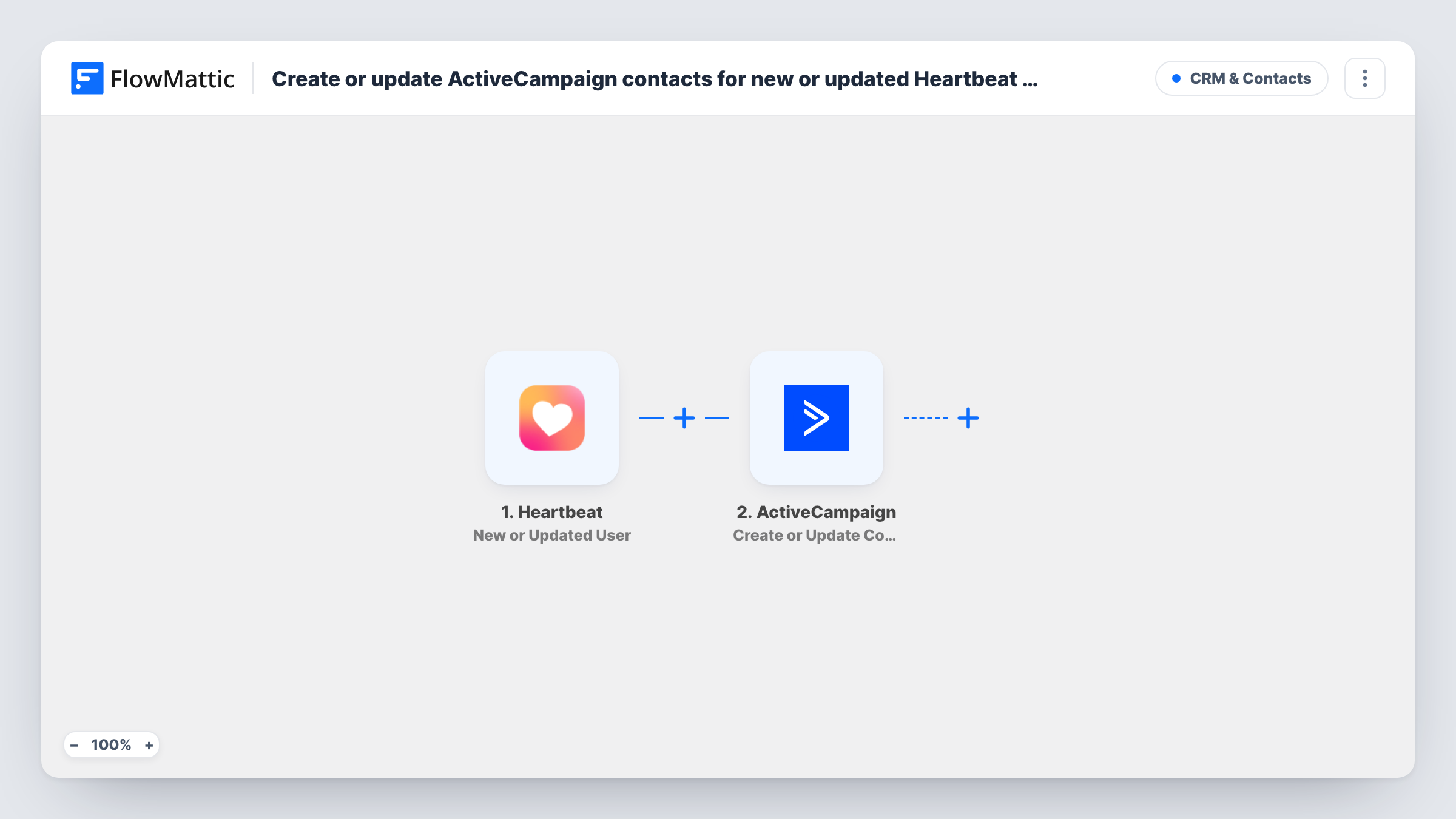
The Heartbeat trigger, New or Updated User, runs when a user is added to your community or their details change. FlowMattic passes the user data to ActiveCampaign, where the Create or Update Contact action adds a contact or updates the existing one with the same email.
Because one action covers both cases, you do not need separate workflows for joins and edits. Each run sends whatever values you mapped, so an update can overwrite fields in ActiveCampaign with the newer Heartbeat data. There are no conditions, and every new or updated user starts a run. Task History shows what Heartbeat sent and what ActiveCampaign returned.
Welcome sequence for new community members
A member joins your Heartbeat community and becomes an ActiveCampaign contact, where an automation you set up there can start your welcome emails.
Keeping names and emails current
When a member updates their details in Heartbeat, the next run pushes the new values to the ActiveCampaign contact you already have.
Paid community with an email newsletter
Everyone in the Heartbeat community stays on the ActiveCampaign side, so your member newsletter reaches the people who are in the community.
How this workflow runs
What happens at each step once the workflow is on, and what you need before you import it.
 Heartbeat New or Updated User
Runs when a user is added to your Heartbeat community or an existing user's details are updated. The user data is passed to ActiveCampaign for mapping.
- ActiveCampaign Create or Update Contact
Creates a contact in ActiveCampaign from the Heartbeat user, or updates the contact that already has the same email. Map the email plus any name values you want kept in step.
What you need
- FlowMatticCore
- Heartbeat AccountAccount
- ActiveCampaign AccountAccount
After importing, map your own data. To keep the template universal, not every step is pre-filled. Open each step in the builder and connect your accounts and fields (channels, lists, sheets, recipients) before you switch the workflow on.
Make it yours
Changes worth making after you import it.
- After import, add a test user to Heartbeat or edit an existing one. FlowMattic captures the user data, and you can map it in the ActiveCampaign step.
- If you only want new members in ActiveCampaign and not every profile edit, add a Filter after the trigger. Check a test run for a value that tells new users from updated ones.
- Add a second ActiveCampaign step after the contact step if you also want members added to a list or tagged, so automations in ActiveCampaign can start from that.
Questions about this workflow
What if the Heartbeat member already exists in ActiveCampaign?
The action is Create or Update Contact, so the existing contact with that email is updated instead of a duplicate being made.
Does a Heartbeat member who leaves get removed from ActiveCampaign?
No. The workflow only creates and updates contacts. Nothing in it deletes or unsubscribes anyone in ActiveCampaign.
Are existing Heartbeat users copied over when I import?
No. Only users added or updated after the workflow is on start a run. Existing members reach ActiveCampaign when their details next change.
Could a Heartbeat profile edit overwrite data in ActiveCampaign?
Yes. Each run sends the mapped values, so newer Heartbeat values replace what the contact had for those fields. Map only the fields you want Heartbeat to control.
More CRM & Contacts workflows
Other ready-to-import templates from the same category.






Import this workflow into your WordPress site
Download the JSON, import it from the Workflows screen and connect your accounts. Every run stays on your server, with no per-task fees.
30-day money-back guarantee Unlimited workflows and runs Self-hosted