

Create Project Brief from Notion Database Entry using AI
Add an item to a Notion database and this workflow has OpenAI write a project brief from it, then saves that brief as a new Google Docs document you can edit and share with your team or client.
 Notion
 OpenAI (ChatGPT)
 Google Docs
3 steps Setup ~5 min Used on 1.0k sites Free to import
What this workflow does
Projects often start as a line or two in a Notion database: a name, a goal, a client, a deadline. Turning that into a proper brief takes time, and briefs end up written in different styles by different people. This workflow drafts the brief from the database item and puts it in its own Google Doc.
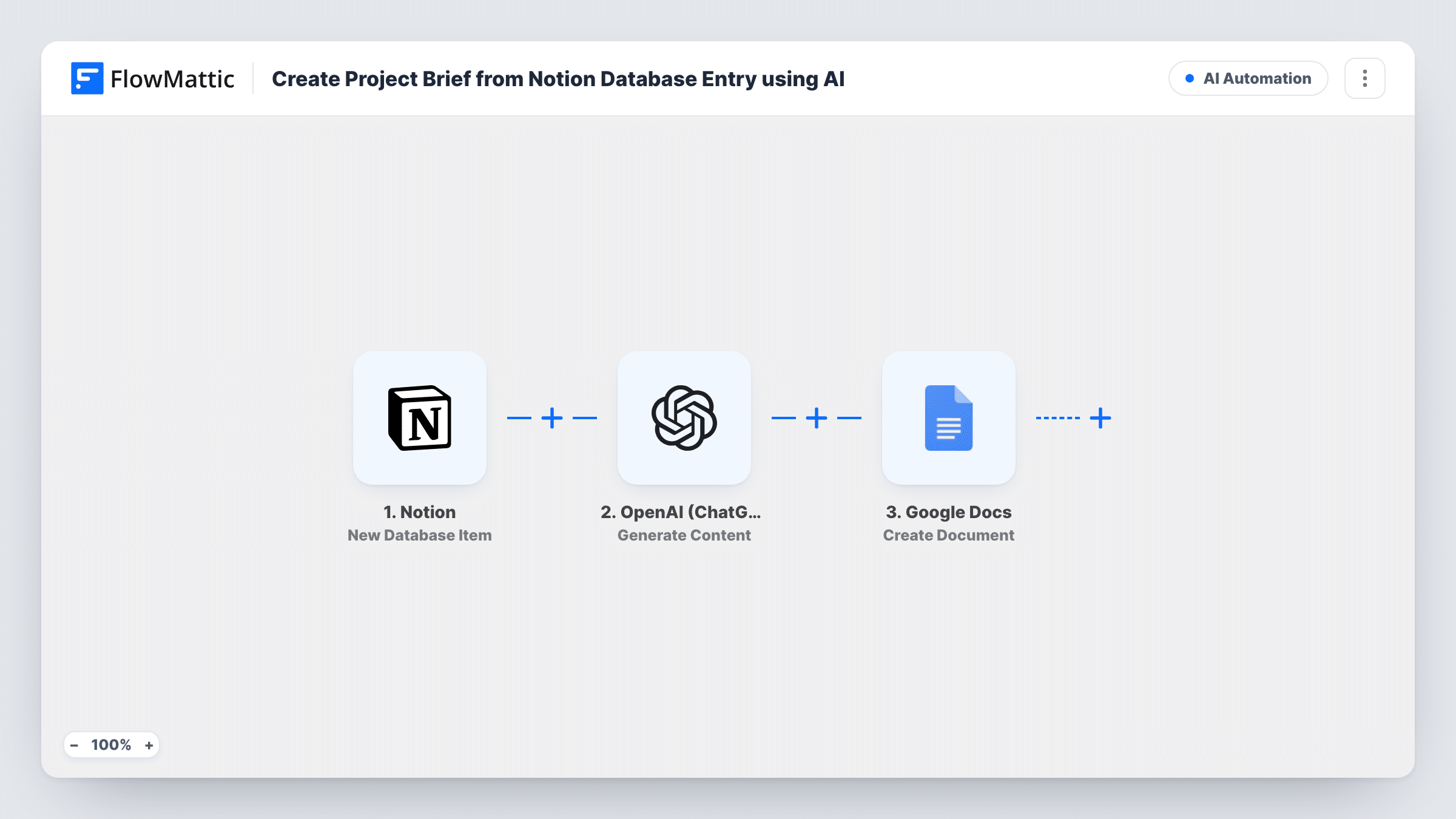
The Notion trigger fires when a new item is created in the database you connect, and its properties become data you can map. The OpenAI (ChatGPT) step runs Generate Content with a prompt you write, into which you place those properties. The generated text then goes to Google Docs, where Create Document makes a new document holding the brief.
The result is a first draft, not a finished plan. OpenAI only knows what is in the Notion item and your prompt, so review the document before sending it to anyone. Every new database item produces one document, and Task History shows the prompt and the text OpenAI returned.
Agency client intake
An account manager adds a new client project to the Notion pipeline database. A draft brief in Google Docs is ready for the kickoff call.
Internal project requests
Teams log requests in a shared Notion database. Each request gets a structured brief that the project lead can refine and approve.
Content planning
An editor adds a story idea with a working title and angle in Notion. OpenAI expands it into a brief a freelance writer can work from.
How this workflow runs
What happens at each step once the workflow is on, and what you need before you import it.
 Notion New Database Item
Runs when a new item is created in the Notion database you connect. The item's properties are passed on so you can use them in the prompt.
- OpenAI (ChatGPT) Generate Content
Generates the brief with OpenAI from a prompt you write. Place the Notion properties in the prompt and describe the sections and tone the brief should have.
- Google Docs Create Document
Makes a new Google Docs document holding the brief. Map the OpenAI output into the document content and use the Notion item's name in the document title.
What you need
- FlowMatticCore
- Notion AccountAccount
- OpenAI (ChatGPT) AccountAccount
- Google Docs AccountAccount
After importing, map your own data. To keep the template universal, not every step is pre-filled. Open each step in the builder and connect your accounts and fields (channels, lists, sheets, recipients) before you switch the workflow on.
Make it yours
Changes worth making after you import it.
- Describe the brief's sections in the prompt, such as goals, scope, deliverables and timeline, so every document follows the same structure.
- Add a Filter after the Notion trigger that continues only when key properties are filled in, so OpenAI is not asked to write a brief from an empty item.
- Add a Slack or email step after Google Docs that shares the new document's link with the project lead, if the step returns one in a test run.
Questions about this workflow
Does the brief get written back into Notion?
No. The brief is saved as a new Google Docs document. The Notion item stays as it was. Add a Notion step after Google Docs if you want to store the link there.
Will OpenAI add details that are not in the Notion item?
It can. Tell it in the prompt to use only the details given, and review each document before you share it.
What if a Notion database item is created empty and filled in later?
The trigger fires when the item is created, so the brief is based on whatever was there at that moment. Add a Filter on required properties to avoid thin briefs.
Which accounts does this Notion and OpenAI workflow need?
A Notion account with access to the database, an OpenAI account for the Generate Content step, and a Google account for the Docs step.
More AI Automation workflows
Other ready-to-import templates from the same category.






Import this workflow into your WordPress site
Download the JSON, import it from the Workflows screen and connect your accounts. Every run stays on your server, with no per-task fees.
30-day money-back guarantee Unlimited workflows and runs Self-hosted