

Create Zoho Calendar events from new Eventin registrations
Each time someone registers for an Eventin event on your WordPress site, this workflow creates an event in Zoho Calendar with the details you map, so registrations show up in the calendar you plan from.
 Eventin
 Zoho Calendar
2 steps Setup ~5 min Used on 3.2k sites Free to import
What this workflow does
Eventin handles registrations on your WordPress site, but your team may plan its week in Zoho Calendar. Without a link between them, someone checks the registration list and adds entries by hand. This workflow puts a calendar entry in Zoho for each new registration.
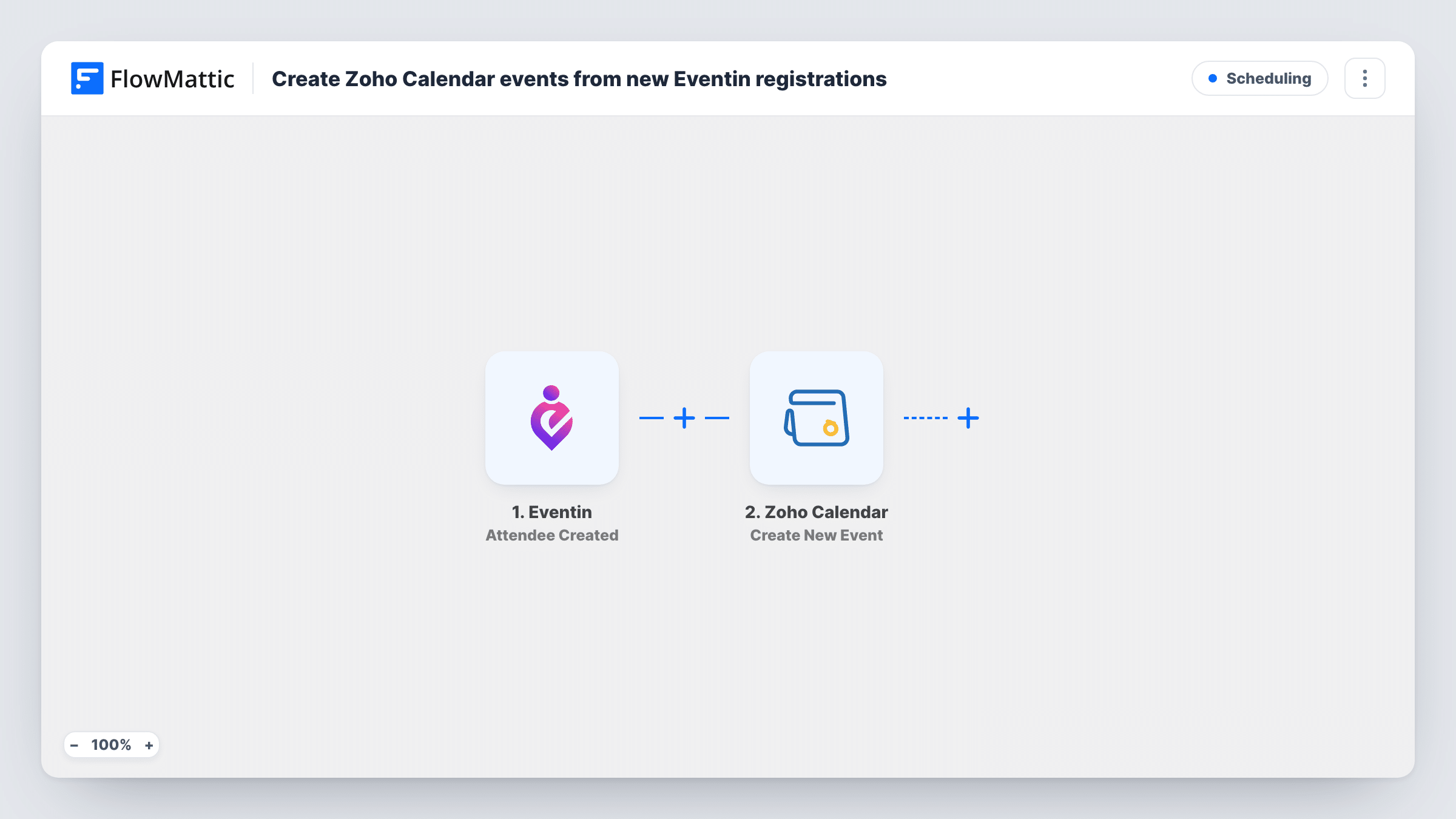
The Eventin trigger, Attendee Created, fires when a new attendee registers for an event. FlowMattic passes the attendee data to Zoho Calendar, where Create New Event adds an event to the calendar you choose. You map details from the registration into it, such as the attendee's name and the event they booked.
The workflow makes one calendar entry per attendee, not per Eventin event, so ten registrations for one session give ten entries. That suits one-to-one bookings. For group sessions, see the tips. Check a test run to confirm the attendee data includes the event's date and time before you map them.
One-to-one consultations
A coach sells individual sessions through Eventin. Each booking appears in Zoho Calendar with the client's name, so the coach's day is laid out in one place.
Small workshop sign-ups
A trainer runs workshops with a handful of places. Each registration becomes a Zoho Calendar entry naming the attendee, which works as a quick seat list.
Tours and site visits
A venue takes bookings for guided tours through Eventin. Staff see every booked visitor in the shared Zoho Calendar.
How this workflow runs
What happens at each step once the workflow is on, and what you need before you import it.
 Eventin Attendee Created
Fires when a new attendee registers for an Eventin event on your site. The attendee's details are passed on for mapping into the calendar entry.
- Zoho Calendar Create New Event
Creates an event in the Zoho Calendar you choose. Map the registration details into it, including the session's date and time, then connect your Zoho account and check the entry from a test run.
What you need
- FlowMatticCore
- Eventin PluginPlugin
- Zoho Calendar AccountAccount
After importing, map your own data. To keep the template universal, not every step is pre-filled. Open each step in the builder and connect your accounts and fields (channels, lists, sheets, recipients) before you switch the workflow on.
Make it yours
Changes worth making after you import it.
- Put the attendee's name and the Eventin event name in the calendar title, so each entry says who registered for what.
- For group events, trigger on Eventin's Event Created instead of Attendee Created. You then get one Zoho Calendar entry per event, not one per person.
- Add a Filter after the trigger on the event name if only some Eventin events should appear in this Zoho calendar.
Questions about this workflow
Does each Eventin attendee create a separate Zoho Calendar event?
Yes. The trigger fires once per registration, so each attendee gets their own calendar entry, even when many people book the same Eventin event.
Does the attendee data include the event's date and time?
Check a test run. Map the event date and time if the Attendee Created data carries them. If it doesn't, the calendar entry has no correct time to use.
What happens when an attendee cancels in Eventin?
Nothing in this template. The Zoho Calendar entry stays. Eventin also has an Attendee Deleted trigger, which you could use in a second workflow that removes the entry.
Must Eventin run on the WordPress site where FlowMattic is installed?
Yes. Eventin is a WordPress plugin, and the Attendee Created trigger picks up registrations made on that same site.
More Scheduling workflows
Other ready-to-import templates from the same category.






Import this workflow into your WordPress site
Download the JSON, import it from the Workflows screen and connect your accounts. Every run stays on your server, with no per-task fees.
30-day money-back guarantee Unlimited workflows and runs Self-hosted