

Generate Creatomate videos using ChatGPT based on new Airtable records
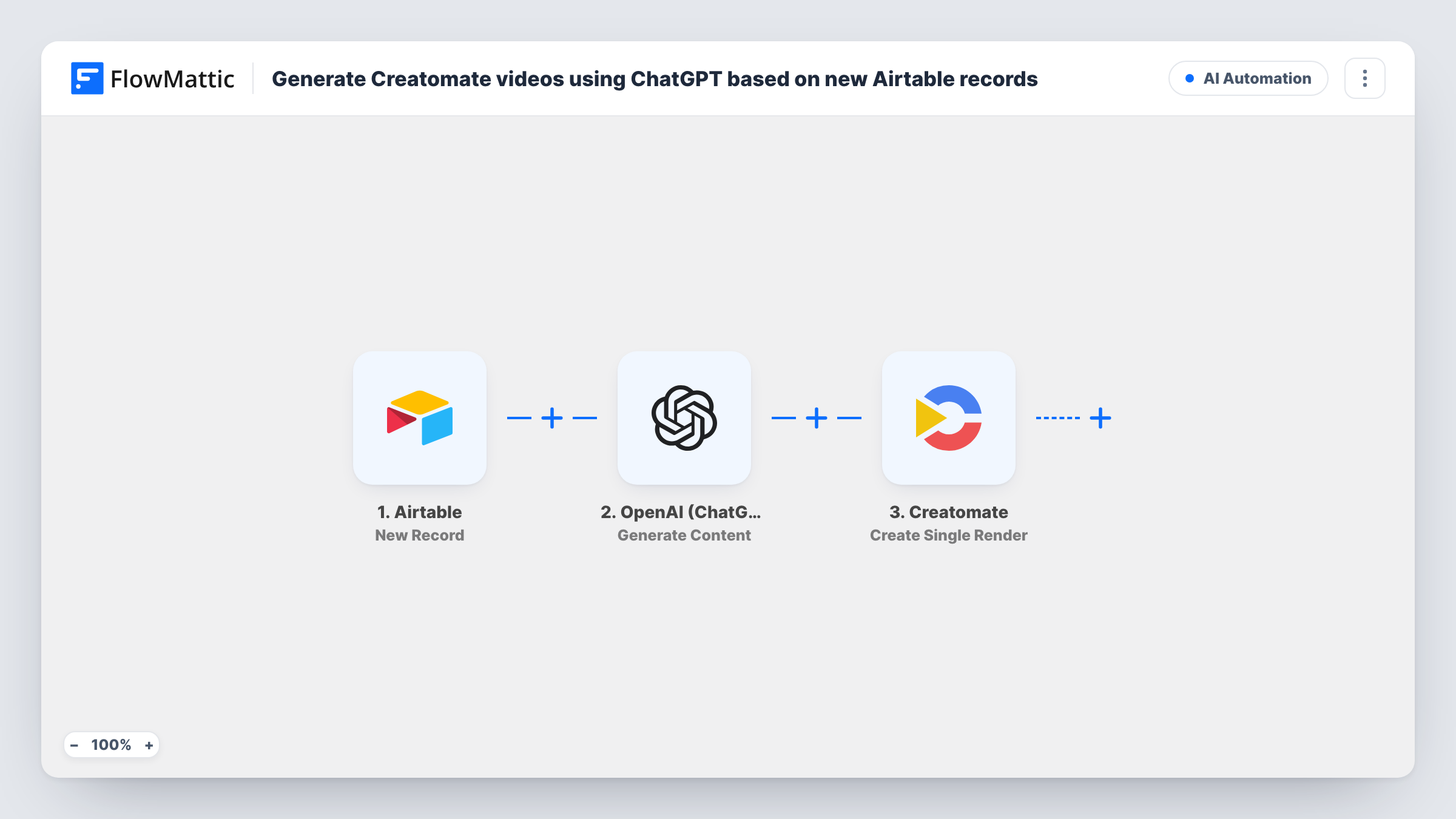
Each new Airtable record is turned into a prompt for ChatGPT, and the text it writes is passed to Creatomate to render a video from your template. You plan ideas in Airtable and get one render per record.
 Airtable
 OpenAI (ChatGPT)
 Creatomate
3 steps Setup ~5 min Used on 1.9k sites Free to import
What this workflow does
Making short videos from a list of ideas usually means writing each script, pasting it into a video tool and starting a render, one at a time. If your ideas already live in Airtable, this workflow chains those jobs so each record leads to a render without the copying.
A run begins with the Airtable trigger, as soon as a fresh record appears in your chosen ideas table. Its fields go to OpenAI (ChatGPT), where the Generate Content action produces text from the prompt you write. Put record fields into that prompt, such as a topic or product name, and tell ChatGPT what to return. The generated text is then passed to Creatomate, whose Create Single Render action creates one video, image or GIF, depending on the template you pick, with the AI text and record fields mapped into it.
Every new record runs all three steps. ChatGPT's output is used as written, with no review step, so check a few renders before you rely on it. The finished render stays in Creatomate. Nothing in this template posts or saves it elsewhere until you add a step that does.
Product teaser videos from a catalog base
Each product added to an Airtable table gets a short ChatGPT-written hook, which Creatomate places over the product's template video.
Daily tip clips for social media
A content planner adds one tip topic per record. ChatGPT expands it into a caption-length line, and Creatomate renders it as a branded clip.
Personalised welcome videos
New client records in Airtable trigger a short greeting written by ChatGPT, rendered by Creatomate with the client's name on screen.
How this workflow runs
What happens at each step once the workflow is on, and what you need before you import it.
 Airtable New Record
Starts the run for each record newly added to your selected Airtable table. The record's fields become available to use in the ChatGPT prompt and the Creatomate render.
- OpenAI (ChatGPT) Generate Content
Sends the prompt you write to ChatGPT and returns the generated text. Map Airtable fields into the prompt and say plainly what the text is for, such as a short on-screen line.
- Creatomate Create Single Render
Creates one render in Creatomate from the template you choose. Map ChatGPT's text and any Airtable fields into the template's elements, then connect your Creatomate account.
What you need
- FlowMatticCore
- Airtable AccountAccount
- OpenAI (ChatGPT) AccountAccount
- Creatomate AccountAccount
After importing, map your own data. To keep the template universal, not every step is pre-filled. Open each step in the builder and connect your accounts and fields (channels, lists, sheets, recipients) before you switch the workflow on.
Make it yours
Changes worth making after you import it.
- Ask ChatGPT for a fixed length in your prompt, such as one sentence under 15 words, so the text fits the space in your Creatomate template.
- Add a Filter after the trigger that continues only when the topic field is not empty, so a blank record does not produce a render with no content.
- Add an Airtable Update Record step at the end, using the record ID from the trigger, to write the render details back to the record that started the run.
Questions about this workflow
Does every new Airtable record start a Creatomate render?
Yes, as imported. There is no Filter, so each new record runs ChatGPT and Creatomate once. Add a Filter after the trigger to limit which records are used.
Which account pays for the ChatGPT text in each Creatomate video run?
Your own. The Generate Content step runs through the OpenAI account you connect in FlowMattic, and OpenAI bills any usage to that account.
Where does the finished Creatomate video end up?
In your Creatomate account. The template does not post or upload it anywhere. Add a further step if you want the result saved or shared.
What if I edit an Airtable record after it is created?
Nothing happens. The trigger is New Record, so edits do not start another run or a new render.
More AI Automation workflows
Other ready-to-import templates from the same category.







Import this workflow into your WordPress site
Download the JSON, import it from the Workflows screen and connect your accounts. Every run stays on your server, with no per-task fees.
30-day money-back guarantee Unlimited workflows and runs Self-hosted