

Log every published Oneflow contract to a Google Sheets spreadsheet
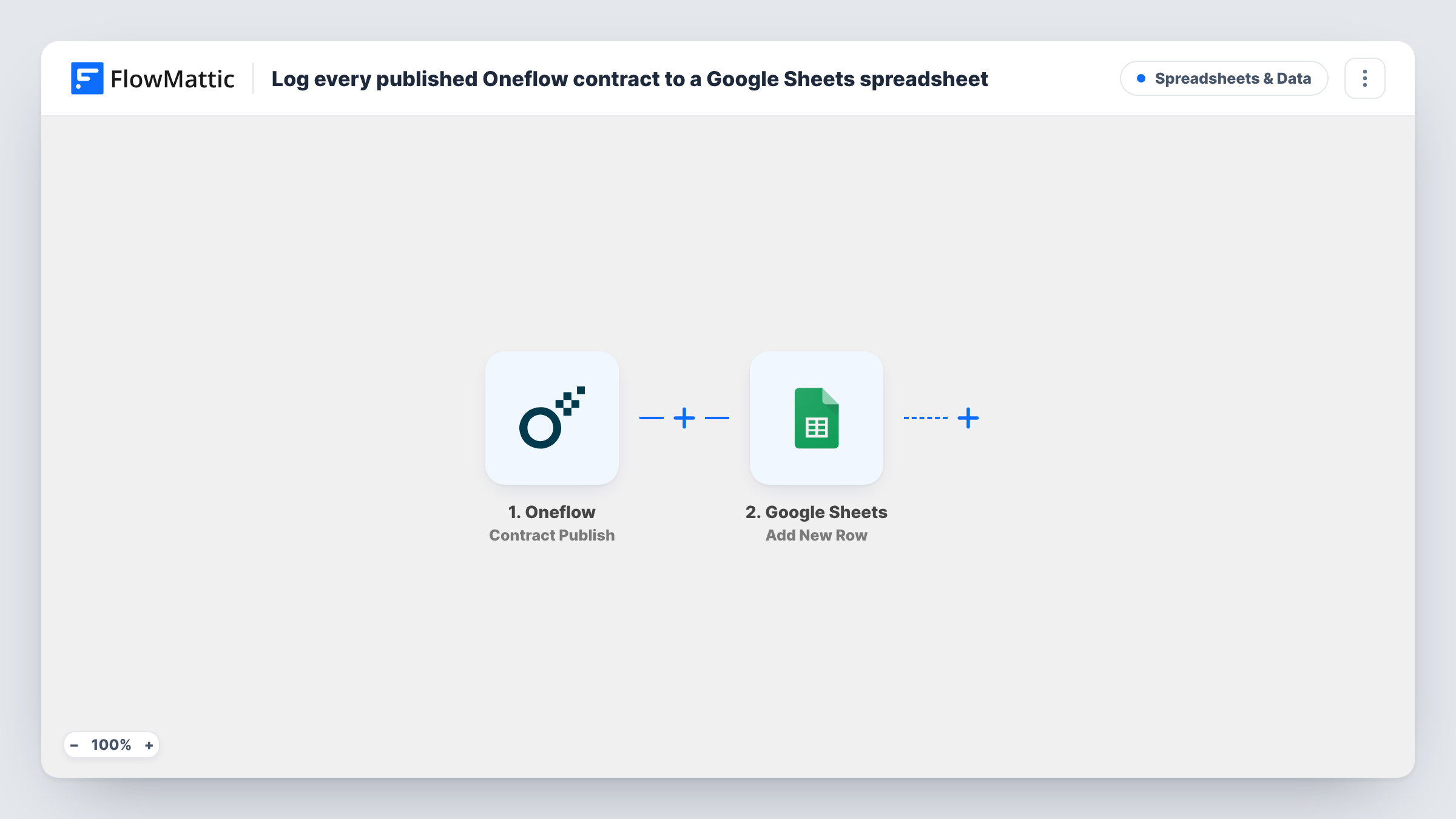
When an Oneflow contract is published, moving from draft to pending, this workflow adds a row about it to a Google Sheets spreadsheet, building a running log of every contract you send out.
 Oneflow
 Google Sheets
2 steps Setup ~5 min Used on 1.2k sites Free to import
What this workflow does
Contracts move fast once they leave the drafting stage, and it is easy to lose track of what went out and when. A spreadsheet log gives sales, legal and finance one place to see it without each of them signing in to Oneflow. Here, each published Oneflow contract adds its own line to that log.
The Oneflow trigger reacts to Contract Publish, which FlowMattic describes as a contract changing state from draft to pending. That is the point where the contract is out for signing. The contract data from the event becomes available to map, and the Google Sheets step adds a new row to the spreadsheet you pick. You decide which columns hold which of the contract details the event carries.
Rows are only ever appended here. Nothing updates a row later when the contract is signed or declined, so the sheet records publications rather than live status. Each run appears in Task History with the data passed to Google Sheets.
Weekly review of contracts sent
A sales lead opens the sheet each Monday, sorts by date and sees every Oneflow contract published in the past week without logging in to Oneflow.
Finance forecasting from contracts out
The finance team reads the log to see which deals have reached the signing stage, and plans invoicing around what is pending.
Audit trail for an agency
An agency keeps a dated row for each client contract it publishes, which is easy to share or export when someone asks when a document went out.
How this workflow runs
What happens at each step once the workflow is on, and what you need before you import it.
 Oneflow Contract Publish
Fires when an Oneflow contract is published, meaning its state changes from draft to pending. The contract's data from that event is passed on for mapping into the sheet.
- Google Sheets Add New Row
Writes one new row per published contract into the spreadsheet and tab you pick. Map the Oneflow contract fields to your columns and connect your Google account when you import.
What you need
- FlowMatticCore
- Oneflow AccountAccount
- Google Sheets AccountAccount
After importing, map your own data. To keep the template universal, not every step is pre-filled. Open each step in the builder and connect your accounts and fields (channels, lists, sheets, recipients) before you switch the workflow on.
Make it yours
Changes worth making after you import it.
- Publish one test contract after import so FlowMattic records the fields Oneflow sends, then map the ones you want into the Google Sheets columns.
- To track signatures as well, build a second workflow on Oneflow's Contract Sign trigger that writes to another tab, so published and signed contracts sit side by side.
- Add a Filter after the trigger if only some contracts belong in this sheet, for example ones whose name contains a client or template you care about.
Questions about this workflow
When exactly does an Oneflow contract count as published?
Oneflow's Contract Publish event covers a contract moving from draft to pending, which is when it goes out for signing. Contracts still in draft don't trigger the workflow.
Does the sheet row change when the Oneflow contract is signed?
No. The Google Sheets step only adds rows. A signed, declined or expired contract keeps the row written when it was published, unless you add another workflow for those events.
Are contracts published before I import this added to the sheet?
No. Only contracts published after the workflow is turned on create rows. Earlier ones would need to be added by hand.
Which Oneflow contract details can go into the spreadsheet?
Whatever the Contract Publish event sends. Run a test publication after import and FlowMattic shows the fields, which you can then map to columns.
More Spreadsheets & Data workflows
Other ready-to-import templates from the same category.




Import this workflow into your WordPress site
Download the JSON, import it from the Workflows screen and connect your accounts. Every run stays on your server, with no per-task fees.
30-day money-back guarantee Unlimited workflows and runs Self-hosted