

Save completed Zoom cloud recordings to Google Drive
When Zoom finishes a cloud recording for a meeting or webinar, this workflow uploads the recording file to the Google Drive folder you choose, so sessions are stored where your team keeps its files.
 Zoom
 Google Drive
2 steps Setup ~5 min Used on 1.1k sites Free to import
What this workflow does
Zoom cloud recordings live in your Zoom account, which is not where most teams share files. Downloading each recording and uploading it to Drive by hand takes time and is easy to skip. This workflow moves the file for you once Zoom has finished processing it.
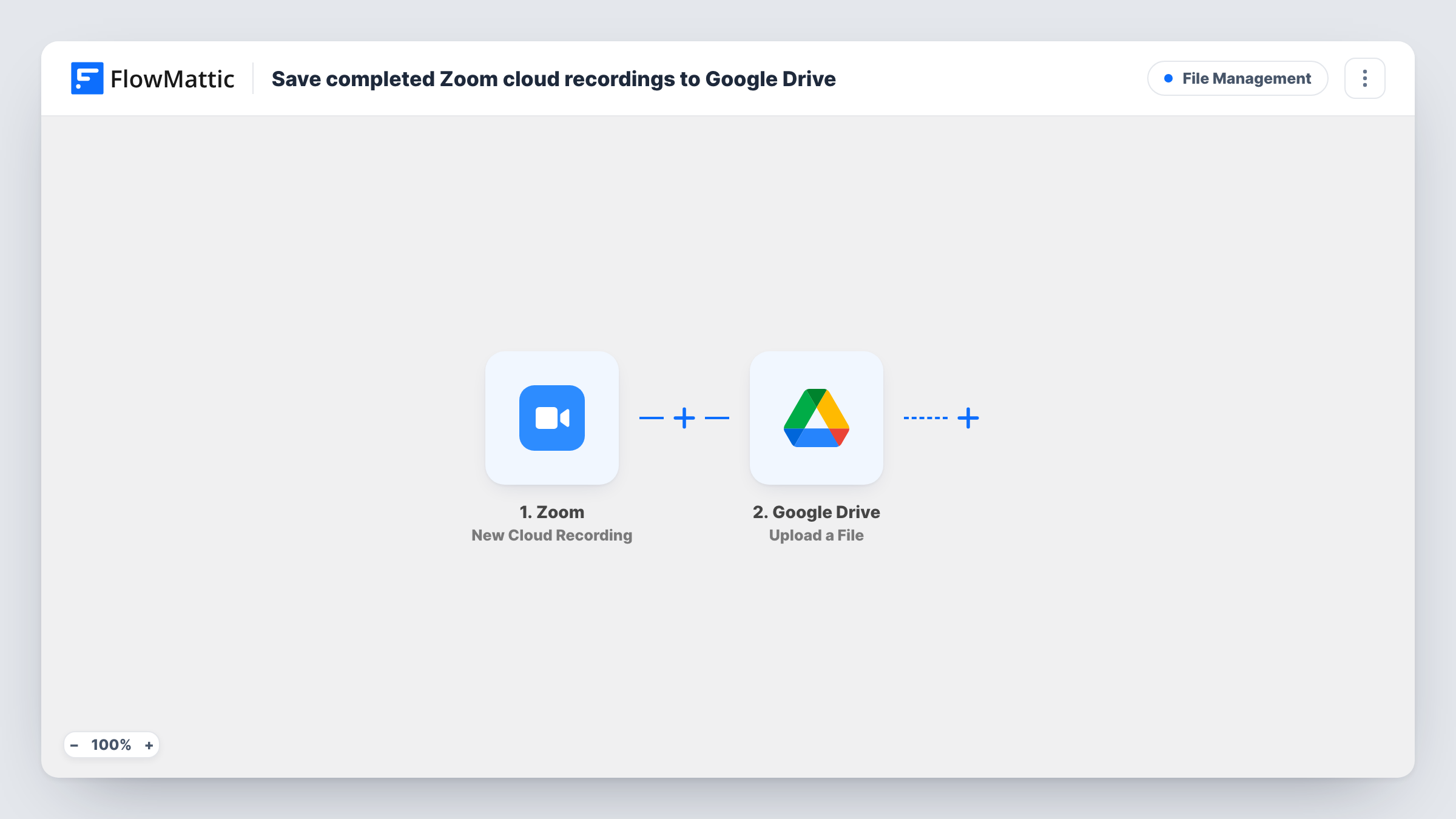
The Zoom trigger fires when a cloud recording is completed for a meeting or webinar. FlowMattic receives the recording details, including the file information Zoom sends. The Google Drive step then uploads a file to the folder you select, using the recording file you map from the trigger.
A Zoom recording can include more than one file, such as video, audio only or a chat log. The template has one upload step, so it saves the file you map into it. The workflow copies the recording and leaves the original in Zoom. After import, record a short test meeting and check that the file in Drive opens and plays before you rely on it.
Training sessions for new staff
Recorded onboarding calls are uploaded to a shared Drive folder, so new hires can watch them without needing access to the host's Zoom account.
Client meeting archive
An agency keeps every recorded client call in Drive, next to the project files for that client.
Webinar replays
Recorded webinars land in Drive, where your marketing team picks them up to edit or share as replays.
How this workflow runs
What happens at each step once the workflow is on, and what you need before you import it.
 Zoom New Cloud Recording
Fires when Zoom completes a cloud recording for a meeting or webinar. The recording details and file information become available for mapping.
- Google Drive Upload a File
Uploads a file to your chosen Google Drive folder. Connect your Google account and map the recording file from the Zoom trigger as the file to upload.
What you need
- FlowMatticCore
- Zoom AccountAccount
- Google Drive AccountAccount
After importing, map your own data. To keep the template universal, not every step is pre-filled. Open each step in the builder and connect your accounts and fields (channels, lists, sheets, recipients) before you switch the workflow on.
Make it yours
Changes worth making after you import it.
- To pass each recording on, add a Google Drive Share File step after the upload and map the uploaded file from the previous step. Test it on one recording first.
- Add a Filter after the trigger that checks the meeting topic, so only certain series, such as webinars or team trainings, are copied to Drive.
- Add a second Upload a File step if you also want the audio-only file or the chat log, mapping that file from the same Zoom trigger.
Questions about this workflow
Does this delete Zoom cloud recordings after the upload to Google Drive?
No. Drive receives a copy of the recording file. The recording stays in your Zoom account until you remove it there.
Which Zoom recording file is saved to Google Drive?
The one you map in the Upload a File step. Zoom can send several files for one recording, so pick the one you want, such as the video, and add more upload steps for others.
Do I need Zoom cloud recording turned on?
Yes. The trigger fires on completed cloud recordings, so meetings recorded only to a local computer do not start the workflow.
Are Zoom recordings made before I import this copied to Google Drive?
No. Only cloud recordings completed after the workflow is turned on are uploaded.
More File Management workflows
Other ready-to-import templates from the same category.






Import this workflow into your WordPress site
Download the JSON, import it from the Workflows screen and connect your accounts. Every run stays on your server, with no per-task fees.
30-day money-back guarantee Unlimited workflows and runs Self-hosted