

Send a confirmation email via Gmail when a Zcal event is created
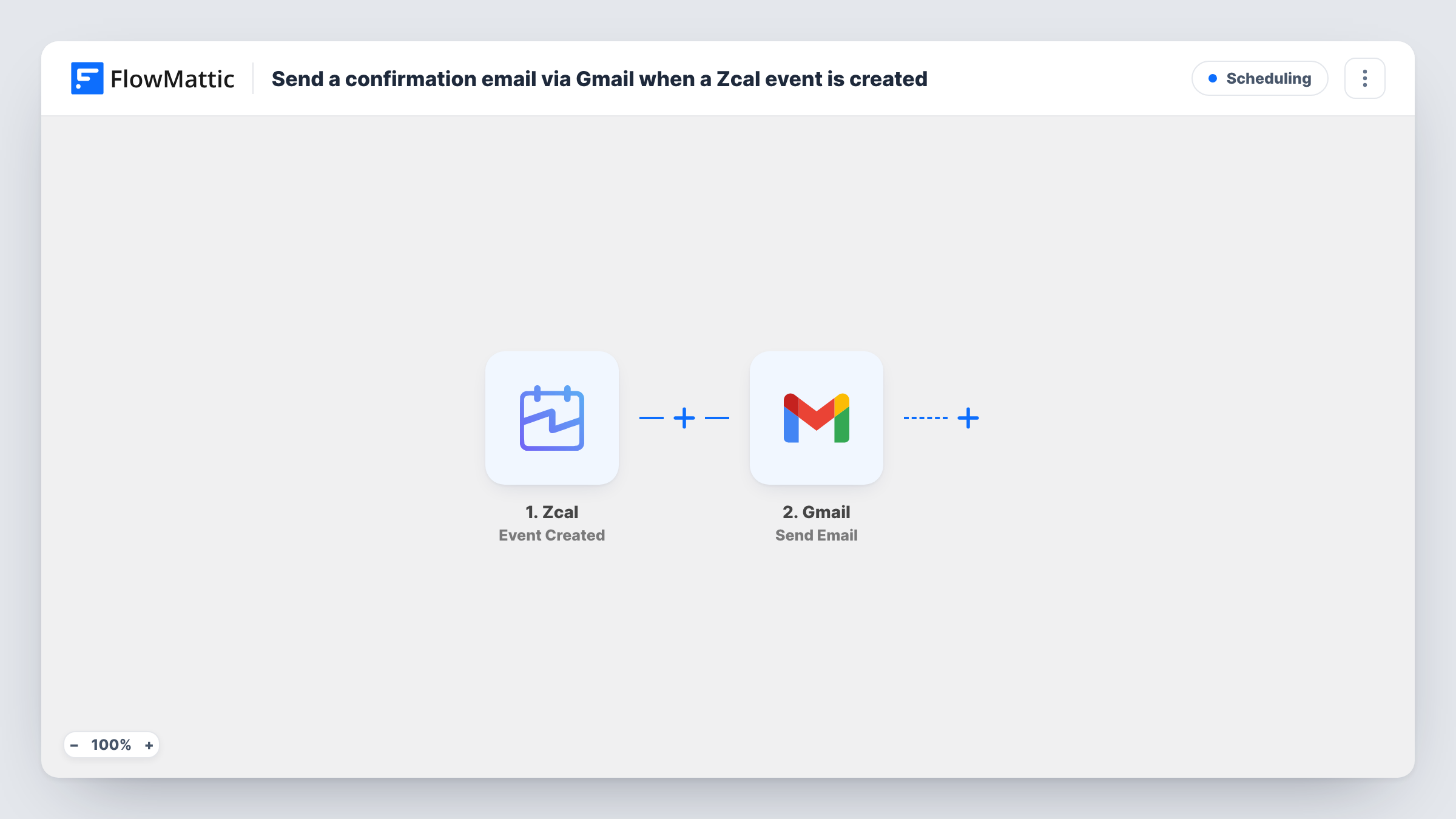
When someone books a meeting and a Zcal event is created, this workflow sends a confirmation email from your Gmail account, written your way and with the booking details you choose.
 Zcal
 Gmail
2 steps Setup ~5 min Used on 618 sites Free to import
What this workflow does
A booking confirmation is a chance to say things your scheduling tool's default message doesn't: what to prepare, where to park, who else will join. This workflow sends your own confirmation from Gmail each time a Zcal event is created.
The Zcal trigger fires when an event is created. FlowMattic receives the event data Zcal sends and passes it to Gmail. The Send Email step sends a message from the Google account you connect. You set the recipient, usually the invitee's email if Zcal includes it, and write the subject and body with booking details mapped in.
The workflow sends one email per created event. Reschedules and cancellations don't trigger it. Nothing in your Zcal account is changed by it. Task History shows each run and the email that went out.
Consultants with a preparation checklist
A business coach adds a short list of questions to think about before the first call, so each person who books arrives ready.
In-person appointments
A physiotherapy clinic books through Zcal and sends directions, parking notes and what to wear in a branded Gmail message.
Sales demos with a team member copied
Each new demo booking sends the prospect a confirmation that names the account executive running the call and links to your product overview.
How this workflow runs
What happens at each step once the workflow is on, and what you need before you import it.
 Zcal Event Created
Starts whenever a meeting lands on your Zcal calendar as a newly created event. The event data, such as invitee and time where Zcal sends them, is passed on. Run a test booking to see the fields.
- Gmail Send Email
Sends your confirmation from the Gmail account you connect. Map the invitee's email from Zcal as the recipient and add the booking details to the message.
What you need
- FlowMatticCore
- Zcal AccountAccount
- Gmail AccountAccount
After importing, map your own data. To keep the template universal, not every step is pre-filled. Open each step in the builder and connect your accounts and fields (channels, lists, sheets, recipients) before you switch the workflow on.
Make it yours
Changes worth making after you import it.
- Zcal also has Event Rescheduled and Event Cancelled triggers. Import copies of this workflow with those triggers to email the invitee about changes.
- Make a test booking on your own Zcal link after import, then map the fields it captures before switching the workflow on.
- To follow up later, add a Delay after the Gmail step and then a second Gmail step with your follow-up note.
Questions about this workflow
Does Zcal still send its own booking confirmation?
This workflow leaves Zcal untouched, so any email Zcal already sends still goes out alongside yours. Check your Zcal settings if you want invitees to receive only the Gmail message.
Is a confirmation sent when a Zcal event is rescheduled?
No. The trigger is Event Created. Use Zcal's Event Rescheduled trigger in a second workflow for rescheduled meetings.
Which address does the Zcal confirmation come from?
From the Google account you link to the Gmail step, so replies come back to that inbox.
Will meetings booked before I turn this on get an email?
No. Only Zcal events created after activation start a run.
More Scheduling workflows
Other ready-to-import templates from the same category.





Import this workflow into your WordPress site
Download the JSON, import it from the Workflows screen and connect your accounts. Every run stays on your server, with no per-task fees.
30-day money-back guarantee Unlimited workflows and runs Self-hosted