

Send a Slack alert when a Dixa conversation is assigned to an agent
Post a Slack channel message each time a Dixa conversation is assigned to an agent, with the conversation details you choose, so your support team can see who has picked up which customer.
 Dixa
 Slack
2 steps Setup ~5 min Used on 484 sites Free to import
What this workflow does
In a busy support queue, it helps to see who has taken which conversation without opening Dixa. Team leads use that to spot gaps, and agents use it to avoid stepping on each other. This workflow posts each assignment to Slack.
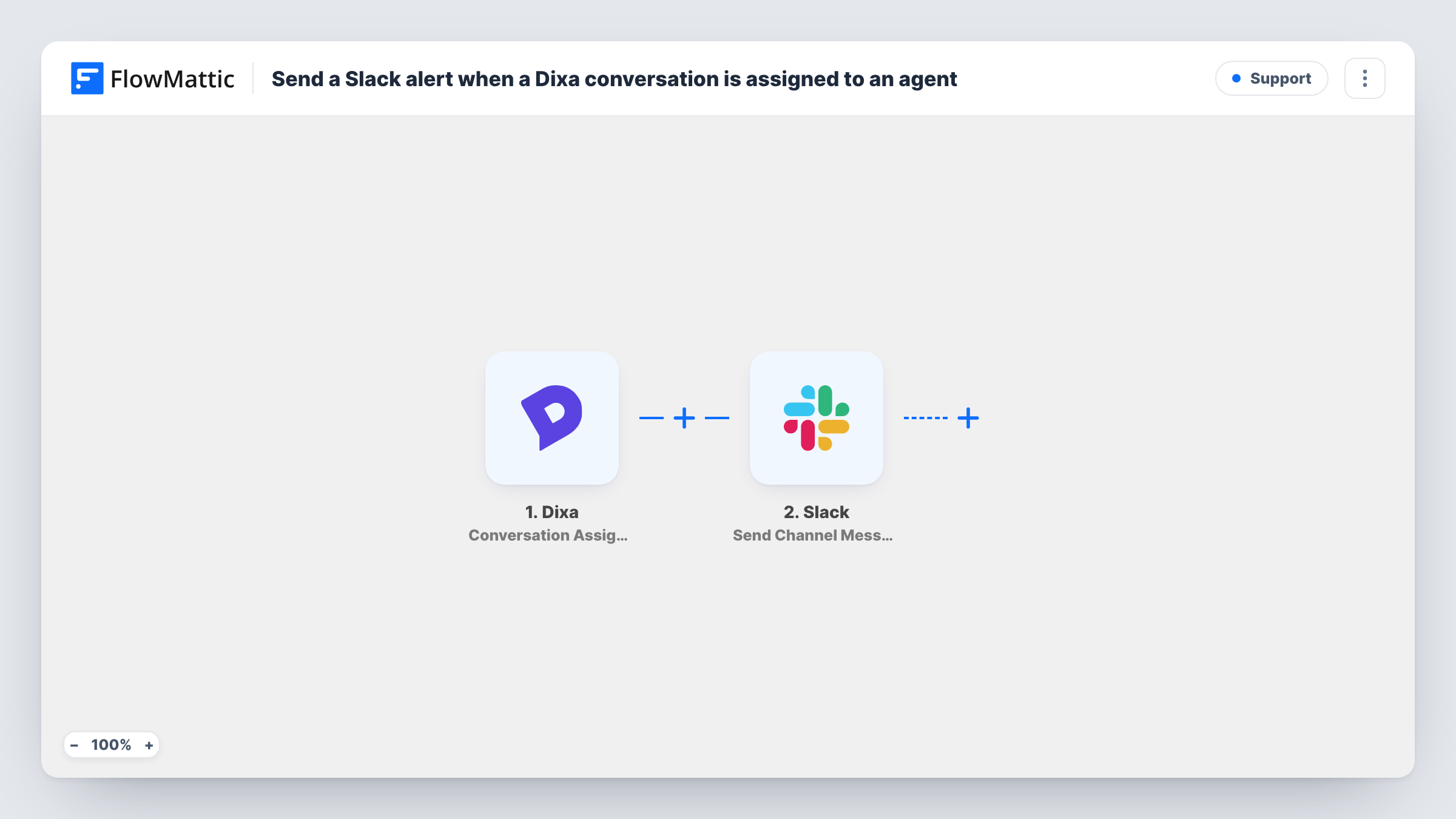
The Dixa trigger fires when a conversation gets assigned to an agent. FlowMattic passes the assignment data to Slack, and Send Channel Message posts in the channel you pick. Compose the text from the details Dixa sends, such as the agent and the conversation, so the post says who has what.
Every assignment posts once, including reassignments if Dixa reports them as assignments. Task History lists the messages sent and Slack's reply to each.
Team lead overview
A support lead keeps the Slack channel open and sees each Dixa assignment as it happens, so they know who is busy.
Handover between shifts
The outgoing shift reads the Slack channel to see which conversations were assigned and to whom before handing over.
Small team without a wallboard
A small support team has no dashboard on the wall. The Slack channel serves as a simple feed of Dixa assignments.
How this workflow runs
What happens at each step once the workflow is on, and what you need before you import it.
 Dixa Conversation Assigned
Fires when a Dixa conversation gets assigned to an agent. The assignment details are passed on to place in the Slack message.
- Slack Send Channel Message
Posts the assignment notice in the Slack channel you set. Write the message and add Dixa details such as the agent and the conversation.
What you need
- FlowMatticCore
- Dixa AccountAccount
- Slack AccountAccount
After importing, map your own data. To keep the template universal, not every step is pre-filled. Open each step in the builder and connect your accounts and fields (channels, lists, sheets, recipients) before you switch the workflow on.
Make it yours
Changes worth making after you import it.
- Add the conversation's link to the message if the Dixa data includes it, so a lead can open the conversation from Slack.
- Use a separate Slack channel for these notices, so assignments do not bury other team discussion.
- Assign a test conversation in Dixa after import so FlowMattic captures real data, then build the Slack text from it.
Questions about this workflow
Does every Dixa assignment post to Slack?
Yes, as imported. Each assignment event starts a run and sends one message. Insert a Filter after the Dixa trigger if only some assignments should reach Slack.
Can the Slack message name the Dixa agent?
Yes, if the assignment data includes the agent. Run a test assignment to see the fields Dixa sends, then add the agent to the text.
Does the workflow change anything in Dixa?
No. It reads the assignment and posts to Slack. The conversation in Dixa stays as it is.
More Support workflows
Other ready-to-import templates from the same category.







Import this workflow into your WordPress site
Download the JSON, import it from the Workflows screen and connect your accounts. Every run stays on your server, with no per-task fees.
30-day money-back guarantee Unlimited workflows and runs Self-hosted