

Send a Slack alert when an easybill SEPA payment is created
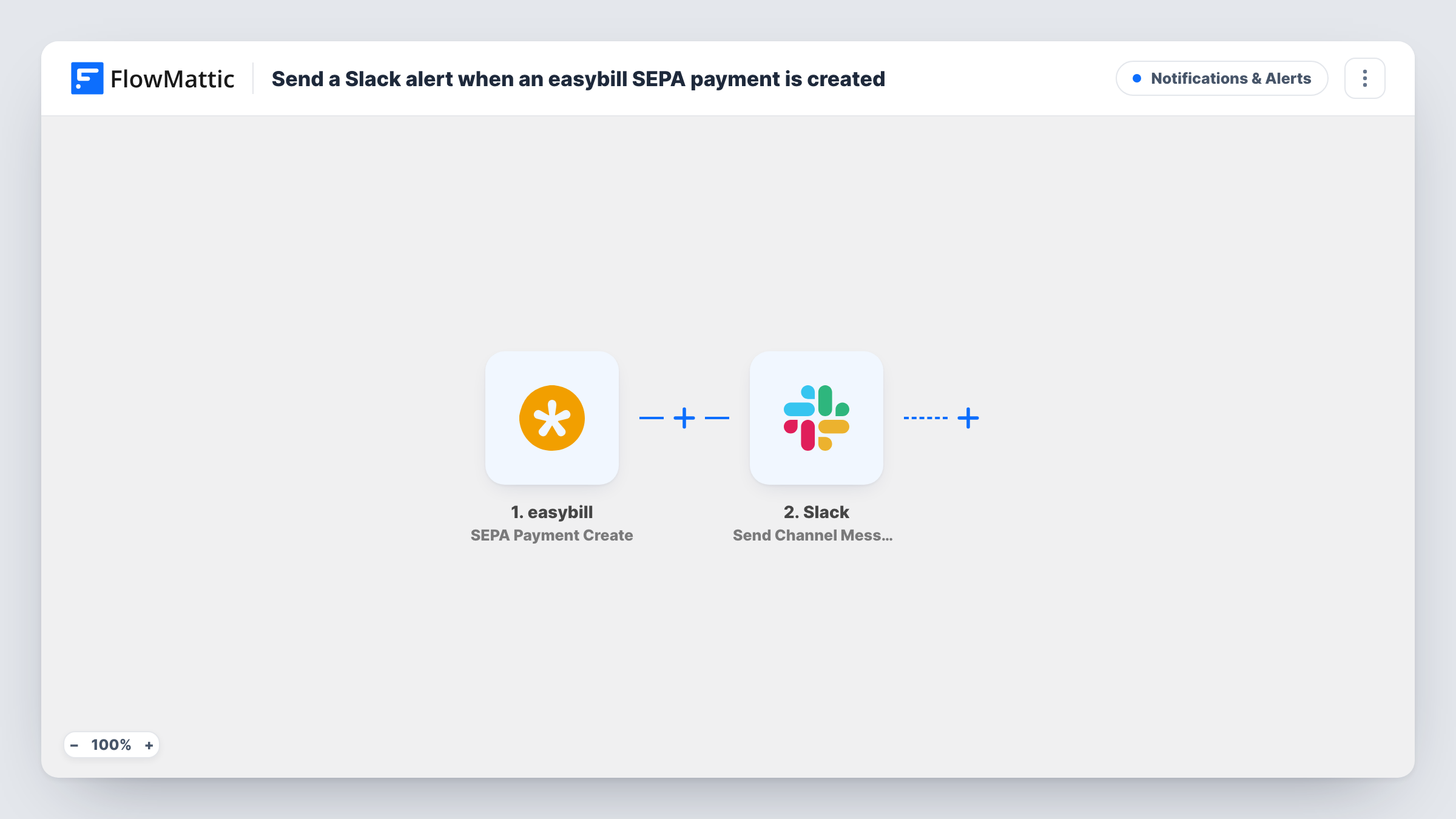
When a new SEPA payment file (SEPA XML) is created in easybill, this workflow posts an alert to a Slack channel, so your finance team knows a payment batch is ready to check.
 easybill
 Slack
2 steps Setup ~5 min Used on 2.2k sites Free to import
What this workflow does
In easybill, SEPA payments are prepared as SEPA XML files that you then pass to your bank. If several people handle billing, it helps to know when a new file has been created, so it is reviewed and submitted on time. This workflow posts that news to Slack.
The easybill trigger fires when a new SEPA XML is created in your easybill account, and the payment data comes into FlowMattic. The Slack step then sends a message to the channel you pick, built from the fields you map.
Each new SEPA XML gives one Slack message, with nothing filtered as imported. The workflow only reports the event; it does not export the file, send it to your bank or change anything in easybill. Task History keeps each run, so you can check whether an alert was posted for a given payment.
Finance channel for a small company
Whoever prepares SEPA payments in easybill doesn't have to tell the team. The #finance channel shows each new payment file as it is created.
Four-eyes check before submission
A second person reviews every SEPA file before it goes to the bank. The Slack alert tells them a file is waiting.
Bookkeeper working for several clients
A bookkeeper keeps one Slack channel per client and sees when each client's easybill account gets a new SEPA payment file.
How this workflow runs
What happens at each step once the workflow is on, and what you need before you import it.
 easybill SEPA Payment Create
Starts a run when a new SEPA XML is created in your easybill account. The payment's data is passed on for the Slack message.
- Slack Send Channel Message
Posts news of the new SEPA file into a Slack channel of your choosing. Build the message from the easybill payment fields, and connect your Slack workspace after import.
What you need
- FlowMatticCore
- easybill AccountAccount
- Slack AccountAccount
After importing, map your own data. To keep the template universal, not every step is pre-filled. Open each step in the builder and connect your accounts and fields (channels, lists, sheets, recipients) before you switch the workflow on.
Make it yours
Changes worth making after you import it.
- Import a second copy with the easybill SEPA Payment Exported trigger if you also want Slack told when the SEPA XML is exported.
- Post to a channel that only the finance team can read, and map just the payment fields they need to see rather than everything easybill sends.
- Create one SEPA payment in easybill after import and check Task History to see which fields arrive, then map the ones you want in Slack.
Questions about this workflow
Does this send the SEPA file to my bank?
No. The workflow only posts a Slack message when the SEPA XML is created. Exporting and submitting the file are still done in easybill and your bank.
Which easybill event starts the Slack alert?
The SEPA Payment Create trigger, which fires when a new SEPA XML is created in easybill. easybill also has a separate trigger for when that file is exported.
Can the easybill alert go to a private Slack channel?
Pick the channel in the Slack step after import. For a private channel, make sure the connected Slack account can post there, and run a test to confirm.
Do I need an easybill account with API access?
You need an easybill account you can connect to FlowMattic, plus a Slack workspace. Follow the connection prompts after import to link both.
More Notifications & Alerts workflows
Other ready-to-import templates from the same category.




Import this workflow into your WordPress site
Download the JSON, import it from the Workflows screen and connect your accounts. Every run stays on your server, with no per-task fees.
30-day money-back guarantee Unlimited workflows and runs Self-hosted