

Send a Slack notification to the team when a Zcal event is created
Each time an event is created in Zcal, this workflow posts a message to a Slack channel, so your team sees newly scheduled meetings without opening the Zcal calendar.
 Zcal
 Slack
2 steps Setup ~5 min Used on 3.5k sites Free to import
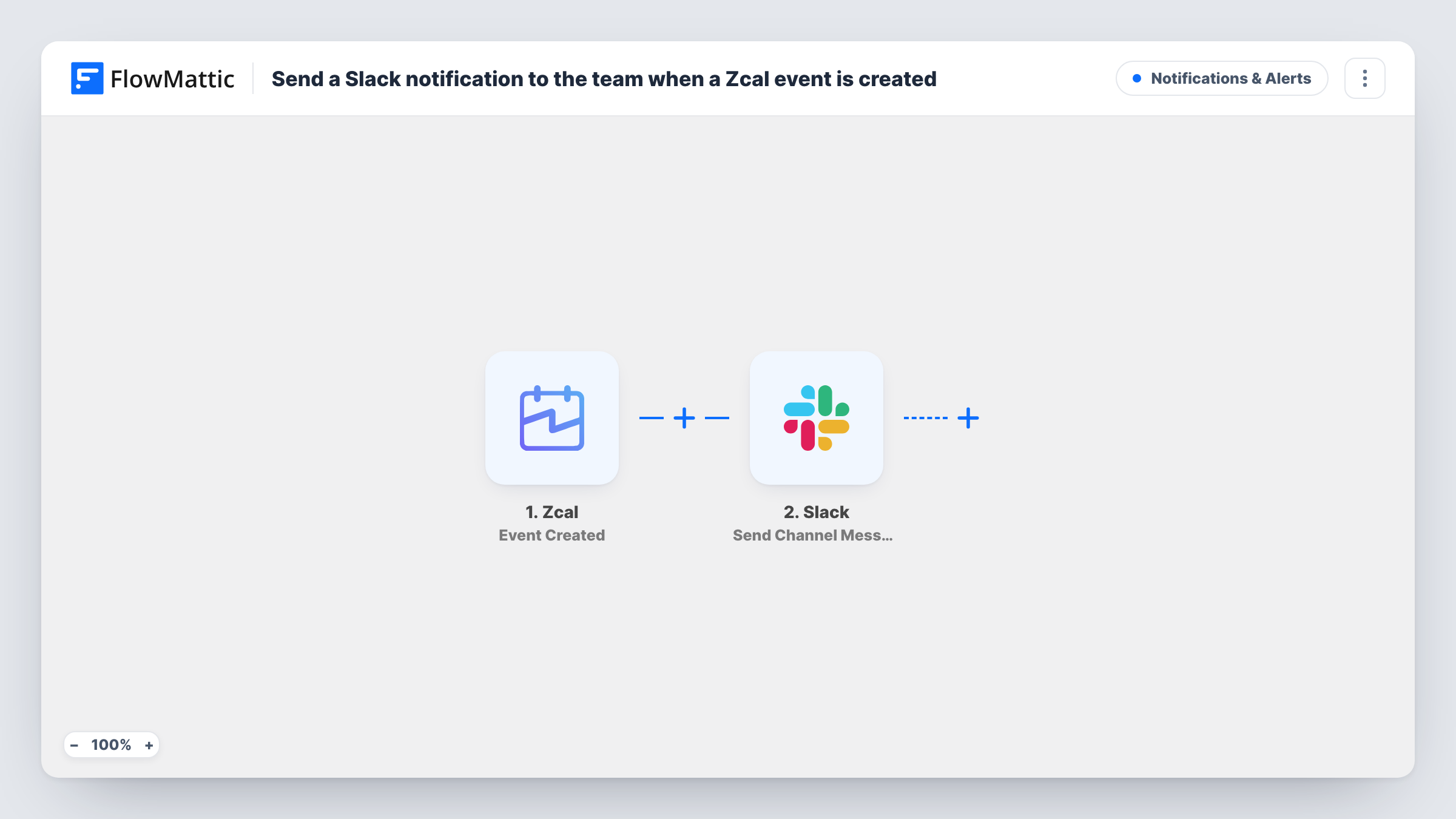
What this workflow does
When meetings are booked through Zcal, the person whose calendar fills up knows about them. The rest of the team, the colleague preparing a demo or the manager watching the pipeline, often doesn't. A Slack post for each new event keeps them informed.
The Zcal Event Created trigger fires when an event is created. FlowMattic passes the event's data to Slack, and Send Channel Message posts in the channel you choose. You write the message and add the event details Zcal provides, such as the time or the invitee.
Only newly created events post. Zcal has separate Event Rescheduled and Event Cancelled triggers in FlowMattic, so changes to an existing meeting don't send a message from this workflow. Task History lists every Zcal event that reached the channel.
Sales team booking board
Every discovery call booked through a rep's Zcal link appears in #sales-meetings, so the team can see the week filling up.
Consultant with an assistant
A consultant's assistant watches a Slack channel to prepare notes for each new Zcal meeting.
Customer success onboarding calls
Onboarding calls booked through Zcal show up in the success team's channel, so whoever is free can join.
How this workflow runs
What happens at each step once the workflow is on, and what you need before you import it.
 Zcal Event Created
Fires when an event is created in your Zcal account. The event's details are passed to Slack for the message.
- Slack Send Channel Message
Posts the new Zcal event to the Slack channel you pick. Connect your workspace, choose the channel and map event details such as the time into the text.
What you need
- FlowMatticCore
- Zcal AccountAccount
- Slack AccountAccount
After importing, map your own data. To keep the template universal, not every step is pre-filled. Open each step in the builder and connect your accounts and fields (channels, lists, sheets, recipients) before you switch the workflow on.
Make it yours
Changes worth making after you import it.
- Book a test meeting through Zcal after import so the trigger captures sample data, then map the fields you want into the Slack message.
- Build two more workflows like this on Zcal's Event Rescheduled and Event Cancelled triggers if the channel should also hear about changes.
- For a private team channel, swap the step for Slack's Send Private Channel Message action.
Questions about this workflow
Will a rescheduled Zcal meeting post again?
Not from this workflow. Rescheduling fires Zcal's Event Rescheduled trigger, which this template doesn't use.
Which details about the Zcal event can the Slack message show?
Any field the Event Created trigger returns. Book a test meeting and look at the captured data to see what Zcal sends.
Are meetings booked before the workflow is on posted to Slack?
No. Zcal meetings that already existed when you switched it on stay out of Slack.
More Notifications & Alerts workflows
Other ready-to-import templates from the same category.




Import this workflow into your WordPress site
Download the JSON, import it from the Workflows screen and connect your accounts. Every run stays on your server, with no per-task fees.
30-day money-back guarantee Unlimited workflows and runs Self-hosted