

Send a Twilio SMS follow-up when an Apptoto participant needs to reschedule
When an Apptoto participant says they need to change their appointment time, this workflow sends them a text message from your Twilio number with your rescheduling details.
 Apptoto
 Twilio
2 steps Setup ~5 min Used on 1.9k sites Free to import
What this workflow does
A client who replies that they can't make it is easy to lose if nobody gets back to them. A quick text with how to rebook keeps the conversation going. This workflow sends that text when Apptoto records the request.
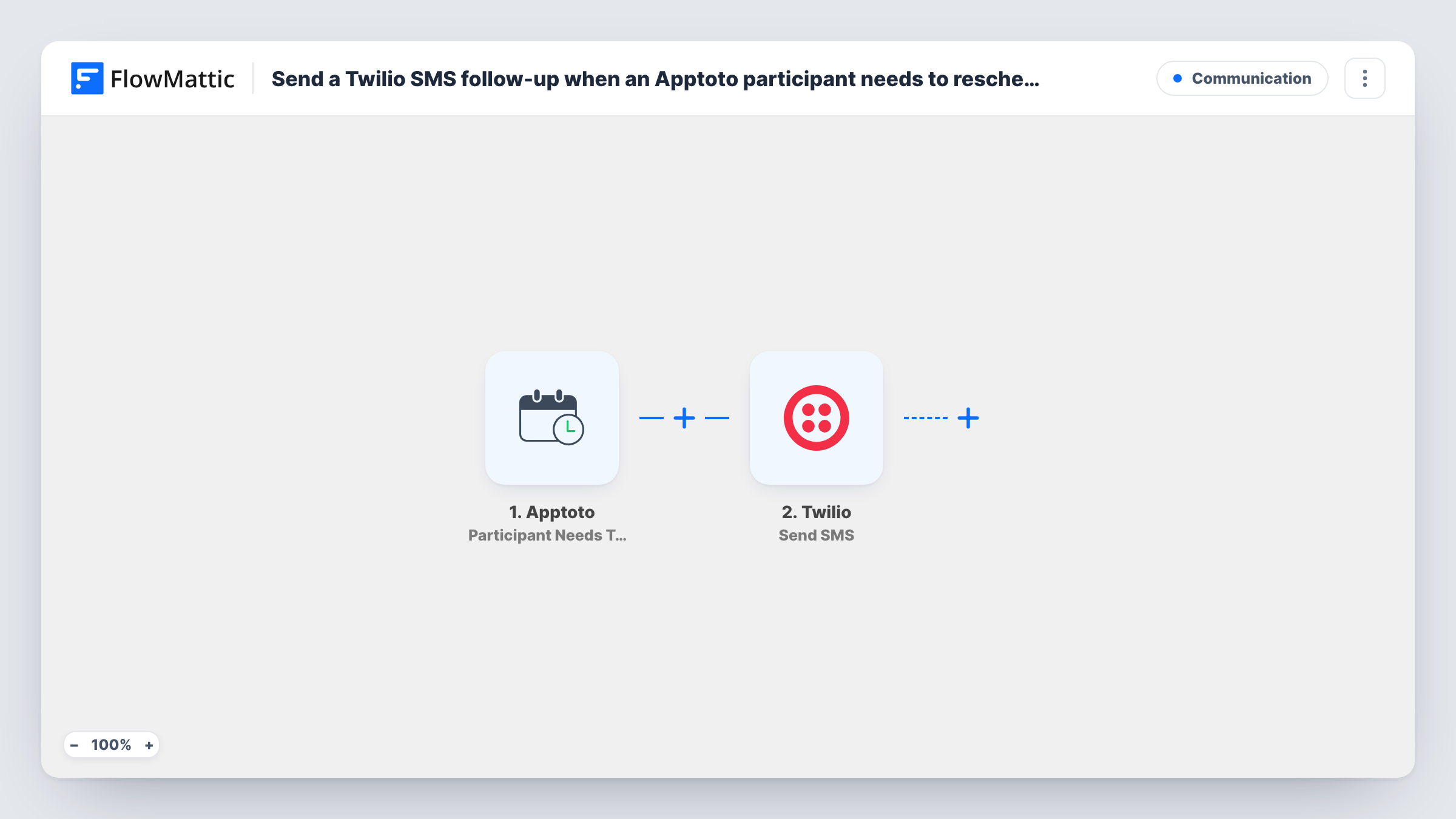
The Apptoto trigger, Participant Needs To Reschedule, fires when a participant indicates they need to change the scheduled time. FlowMattic passes the participant and appointment details to Twilio, where Send SMS sends a text from your Twilio number to the phone number you map.
You write the message, for example with a link to your booking page or a number to call. The template has nothing mapped, so mark a test participant as needing to reschedule after import and use the captured data to set the recipient and text.
The text goes out each time Apptoto reports the request, so a participant who flags the same appointment twice can receive two messages.
A clinic rebooking patients
A patient replies to an Apptoto reminder that they need a new time. They receive a text with the clinic's booking link and phone number.
Personal trainer rebooking
When a client flags a session for rescheduling, they get an SMS asking them to pick a new slot from the trainer's calendar link.
Salon front desk
Clients who ask to move their appointment get a text inviting them to call the salon, so the desk can rebook them.
How this workflow runs
What happens at each step once the workflow is on, and what you need before you import it.
 Apptoto Participant Needs To Reschedule
Fires when a participant indicates in Apptoto that they need to change their appointment time. Their details and the appointment's are passed to Twilio.
- Twilio Send SMS
Sends a text from your Twilio number to the phone number you map from the Apptoto data. Write the message, such as a rebooking link, and connect Twilio.
What you need
- FlowMatticCore
- Apptoto AccountAccount
- Twilio AccountAccount
After importing, map your own data. To keep the template universal, not every step is pre-filled. Open each step in the builder and connect your accounts and fields (channels, lists, sheets, recipients) before you switch the workflow on.
Make it yours
Changes worth making after you import it.
- Use Apptoto's Participant Not Coming trigger in a second workflow if you want a different text for people who won't attend at all.
- Add a Slack or email step after the SMS so your front desk knows a client asked to reschedule.
- Test with your own phone number in Apptoto first, so you can read the text as a client would see it.
Questions about this workflow
Does Apptoto reschedule the appointment for the participant?
No. The trigger only reports that a participant needs a new time. This workflow sends them a text; rebooking happens however you handle it.
Which phone number receives the Twilio SMS?
The one you map from the Apptoto participant data. Run a test after import to see which phone field Apptoto sends.
Does this Apptoto follow-up need its own Twilio number?
Yes. Send SMS sends from a number in your Twilio account, which you connect when you import the workflow.
Can the Apptoto follow-up be a voice call instead of a text?
Yes. Twilio's Call Phone action in FlowMattic calls a number and says a message, so you can swap it in for Send SMS.
More Communication workflows
Other ready-to-import templates from the same category.





Import this workflow into your WordPress site
Download the JSON, import it from the Workflows screen and connect your accounts. Every run stays on your server, with no per-task fees.
30-day money-back guarantee Unlimited workflows and runs Self-hosted