

Send email to new Google Ads lead
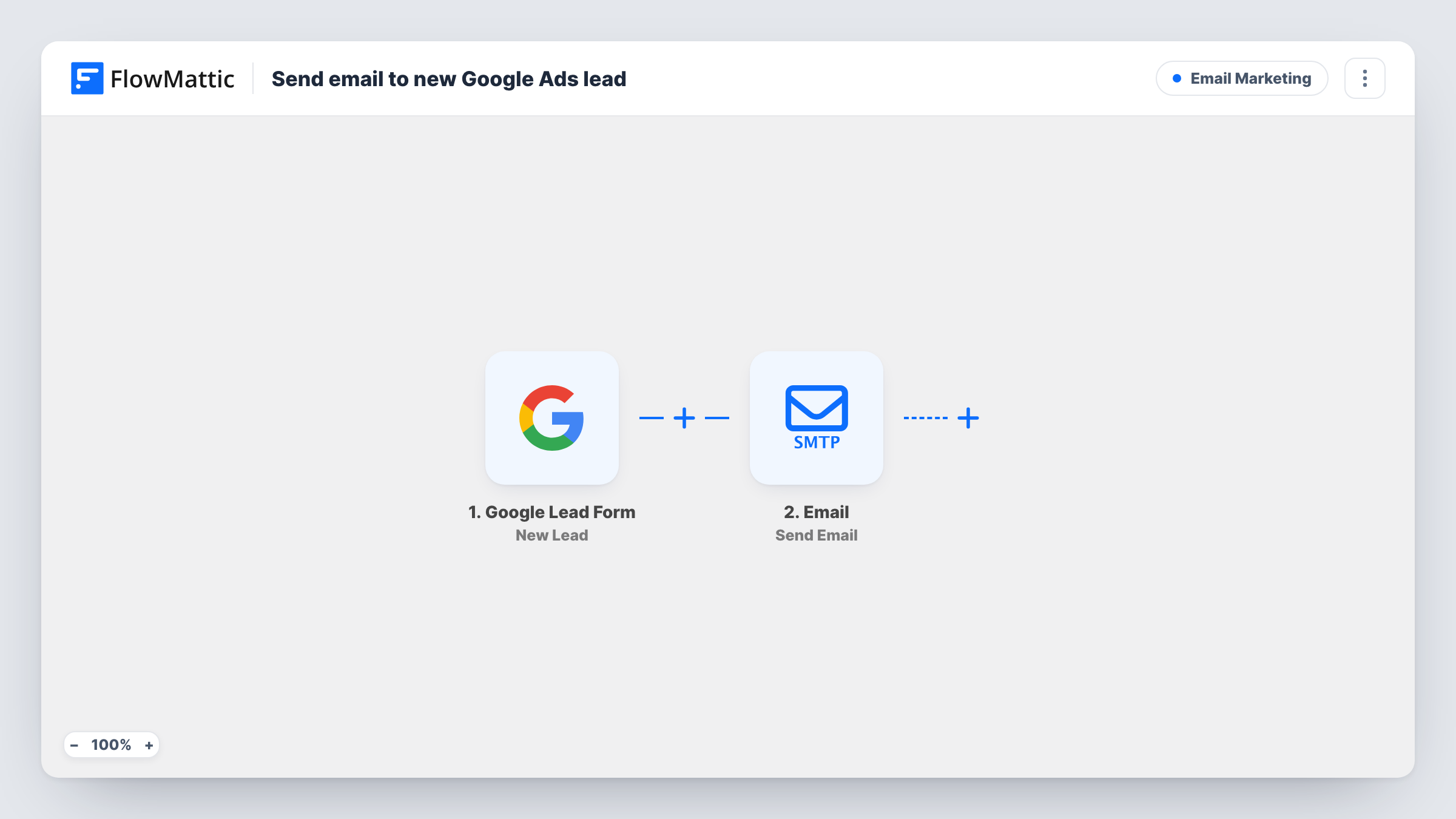
When someone fills in a Google Ads lead form, FlowMattic emails them through WordPress mail or your SMTP account, using the name and details they gave, so every ad lead gets a reply from you.
 Google Lead Form
 Email
Email2 steps Setup ~5 min Used on 863 sites Free to import
What this workflow does
Lead form ads collect contact details without the person ever visiting your site. That is convenient for them, but it means the lead sits in Google Ads until someone downloads it and writes back. This workflow sends each new lead an email from your own address as soon as FlowMattic receives it.
The Google Lead Form trigger fires when a new lead is created. FlowMattic takes the answers from the form and passes them to its Email module. That step sends a message using the built-in WordPress mail function or a custom SMTP account. You write the subject and body, and place lead details such as their name into the text.
Each lead receives one email per run. The template sends nothing else and stores nothing, so if you also want a record of leads, add a step that saves them. Task History lists each run with the lead data and the result of the Email step.
Booking a call after a lead ad
A consultant runs a lead form ad for free strategy calls. Each lead receives an email with a link to the booking page, written in the consultant's own words.
Sending a promised brochure
Your ad offers a price list or brochure in exchange for details. The email carries the download link you put in the message body.
Local service enquiries
A plumber's ad asks for a postcode and the job type. The reply thanks the person by name and says when they can expect a phone call.
How this workflow runs
What happens at each step once the workflow is on, and what you need before you import it.
 Google Lead Form New Lead
Fires when a new lead comes in from your Google Ads lead form. The lead's answers become data you can place in the email.
 Email Send Email
Sends the email through FlowMattic's Email module, using WordPress mail or the SMTP account you add. Map the lead's email address as the recipient and write the subject and message.
What you need
- FlowMatticCore
- Google Lead Form AccountAccount
After importing, map your own data. To keep the template universal, not every step is pre-filled. Open each step in the builder and connect your accounts and fields (channels, lists, sheets, recipients) before you switch the workflow on.
Make it yours
Changes worth making after you import it.
- Set up an SMTP account in the Email step if you want the replies to go out through your own mail provider instead of default WordPress mail.
- Add a Google Sheets Add New Row step after the email so you keep a list of every Google Ads lead alongside the replies.
- Use a Router to send different emails by the answer to one of your lead form questions, with one Email step per route and conditions that cannot overlap.
Questions about this workflow
Do I need an email service to reply to Google Ads leads?
No. The Email module can send with the built-in WordPress mail function. Adding an SMTP account is optional and configured in the Email step.
Can I send from Gmail instead?
Yes. Enter Gmail's SMTP details in the Email step, or swap the step for the Gmail app's Send Email action in FlowMattic.
Are older Google Ads leads emailed when I turn the workflow on?
No. The trigger fires for new leads, so only people who submit the form after the workflow is active receive the email.
More Email Marketing workflows
Other ready-to-import templates from the same category.






Import this workflow into your WordPress site
Download the JSON, import it from the Workflows screen and connect your accounts. Every run stays on your server, with no per-task fees.
30-day money-back guarantee Unlimited workflows and runs Self-hosted