

Send new Calendly invitees a Google Meet video link
When someone books a meeting through Calendly, FlowMattic creates a new Google Meet meeting space and emails the invitee its join link from your Gmail account.
 Calendly
 Google Meet
 Gmail
3 steps Setup ~5 min Used on 1.6k sites Free to import
What this workflow does
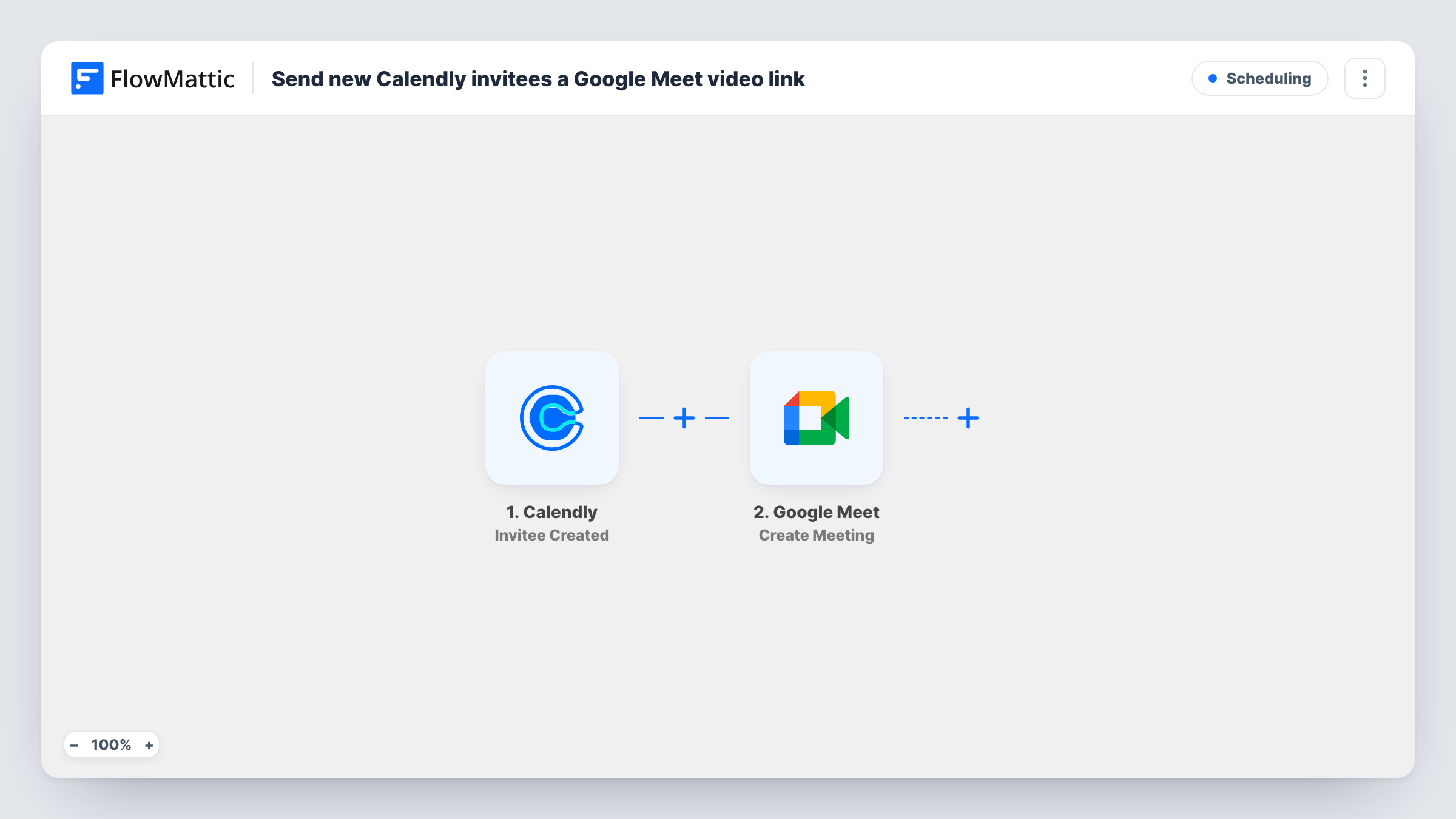
A booking confirmation is only half the job if the guest still has to ask where the call happens. This workflow gives each Calendly booking its own Google Meet room and sends the link to the person who booked, from your own Gmail address.
The Calendly trigger fires when someone books a meeting with you, and passes the invitee's details, such as their name and email, to the next steps.
The Google Meet step creates a fresh meeting space for that booking and returns its join link. It ships unmapped, so you only connect your Google account after import.
The Gmail step sends the email. Its message is already written as "Your Google Meet link:" followed by the link from the Google Meet step. The recipient isn't set, so map the invitee's email from the Calendly trigger, add a subject, and expand the message with the meeting time or your name if you like. The link goes only into this email; the Calendly event itself isn't changed.
Discovery calls for a consultant
A consultant takes discovery calls through Calendly and wants every client to receive a Google Meet link from their own Gmail address after booking.
Separate rooms for each interview
A hiring manager gives each candidate who books an interview slot a Meet room of their own instead of reusing one standing link.
Tutoring sessions booked online
A tutor lets students pick a time in Calendly, and each student gets an email with the video link for that lesson.
How this workflow runs
What happens at each step once the workflow is on, and what you need before you import it.
 Calendly Invitee Created
Starts a run for each new Calendly booking. The invitee's name, email and booking details are passed to the Google Meet and Gmail steps.
- Google Meet Create Meeting
Creates a new Google Meet meeting space for the booking and returns its join link. Link FlowMattic to your Google account once imported; the join link is already mapped into the email in the next step.
- Gmail Send Email
Sends an email from your Gmail account with the text "Your Google Meet link:" and the link from the previous step. Map the invitee's email from Calendly as the recipient and write a subject before you turn it on.
What you need
- FlowMatticCore
- Calendly AccountAccount
- Google Meet AccountAccount
- Gmail AccountAccount
After importing, map your own data. To keep the template universal, not every step is pre-filled. Open each step in the builder and connect your accounts and fields (channels, lists, sheets, recipients) before you switch the workflow on.
Make it yours
Changes worth making after you import it.
- Add the booking's start time and event name from the Calendly trigger to the Gmail message, so the invitee sees when to join as well as where.
- Copy yourself on the Gmail step, or add a second Send Email step after it addressed to you, so you also have the Meet link for each booking.
- If only one event type should use Google Meet, put a Filter between the Calendly trigger and the Google Meet step that checks the event type name, so other bookings don't create rooms.
Questions about this workflow
Is the Google Meet link added to the Calendly event?
No. The link is created by FlowMattic and sent in the Gmail email only. The booking in Calendly and its confirmation keep whatever location you set there.
Does every Calendly booking get its own Meet room?
Yes. Each booking starts a run, and each run creates a new Google Meet meeting space, so invitees don't share a link.
Who receives the Gmail email as imported?
Nobody yet. Only the message text is filled in, so map the invitee's email from the Calendly trigger as the recipient and add a subject after import.
Do I need a Google Workspace account for the Google Meet step?
You need a Google account that can create Google Meet meetings, connected to FlowMattic. Run a test booking and check Task History to see the meeting space the step returned.
More Scheduling workflows
Other ready-to-import templates from the same category.






Import this workflow into your WordPress site
Download the JSON, import it from the Workflows screen and connect your accounts. Every run stays on your server, with no per-task fees.
30-day money-back guarantee Unlimited workflows and runs Self-hosted