

Store completed Zoho Sign PDFs in Dropbox after document completion
Once every recipient has signed or approved a Zoho Sign document, FlowMattic fetches the signed PDF and uploads it to the Dropbox folder you choose.
 Zoho Sign
 Dropbox
3 steps Setup ~5 min Used on 1.8k sites Free to import
What this workflow does
Signed contracts are easy to lose when they only live in an email notification or inside the signing tool. This workflow files a copy of each completed Zoho Sign document in Dropbox, where it sits next to the rest of your client or project files.
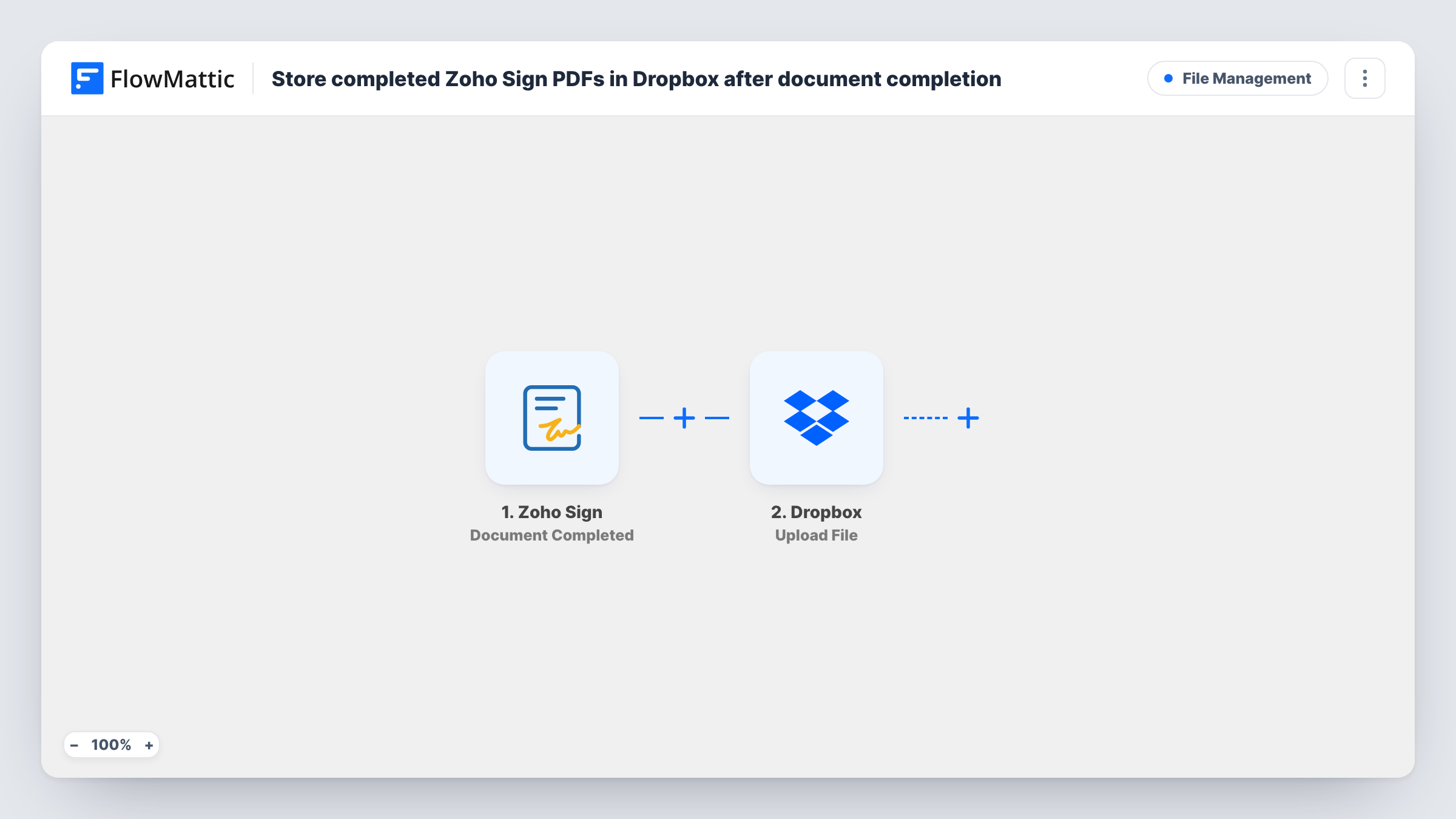
The Zoho Sign Document Completed trigger fires when a document has been fully signed and approved by all of its recipients. Documents that are only partly signed, declined or expired don't start a run.
A second Zoho Sign step, Download Signed Document, then fetches the signed PDF for that completed request. It ships unmapped: after import, map the request from the trigger into it so Zoho Sign knows which document to return.
The final step uploads the file to Dropbox. You connect your Dropbox account, choose where the file goes and map the PDF from the download step, along with a file name. Using the document name or the signer's name in the file name keeps the folder easy to search. Send yourself a test document, sign it, and check Task History to see what each step returned before you rely on it.
Contract archive for a consultancy
A consultancy keeps every signed client agreement from Zoho Sign in a shared Dropbox folder that partners and the accountant can open.
HR onboarding paperwork
An HR team sends offer letters and policy acknowledgements through Zoho Sign and stores the completed PDFs in Dropbox for the personnel file.
Signed leases for a property manager
A letting agent files each fully signed lease in Dropbox as soon as the last tenant signs, ready to send to landlords.
How this workflow runs
What happens at each step once the workflow is on, and what you need before you import it.
 Zoho Sign Document Completed
Fires when a Zoho Sign document is completely signed and approved by all recipients. The details of the completed request are passed to the download step.
- Zoho Sign Download Signed Document
Fetches the signed PDF for the completed request. The template leaves this step unmapped, so map the request from the Zoho Sign trigger into it after import.
- Dropbox Upload File
Uploads the signed PDF to Dropbox. After import, connect your account, choose the destination and map the file from the download step plus a file name.
What you need
- FlowMatticCore
- Zoho Sign AccountAccount
- Dropbox AccountAccount
After importing, map your own data. To keep the template universal, not every step is pre-filled. Open each step in the builder and connect your accounts and fields (channels, lists, sheets, recipients) before you switch the workflow on.
Make it yours
Changes worth making after you import it.
- Build the Dropbox file name from the document name and the completion date, so two contracts with the same title don't collide.
- Add Zoho Sign's Download Completion Certificate action between the download step and the Dropbox step, plus a second Dropbox upload for it, if you keep audit certificates with your contracts.
- Add a Slack or email step after the Dropbox upload to tell the team a new signed file is in the folder.
- To sort files by document type, put a Router between the download step and the Dropbox step, with a condition on the document name for each route and its own upload step to a different folder. Since every matching route runs, pick name checks that no single file passes twice.
Questions about this workflow
Is the PDF saved when only some Zoho Sign recipients have signed?
No. Document Completed fires only after all recipients have signed and approved. FlowMattic's Zoho Sign integration has a separate Document Signed by Recipient trigger if you want a run each time one person signs.
Where in Dropbox do the signed documents end up?
In the location you choose in the Upload File step after import. The template doesn't set a folder, so pick one and map a file name before you turn the workflow on.
Does this save the Zoho Sign completion certificate too?
Not as imported. Only the signed document is fetched. Zoho Sign's Download Completion Certificate action can fetch the certificate, which you can then upload with another Dropbox step.
Will documents signed before I turn this on be copied to Dropbox?
No. Only documents completed while the workflow is active start a run. Download older signed PDFs from Zoho Sign and add them to Dropbox yourself.
More File Management workflows
Other ready-to-import templates from the same category.




Import this workflow into your WordPress site
Download the JSON, import it from the Workflows screen and connect your accounts. Every run stays on your server, with no per-task fees.
30-day money-back guarantee Unlimited workflows and runs Self-hosted