

Tag FluentCRM contacts based on region using ethnicity prediction for new contacts
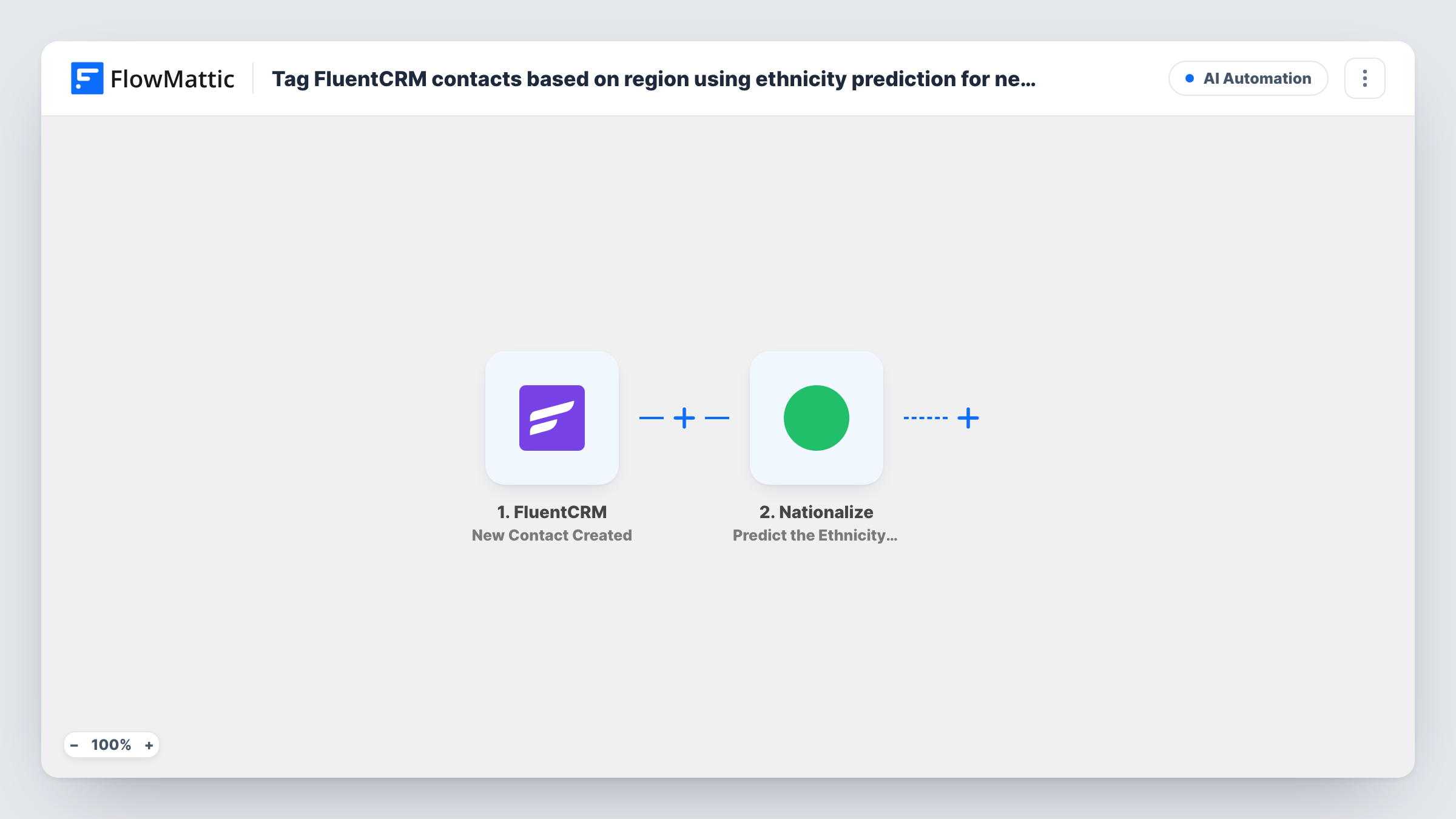
When a contact is created in FluentCRM, Nationalize guesses the most likely country for their first name and a Router tags the contact as India, United States or another region.
 FluentCRM
 Nationalize
 Router
6 steps Setup ~12 min Used on 1.9k sites Free to import
What this workflow does
If your audience is concentrated in a couple of countries, it helps to know roughly which group a new contact may belong to, for send times, currency or which webinar to invite them to. FluentCRM often only has a name and email at sign-up. This workflow adds a region tag using Nationalize's guess from the contact's first name.
The FluentCRM New Contact Created trigger fires when a contact is added. The Nationalize step sends the contact's first name and returns the countries that name is most common in, ranked by likelihood.
A Router then reads the top country code. The India route matches when it is exactly IN, the United States route when it is exactly US, and the Other regions route when it is neither. Those conditions can't overlap, so each contact follows one route and gets one tag. A contact with no prediction also lands in Other regions.
Each route ends in FluentCRM Add Tags to Contact, already matched to the contact's email. You choose the tag for each route after import. Check one test contact in Task History to confirm the Nationalize result holds the top country under the name the routes read. The guess comes from the name alone, so treat the tag as a hint rather than a fact.
Send times for two main markets
A SaaS company with customers mostly in India and the US schedules FluentCRM campaigns by tag, so each group gets email in its own morning.
Pricing pages in the right currency
A course seller links tagged India contacts to a rupee pricing page and US contacts to a dollar page in their welcome emails, and sends everyone else a general page.
Regional webinar invitations
An agency runs separate webinars for Indian and American time zones and invites each tag group to the session that fits.
How this workflow runs
What happens at each step once the workflow is on, and what you need before you import it.
 FluentCRM New Contact Created
Starts a run whenever FluentCRM gains a new contact. That contact's first name and email are passed on to Nationalize and to the three tag steps.
- Nationalize Predict the Ethnicity of a Name
Sends the contact's first name to Nationalize, already mapped in the template. Nationalize returns the countries where the name is most common, with the top country code first.
- Router 3 paths
Checks the top country code from Nationalize. India runs when it is exactly IN, United States when it is exactly US, and Other regions when it is neither, so each contact takes one route.
- FluentCRM Add Tags to Contact
India route. Adds a tag to the contact, matched by the email from the trigger. Pick the tag you use for India contacts, such as Region India, after import.
- FluentCRM Add Tags to Contact
United States route. Tags the same FluentCRM contact by email. Choose your US tag here after import, for example Region US.
- FluentCRM Add Tags to Contact
Other regions route, for every top country code other than IN or US, and for contacts with no prediction. Choose a catch-all tag such as Region Other after import.
What you need
- FlowMatticCore
- FluentCRM PluginPlugin
- Nationalize AccountAccount
After importing, map your own data. To keep the template universal, not every step is pre-filled. Open each step in the builder and connect your accounts and fields (channels, lists, sheets, recipients) before you switch the workflow on.
Make it yours
Changes worth making after you import it.
- Map the contact's full name into the Nationalize step instead of the first name if your forms collect it, since FlowMattic describes the action as working from a last or full name.
- To tag another country, give the existing Router, which sits between the Nationalize step and the tag steps, a fourth route: an exact match on that country code plus its own Add Tags step. Add the code as a third does-not-match condition on Other regions so no two routes match.
- Create the three region tags in FluentCRM before importing, so you can pick them straight away in each Add Tags to Contact step.
Questions about this workflow
Can a FluentCRM contact get more than one region tag?
Not from one run. The Router runs every route whose condition matches, but these three can't match together: exactly IN, exactly US, and neither IN nor US.
What happens when Nationalize has no prediction for a name?
The top country code is empty, which is neither IN nor US, so the contact follows the Other regions route and gets that tag.
Is the region tag reliable?
It is a guess from the first name only. Many names are common in several countries, so the tag will sometimes be wrong. Use it for things like send times, not for decisions that matter to the person.
Are existing FluentCRM contacts tagged too?
No. Only contacts created while the workflow is on start a run. Older contacts keep the tags they already have.
More AI Automation workflows
Other ready-to-import templates from the same category.









Import this workflow into your WordPress site
Download the JSON, import it from the Workflows screen and connect your accounts. Every run stays on your server, with no per-task fees.
30-day money-back guarantee Unlimited workflows and runs Self-hosted