

Upgrade users' membership level in Paid Memberships Pro when new deals are added in HubSpot
When HubSpot posts a new deal to a FlowMattic webhook, FlowMattic finds the WordPress user with the buyer’s email and adds them to the Paid Memberships Pro level you choose.
 Webhook
 WordPress
 Paid Memberships Pro
3 steps Setup ~5 min Used on 1.3k sites Free to import
What this workflow does
When sales close a deal in HubSpot for a membership or a package, the customer still needs the right access on your WordPress site. Doing that by hand means someone has to find the user and change their level. This workflow takes the deal from HubSpot and gives the matching member their new level in Paid Memberships Pro.
FlowMattic has no built-in HubSpot trigger, so the workflow starts with a Webhook. You set up HubSpot to send each new deal to the webhook URL, for example from a HubSpot workflow, and include the contact's email address in the data it sends. The webhook passes whatever HubSpot posts to the next steps.
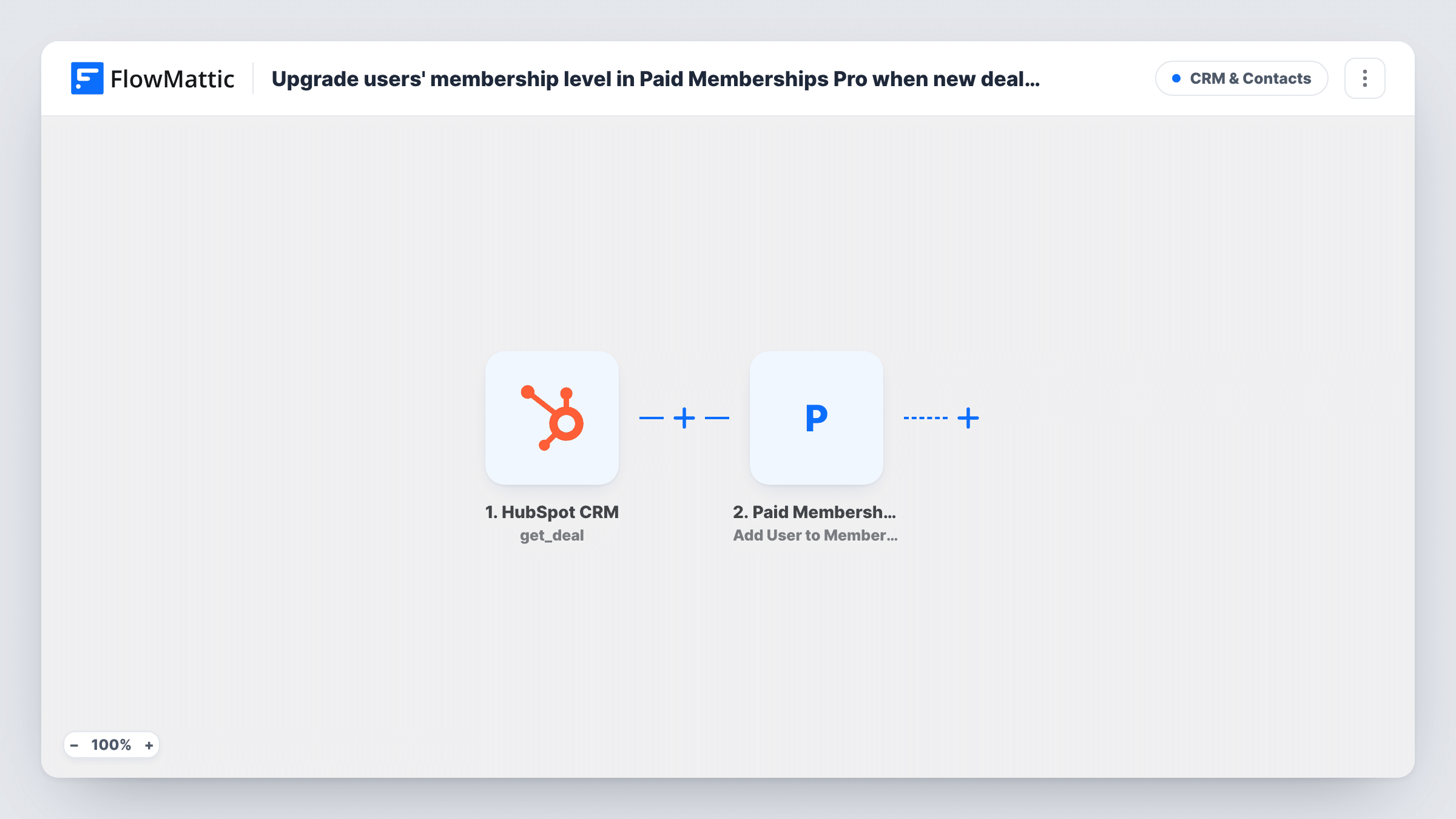
The WordPress step looks up a user by that email, and the Paid Memberships Pro step adds the user it found to a membership level. Both steps ship unmapped: map the email from the webhook data into the lookup, then choose the level and map the user from the lookup into the membership step.
The buyer needs a WordPress account under the same email as their HubSpot contact. If no account matches, the lookup has no user to hand on, and Task History shows what each step returned. Send a test deal for a known user before you rely on it.
Sales-led upgrades to a premium tier
A B2B training site sells its premium tier through a sales rep. When the deal is added in HubSpot, the customer's existing account moves to the premium level.
Corporate packages for existing members
A professional association closes group deals in HubSpot and grants the member who signed the higher membership level on the site.
Manual invoices with automatic access
A consultancy invoices outside the site but tracks every sale as a HubSpot deal, so access to the members-only resources follows the deal instead of an admin task.
How this workflow runs
What happens at each step once the workflow is on, and what you need before you import it.
 Webhook Capture Webhook Response
Receives the deal data that HubSpot sends to this workflow's webhook URL. Set HubSpot to post each new deal here and include the contact's email; turn on the webhook's authentication setting so only HubSpot's requests start runs.
- WordPress Get User by Email
Finds the WordPress user whose account uses a given email address. The step ships unmapped: map the contact email from the HubSpot webhook data, then check a test run to see the user ID it returns.
- Paid Memberships Pro Add User to Membership Level
Adds the user from the lookup to a Paid Memberships Pro membership level. After import, choose the level the deal should grant and map the user found in step 2 into this step.
What you need
- FlowMatticCore
- Paid Memberships Pro PluginPlugin
After importing, map your own data. To keep the template universal, not every step is pre-filled. Open each step in the builder and connect your accounts and fields (channels, lists, sheets, recipients) before you switch the workflow on.
Make it yours
Changes worth making after you import it.
- Put a Filter between the WordPress lookup and the Paid Memberships Pro step that continues only when a user ID came back, so deals for people without an account change nothing.
- If different HubSpot deals grant different levels, send the level or product name in the webhook data and use a Router between the lookup and the membership step. Give each route its own copy of the membership step set to that level, with conditions that can't both match.
- Turn on Require authentication on incoming requests in the Webhook trigger and add the matching key to the request HubSpot sends.
Questions about this workflow
How does HubSpot send new deals to FlowMattic?
FlowMattic's HubSpot CRM integration has actions but no triggers, so HubSpot has to post to the webhook URL. A HubSpot workflow that runs when a deal is created and sends a webhook is one way to do it. Include the contact's email in the data.
What if the HubSpot contact has no WordPress account?
The Get User by Email step finds no user, so there is no one to add to the level. Check Task History for what the lookup returned, and put a Filter between the lookup and the membership step to stop those runs there.
Does the member keep their old Paid Memberships Pro level?
The step adds the user to the level you choose. How that combines with a level they already hold depends on your Paid Memberships Pro setup, so test with a member who has an existing level.
Can this create the WordPress account if it doesn't exist?
Not as imported. You could add WordPress's New User step between the webhook and the lookup, but plan how the person gets their login details before doing so.
More CRM & Contacts workflows
Other ready-to-import templates from the same category.





Import this workflow into your WordPress site
Download the JSON, import it from the Workflows screen and connect your accounts. Every run stays on your server, with no per-task fees.
30-day money-back guarantee Unlimited workflows and runs Self-hosted