

When a Cal.com booking is rescheduled, add the new time to Google Calendar and tell the team
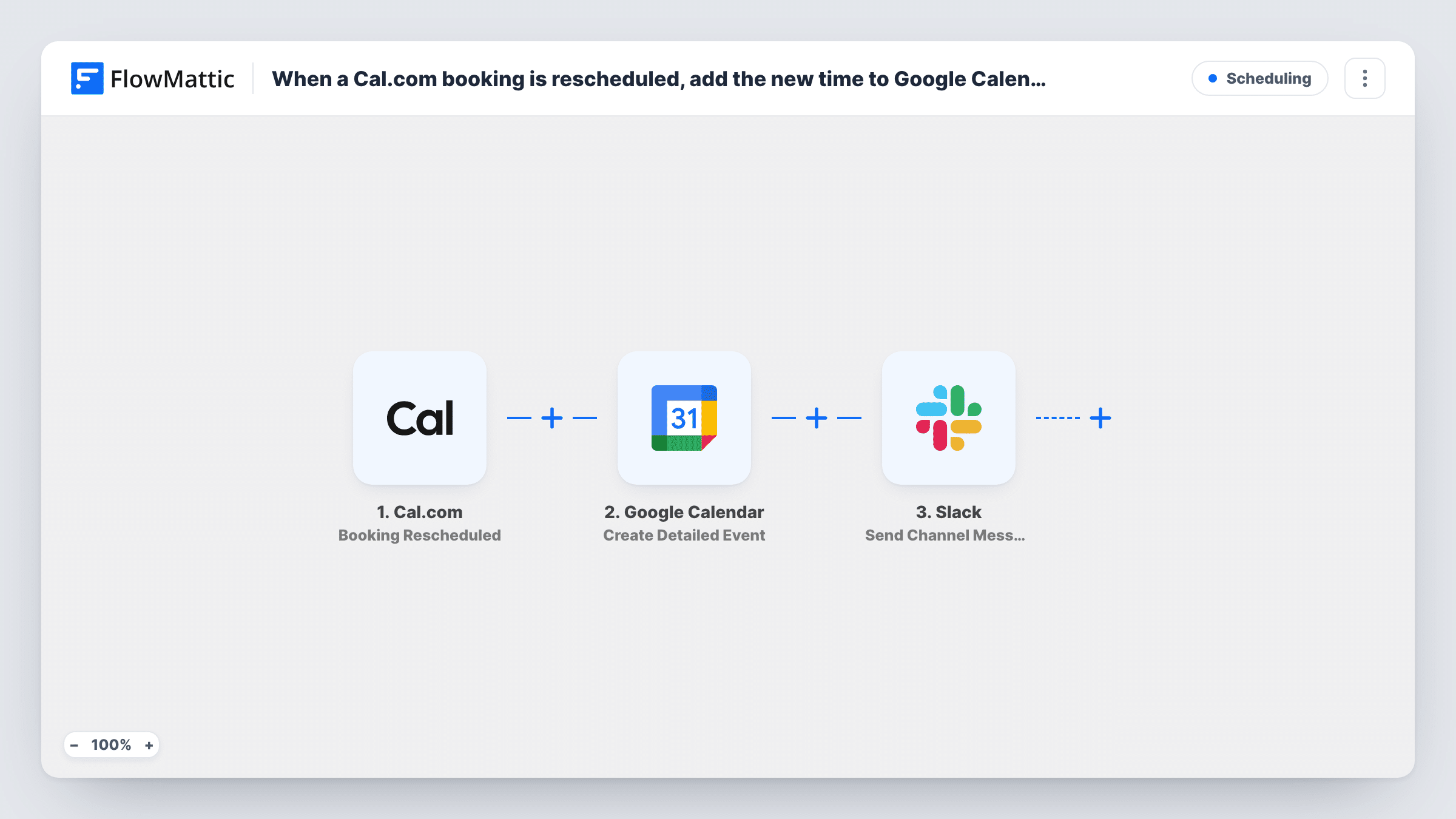
When someone reschedules a Cal.com booking, a Google Calendar event is created for the new time and a Slack channel message tells your team about the change.
 Cal.com
 Google Calendar
 Slack
3 steps Setup ~5 min Used on 1.1k sites Free to import
What this workflow does
A rescheduled meeting is easy to miss when the people who need to know don't watch the booking tool. This workflow puts the new time on a shared Google Calendar and posts a note in Slack, so the team sees the change where they already look.
The Cal.com trigger fires when a booking is rescheduled and passes the booking's details, such as the attendee, the meeting type and the new start and end times. New bookings and cancellations are separate Cal.com triggers and don't start this workflow.
The Google Calendar step then creates a new detailed event. It doesn't move or delete the event for the original time, so if you already log bookings to that calendar, the old entry stays until you remove it. The Slack step posts a message to the channel you choose.
Neither the calendar step nor the Slack step comes mapped. After import you pick the calendar and map the new start and end times, the title and the attendee into the event, then pick the Slack channel and write the message. Reschedule a test booking and open Task History to see what each step returned.
Shared sales calendar
A sales team keeps a Google Calendar of demos. When a prospect moves their Cal.com demo, the new slot appears there and the #sales channel gets a note.
Clinic or studio front desk
Reception staff watch a Slack channel for schedule changes, so a client who reschedules online is expected at the right time.
Interview coordination
Candidates reschedule interviews through Cal.com, and the hiring panel sees the new time in their shared calendar and a message in the recruiting channel.
How this workflow runs
What happens at each step once the workflow is on, and what you need before you import it.
 Cal.com Booking Rescheduled
Fires when a Cal.com booking is rescheduled. The booking details, including the attendee and the new start and end times, are passed on for the calendar event and the Slack message.
- Google Calendar Create Detailed Event
Creates a new Google Calendar event. The step ships unmapped: pick the calendar and map the new start and end times, a title and the attendee details. The event for the old time is not changed.
- Slack Send Channel Message
Sends a note about the change to a Slack channel of your choice. Write the text after import and map the attendee's name and the new time, so the team can read the change without opening Cal.com.
What you need
- FlowMatticCore
- Cal.com AccountAccount
- Google Calendar AccountAccount
- Slack AccountAccount
After importing, map your own data. To keep the template universal, not every step is pre-filled. Open each step in the builder and connect your accounts and fields (channels, lists, sheets, recipients) before you switch the workflow on.
Make it yours
Changes worth making after you import it.
- Put the Cal.com booking ID or attendee email in the Google Calendar event description, so you can find and delete the entry for the old time.
- Slack's Send Channel Message action isn't meant for private channels; switch to Send Private Channel Message for one of those, or to Send Direct Message to alert a single teammate.
- Map the meeting type into the Slack message, so people can see at a glance which kind of call moved.
Questions about this workflow
Does this remove the original event from Google Calendar?
No. The Create Detailed Event step only adds an event for the new time. Any event you already had for the old slot stays on the calendar until you delete it.
Do new Cal.com bookings or cancellations post to Slack too?
No. The trigger is Booking Rescheduled only. FlowMattic's Cal.com integration also has Booking Created and Booking Cancelled triggers if you want separate workflows for those.
Which Slack channel receives the message about the rescheduled booking?
You choose it when you set up the Slack step after importing. The template doesn't set a channel or message text, so both are yours to choose.
What if the same Cal.com booking is moved twice?
Each reschedule starts its own run, so you get a new calendar event and a new Slack message for every change. The events created for earlier times stay on the calendar until you delete them.
More Scheduling workflows
Other ready-to-import templates from the same category.




Import this workflow into your WordPress site
Download the JSON, import it from the Workflows screen and connect your accounts. Every run stays on your server, with no per-task fees.
30-day money-back guarantee Unlimited workflows and runs Self-hosted