

When a Localazy project is published, create a ClickUp task and notify the team in Slack
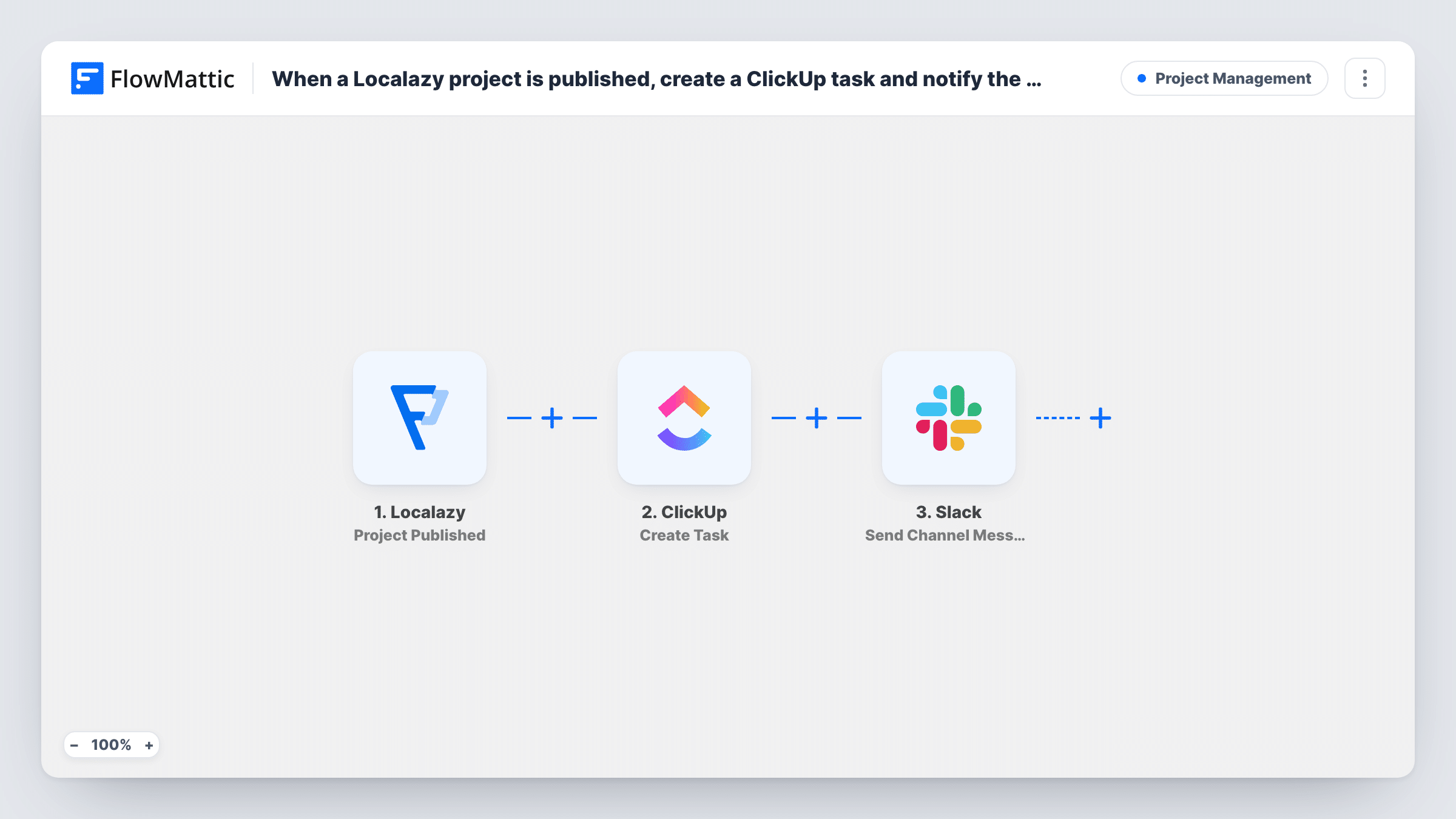
When a Localazy project is published, FlowMattic creates a ClickUp task for the follow-up work and posts a message in a Slack channel, so the release is tracked and your team hears about it.
 Localazy
 ClickUp
 Slack
Slack3 steps Setup ~5 min Used on 1.9k sites Productivity Free to import
What this workflow does
A finished translation release usually means more work: shipping the new strings, checking them in the app, telling support. If that only lives in someone's head, it gets missed. This workflow turns each Localazy publish into a ClickUp task and a Slack post.
The Localazy trigger, Project Published, fires when a project is successfully published. FlowMattic then runs Create Task in ClickUp, in the list you pick, with a name and description you build from the Localazy data. After that, Slack Send Channel Message posts to the channel you choose. Because ClickUp runs first, you can map the new task's details from its response into the Slack text.
Every successful publish runs all three steps. Task History records each run, so you can see what Localazy sent and what ClickUp and Slack returned.
Release checklist for app translations
Each publish creates a ClickUp task to ship the updated strings in the next build, and the mobile team sees the Slack post in their channel.
Website copy updates
When translated marketing pages are published in Localazy, a ClickUp task asks someone to check each language on the live site.
Keeping support informed
The Slack message tells your support channel that new translations are out, so agents know which wording customers now see.
How this workflow runs
What happens at each step once the workflow is on, and what you need before you import it.
 Localazy Project Published
Fires when a project is successfully published in Localazy. The project data from the event is passed on for the ClickUp task and the Slack message.
- ClickUp Create Task
Adds a ClickUp task for the release. Pick the list on import and build the task name and description from the Localazy project data, for example the project name.
- Slack Send Channel Message
Sends a post to the Slack channel you pick. Write the text with the Localazy data and, if you like, the ClickUp task's details from the step before.
What you need
- FlowMatticCore
- Localazy AccountAccount
- ClickUp AccountAccount
- Slack AccountAccount
After importing, map your own data. To keep the template universal, not every step is pre-filled. Open each step in the builder and connect your accounts and fields (channels, lists, sheets, recipients) before you switch the workflow on.
Make it yours
Changes worth making after you import it.
- Map the ClickUp task's link or ID from step 2 into the Slack message, so people can open the task straight from the post. Check a test run to find the field.
- For a private Slack channel, swap in Slack's Send Private Channel Message action, since Send Channel Message is meant for regular channels.
- If you run several Localazy projects but only one needs tasks, add a Filter after the trigger that continues only when the project name matches.
Questions about this workflow
Does every Localazy publish create a ClickUp task?
Yes. The workflow has no Filter, so each successful publish of a connected project creates a task and posts to Slack. A Filter placed after the trigger can limit it to one project.
Can the Slack message link to the new ClickUp task?
Yes, if ClickUp returns the task's link or ID in its response. Run a test, then map that value from the ClickUp step into the Slack message text.
What happens in Slack if ClickUp can't create the task?
The run carries on, so Slack still posts the message. Task History shows the ClickUp error on that step, and any task fields you mapped into Slack will be blank.
Can I send the Slack update to one person instead of a channel?
Yes. Replace the step with Slack's Send Direct Message action and pick the user.
More Project Management workflows
Other ready-to-import templates from the same category.




Import this workflow into your WordPress site
Download the JSON, import it from the Workflows screen and connect your accounts. Every run stays on your server, with no per-task fees.
30-day money-back guarantee Unlimited workflows and runs Self-hosted