

When a Magic Link is clicked, send a follow-up message using WhatsApp Cloud API
When someone clicks a FlowMattic Magic Link, this workflow sends a WhatsApp text message through the WhatsApp Cloud API, using the phone number and details you map from the click data.
 Magic Link
 WhatsApp Cloud API
2 steps Setup ~5 min Used on 1.4k sites Free to import
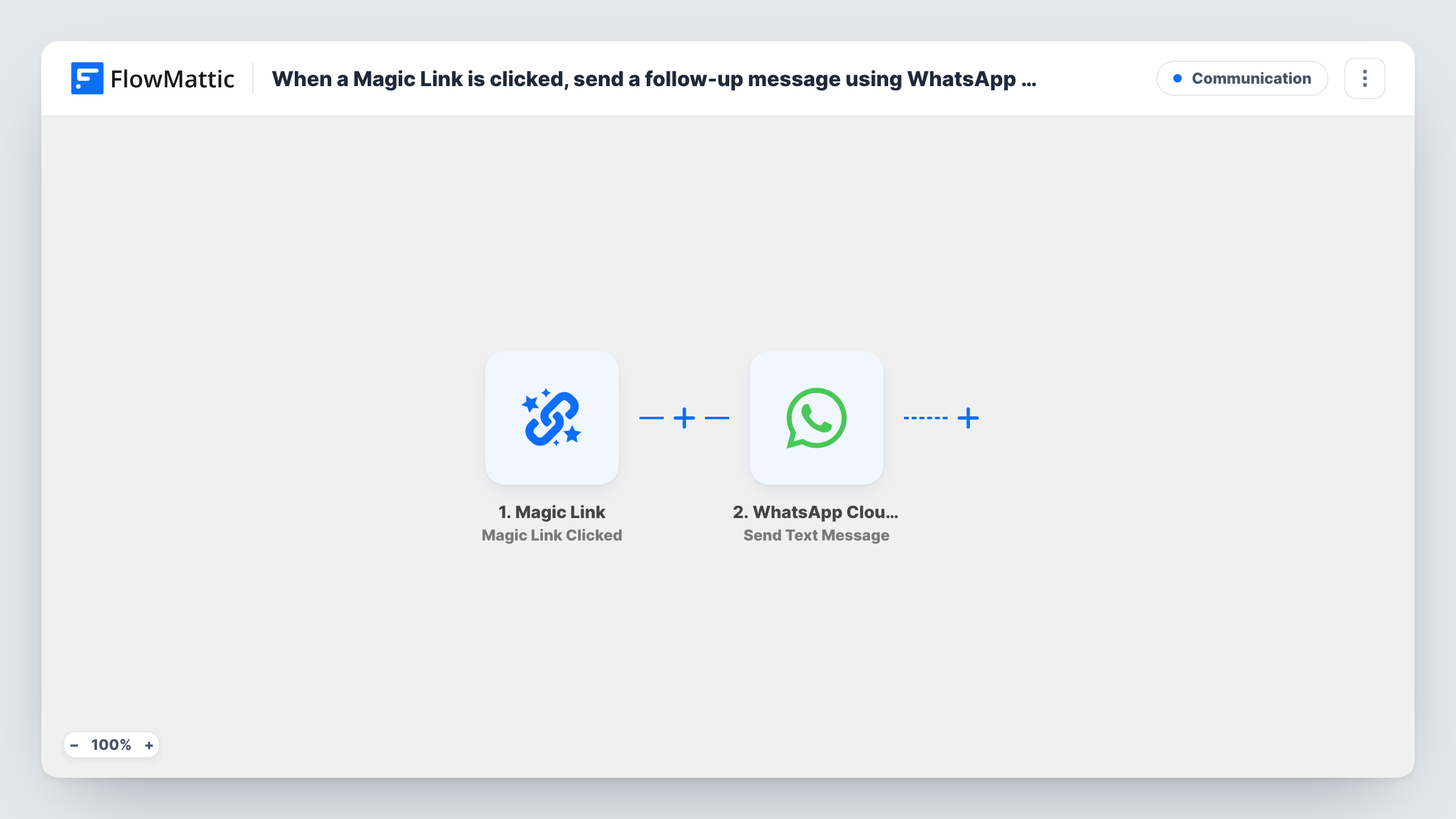
What this workflow does
A Magic Link is a custom link that starts a workflow when it is clicked, with no form in between. Put one in an email, a chat or a button, and you know the moment someone acts on it. This workflow follows up that click with a WhatsApp message.
The Magic Link trigger fires when the link is clicked. FlowMattic passes the click data on, and the WhatsApp Cloud API step sends a text message. The recipient's number has to come from somewhere, so check after a test click what data the link provides, or send to a fixed number such as your own team's.
One WhatsApp rule shapes how well this works. Free-form text messages only reach a person within 24 hours of them messaging your business number. If the person who clicked has not written to you recently, the text will usually not be delivered. For those cases, switch the step to Send Template Message with a template WhatsApp has approved.
Follow up a link sent in an active chat
You share a Magic Link with a customer you are already chatting with on WhatsApp. When they click it, they get your next message within the 24-hour window.
Alert yourself when a link is used
Send the text to your own WhatsApp number, so you see on your phone when someone clicks the link you sent them.
Confirm an action taken by link
A customer clicks a confirm link in an email and, if they have messaged you recently, receives a WhatsApp text acknowledging it.
How this workflow runs
What happens at each step once the workflow is on, and what you need before you import it.
 Magic Link Magic Link Clicked
Runs each time the Magic Link is clicked. Any data the link carries is passed to the WhatsApp step; click it once after import to see what comes through.
- WhatsApp Cloud API Send Text Message
Sends a WhatsApp text message to the number you map in or type. Delivery only works for people who messaged your business number in the last 24 hours.
What you need
- FlowMatticCore
- WhatsApp Cloud API AccountAccount
After importing, map your own data. To keep the template universal, not every step is pre-filled. Open each step in the builder and connect your accounts and fields (channels, lists, sheets, recipients) before you switch the workflow on.
Make it yours
Changes worth making after you import it.
- For people who have not messaged you, change the action to Send Template Message and pick a WhatsApp-approved template.
- Add a Delay before the WhatsApp step if you want the follow-up to arrive some minutes after the click rather than straight away.
- Phone numbers should include the country code. Test with your own number first and check Task History for WhatsApp's response.
Questions about this workflow
Will everyone who clicks the Magic Link get the WhatsApp message?
No. Free-form text only reaches people who messaged your business number in the last 24 hours. Others need an approved template message.
Where does the WhatsApp step get the phone number from?
From data the Magic Link click provides, if any, or a number you type in. Click the link once after import and look at the captured data before mapping.
What happens if the same person clicks the Magic Link twice?
Each click runs the workflow again, so a second WhatsApp message is sent. Nothing in the workflow checks for earlier clicks as imported.
More Communication workflows
Other ready-to-import templates from the same category.





Import this workflow into your WordPress site
Download the JSON, import it from the Workflows screen and connect your accounts. Every run stays on your server, with no per-task fees.
30-day money-back guarantee Unlimited workflows and runs Self-hosted