

When a new article is published in NeetoKB, create a new post in a WordPress blog
When you publish a new article in NeetoKB, this workflow creates a post on your WordPress site from the article’s details, so help content can also appear on your blog.
 NeetoKB
 WordPress
2 steps Setup ~5 min Used on 2.4k sites Free to import
What this workflow does
Help articles often answer questions that people also search for. Keeping them only in a knowledge base means your WordPress blog never shows them. This workflow creates a WordPress post each time you publish a new NeetoKB article.
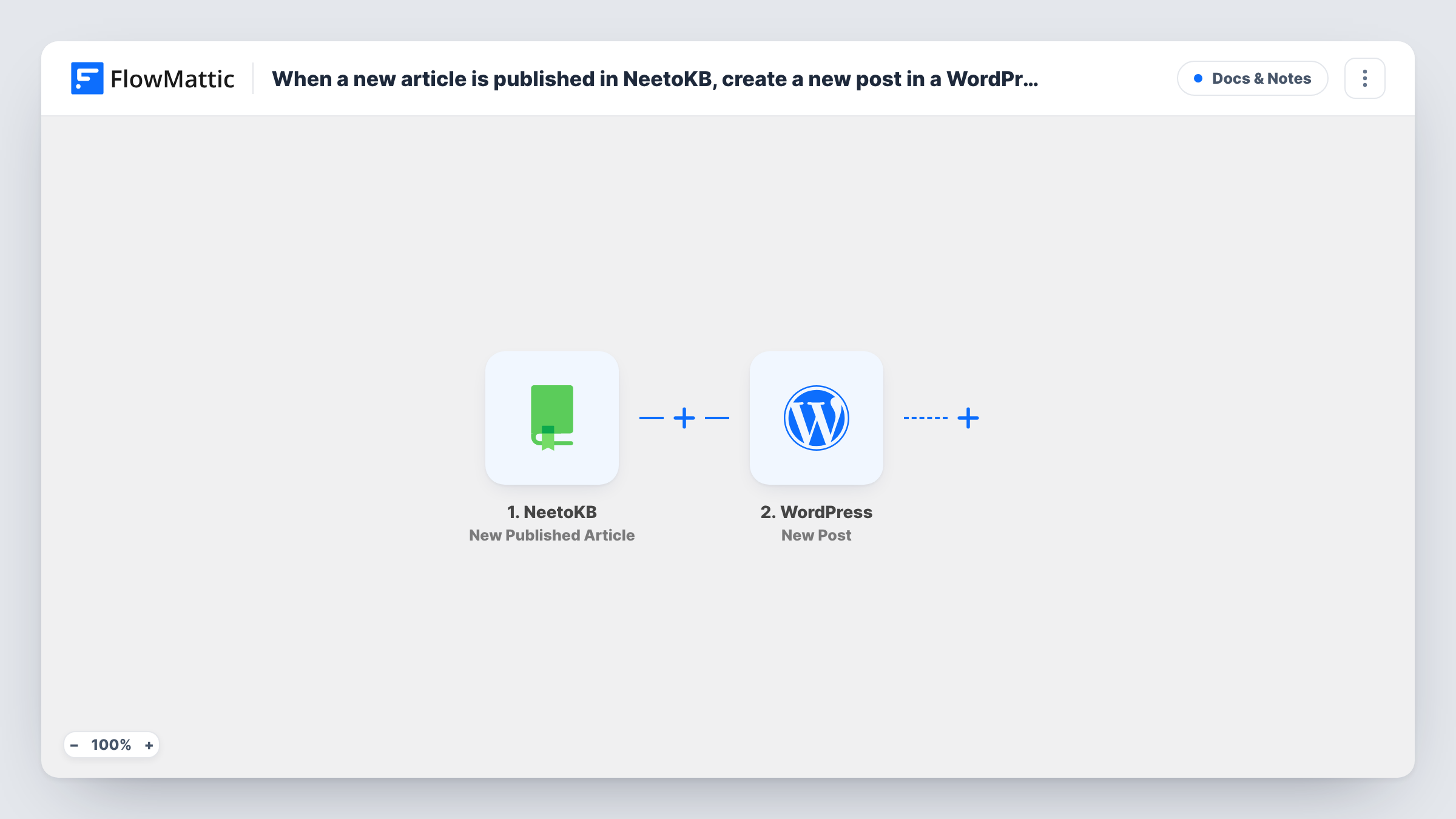
The NeetoKB trigger fires when a new article is published. FlowMattic passes the article's details to the WordPress New Post action, which creates a post on the same site FlowMattic runs on. You map the article title and content into the post.
Only new publications start a run. If you later edit the article in NeetoKB, the WordPress post stays as it was. Publish one test article and check the new post in WordPress before you turn the workflow on, so you see how the content and post status come through.
Product how-tos on the company blog
Your support team writes how-to articles in NeetoKB. Each one also becomes a blog post the marketing team can link from newsletters.
Release notes in two places
Release notes published in the knowledge base appear as WordPress posts, so customers who follow your blog see them too.
Drafts for an editor to review
Each new article becomes a post that your editor reviews and rewrites for a wider audience before it goes out.
How this workflow runs
What happens at each step once the workflow is on, and what you need before you import it.
 NeetoKB New Published Article
Fires when a new article is published in NeetoKB. The article's details are passed to WordPress; publish one test article to see which values come through.
- WordPress New Post
Creates a post on your WordPress site. Map the NeetoKB article title and content into the post, then run a test to check how the post is saved.
What you need
- FlowMatticCore
- NeetoKB AccountAccount
After importing, map your own data. To keep the template universal, not every step is pre-filled. Open each step in the builder and connect your accounts and fields (channels, lists, sheets, recipients) before you switch the workflow on.
Make it yours
Changes worth making after you import it.
- Add a WordPress Add Category to Post step after New Post so every article lands in a Help or Knowledge Base category.
- Publish a test article after import and open the new post in WordPress to confirm its status, formatting and content before going live.
- If you only want some articles on the blog, add a Filter after the trigger on a value from the NeetoKB data, such as its category, once a test shows what is sent.
Questions about this workflow
Does editing a NeetoKB article update the WordPress post?
No. The trigger fires when a new article is published and the action only creates posts, so later edits in NeetoKB don't reach WordPress.
Will the WordPress post go live straight away?
It comes down to the way the New Post step is configured on your site. Publish a test article after import and check the post's status in WordPress before relying on it.
Are my existing NeetoKB articles copied to WordPress?
No. Only articles published after you turn on the workflow create posts. Older ones need to be added by hand.
Which WordPress site gets the NeetoKB post?
Your own WordPress site running FlowMattic. The New Post action creates the post in that WordPress install.
More Docs & Notes workflows
Other ready-to-import templates from the same category.






Import this workflow into your WordPress site
Download the JSON, import it from the Workflows screen and connect your accounts. Every run stays on your server, with no per-task fees.
30-day money-back guarantee Unlimited workflows and runs Self-hosted