

When a new contact is added in Signable, create a contact in FluentCRM
When a new contact is added in Signable, this workflow creates the same person as a contact in FluentCRM, or updates them if their email is already there, so your signers join your WordPress CRM.
 Signable
 FluentCRM
2 steps Setup ~5 min Used on 3.1k sites Free to import
What this workflow does
People you send documents to in Signable are often clients or partners you also want to email: onboarding notes, renewals, updates. If they only live in Signable's contact list, you end up adding them to your CRM by hand. This workflow copies each new Signable contact into FluentCRM.
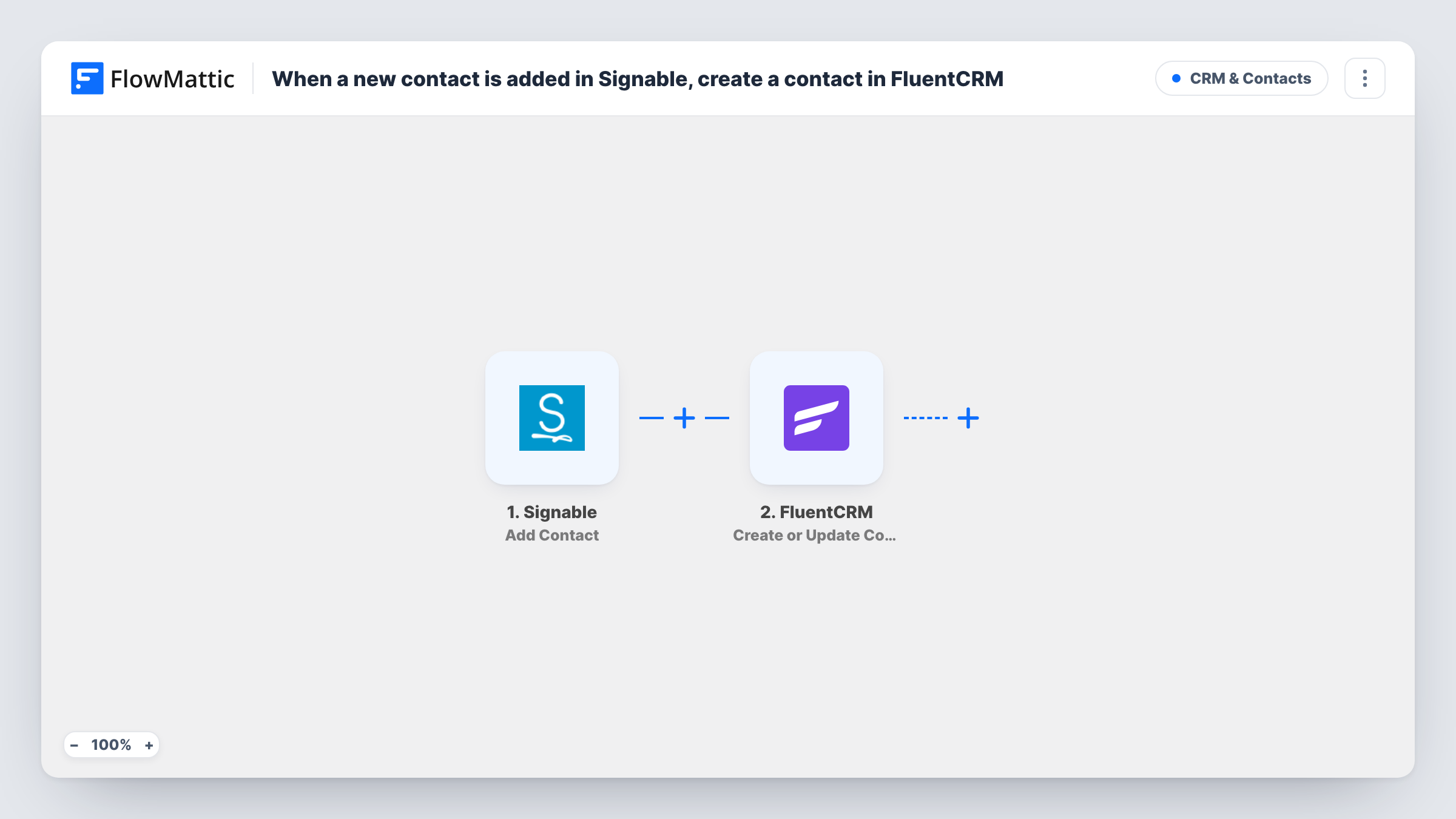
The Signable trigger is Add Contact, which fires when a new contact is added to your Signable account. The contact's details become values you can map. The FluentCRM step uses Create or Update Contact, which matches on email address: a new address creates a contact, and an address FluentCRM already has updates that contact instead of adding a duplicate.
FluentCRM runs inside your WordPress site, so the contact is stored with the rest of your CRM data there. Only new Signable contacts start a run; editing a contact in Signable doesn't. Task History shows each run with the Signable data and FluentCRM's response.
Law firm onboarding clients
A client is added in Signable to sign an engagement letter, and the same person appears in FluentCRM ready for the firm's onboarding emails.
Agency sending contracts
Each new client contact in Signable lands in FluentCRM, where the agency's newsletter and project update emails go out.
Landlord or letting agent
Tenants added in Signable for tenancy agreements become FluentCRM contacts, so rent reminders and notices can go out from WordPress.
How this workflow runs
What happens at each step once the workflow is on, and what you need before you import it.
 Signable Add Contact
Fires when a new contact is added to your Signable account. Connect Signable; the contact's name and email become data for the FluentCRM step.
- FluentCRM Create or Update Contact
Creates the contact in FluentCRM, or updates the existing one with the same email. Map the Signable email and name fields, and add a list or tag if the step offers one.
What you need
- FlowMatticCore
- Signable AccountAccount
- FluentCRM PluginPlugin
After importing, map your own data. To keep the template universal, not every step is pre-filled. Open each step in the builder and connect your accounts and fields (channels, lists, sheets, recipients) before you switch the workflow on.
Make it yours
Changes worth making after you import it.
- If the FluentCRM step offers list or tag options, give Signable contacts their own list or tag, so you can tell them apart from newsletter sign-ups when you send campaigns.
- Want only clients, not colleagues, in your CRM? Add a Filter after the trigger that skips email addresses on your own domain.
- Once contacts arrive, use a FluentCRM automation on that list or tag to start a welcome sequence inside WordPress.
Questions about this workflow
What if the Signable contact is already in FluentCRM?
FluentCRM matches by email, so the existing contact is updated rather than duplicated. If a Signable field is blank, it may overwrite a value you mapped, so test with a known contact first.
Are Signable contacts added before import copied over?
No. Only contacts added in Signable after you turn the workflow on reach FluentCRM.
Does a contact edited in Signable update FluentCRM?
No. The Add Contact trigger fires for new contacts only, so later edits in Signable don't start a run.
More CRM & Contacts workflows
Other ready-to-import templates from the same category.




Import this workflow into your WordPress site
Download the JSON, import it from the Workflows screen and connect your accounts. Every run stays on your server, with no per-task fees.
30-day money-back guarantee Unlimited workflows and runs Self-hosted