

When a new customer is created in StoreHippo, add them to FluentCRM
When a customer account is created in your StoreHippo store, this workflow creates a matching FluentCRM contact on your WordPress site, or updates the contact if that email is already there.
 StoreHippo
 FluentCRM
2 steps Setup ~5 min Used on 3.3k sites Free to import
What this workflow does
If your shop runs on StoreHippo and your email marketing runs on FluentCRM in WordPress, new customers live in one system and your campaigns in the other. Exporting and importing them every week leaves gaps. This workflow brings each new customer across when the account is created.
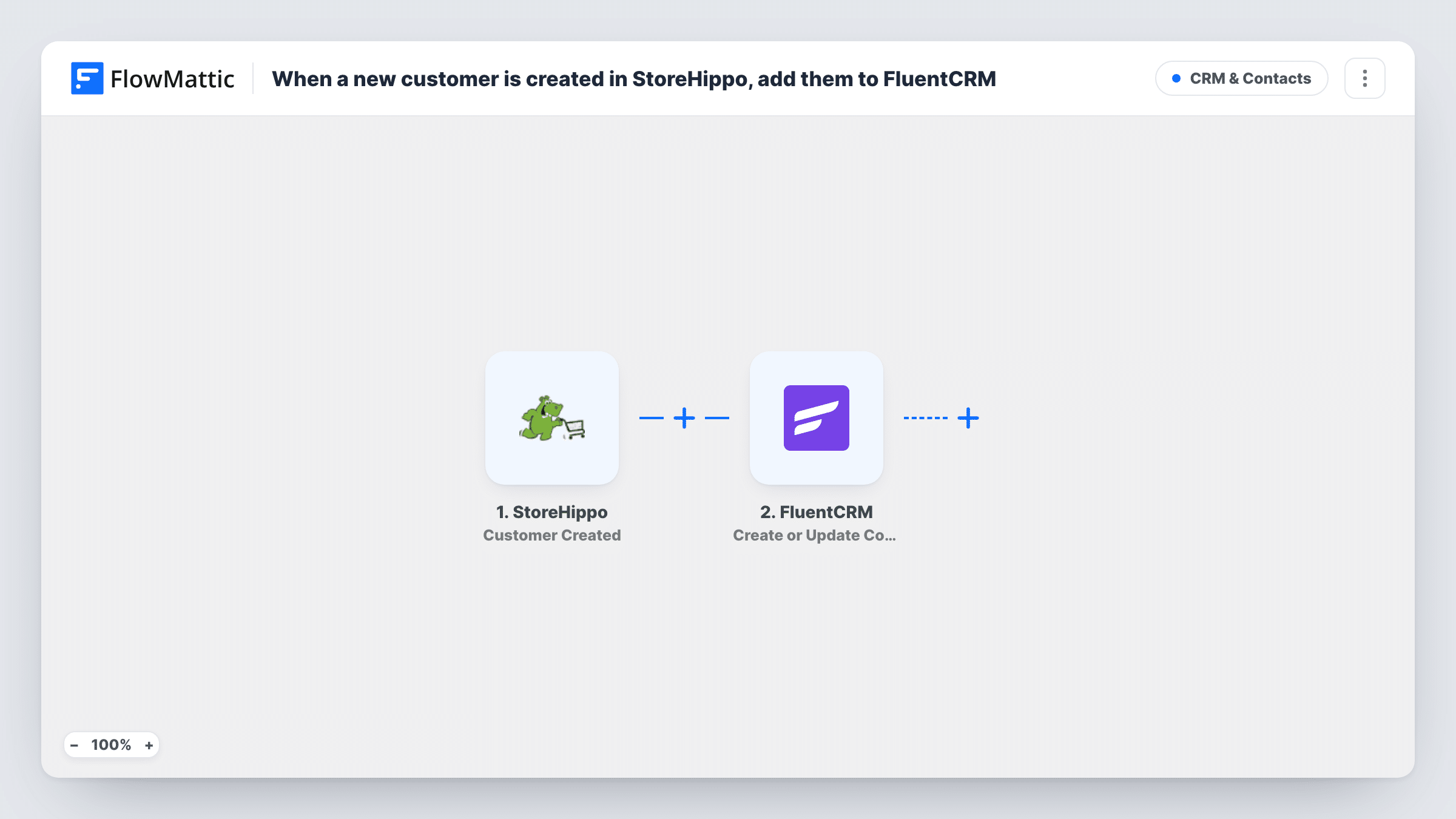
The StoreHippo Customer Created trigger fires once for each new customer and sends their details to FlowMattic. The FluentCRM step then uses Create or Update Contact, which matches on email address. An address FluentCRM hasn't seen yet produces a fresh contact, while a known address updates the existing one instead of making a duplicate.
The contact is stored in your own WordPress database, where you can add lists, tags or sequences in FluentCRM as usual. The template doesn't set any of those for you, so decide how new store customers should be grouped. Task History shows each run and the contact data that was sent.
Welcome series for new store accounts
Every new StoreHippo customer appears in FluentCRM, where an automation you build there can send a welcome email series.
One contact list for shop and blog
Your blog readers are already FluentCRM contacts. Customers who sign up in your StoreHippo store join the same database, and a reader who buys keeps one record.
Segmenting store customers by tag
Add a FluentCRM Add Tags to Contact step after this one with a fixed store tag, so newsletters can treat shoppers apart from blog readers.
How this workflow runs
What happens at each step once the workflow is on, and what you need before you import it.
 StoreHippo Customer Created
Fires when a new customer is created in your StoreHippo store. The customer's details are sent to FlowMattic for the next step to use.
- FluentCRM Create or Update Contact
Creates a FluentCRM contact from the customer's details, or updates the existing contact with the same email address. Map the email plus any name or phone fields StoreHippo sends.
What you need
- FlowMatticCore
- StoreHippo AccountAccount
- FluentCRM PluginPlugin
After importing, map your own data. To keep the template universal, not every step is pre-filled. Open each step in the builder and connect your accounts and fields (channels, lists, sheets, recipients) before you switch the workflow on.
Make it yours
Changes worth making after you import it.
- Create a test customer in StoreHippo after import, so FlowMattic captures real data you can map in the FluentCRM step.
- To group store customers, add a FluentCRM Add Lists to Contact or Add Tags to Contact step after the contact step. The contact exists by then, so both actions can find it.
- Add a Filter that continues only when the customer's email is not empty, so a record without an address never reaches FluentCRM.
Questions about this workflow
What happens if the StoreHippo customer is already in FluentCRM?
The step matches contacts by email. If the address exists, that contact is updated with the mapped values rather than a second contact being created.
Are existing StoreHippo customers copied over?
No. The trigger fires for customers created after you turn the workflow on. Import your earlier customers into FluentCRM separately.
Does a StoreHippo order trigger this workflow?
No. It runs on the Customer Created event, so it fires when the customer account is made, not each time that customer places an order.
Does FluentCRM have to run on the site where FlowMattic is installed?
Yes. FluentCRM is a WordPress plugin, and the step writes to the FluentCRM install beside FlowMattic. StoreHippo is a separate hosted store, which you connect to FlowMattic when you import the workflow.
More CRM & Contacts workflows
Other ready-to-import templates from the same category.






Import this workflow into your WordPress site
Download the JSON, import it from the Workflows screen and connect your accounts. Every run stays on your server, with no per-task fees.
30-day money-back guarantee Unlimited workflows and runs Self-hosted