

When a new email is parsed (per row) in Mailparser, store data in Airtable
Save the table rows Mailparser extracts from incoming emails as Airtable records, one record per row, so order lines, bookings or report entries from emails become structured data you can sort and view.
 Mailparser
 Airtable
2 steps Setup ~5 min Used on 1.2k sites Free to import
What this workflow does
Emails with tables, such as order confirmations, supplier price lists or booking reports, hold data you need elsewhere. Mailparser pulls that data out, and this workflow stores it in Airtable so it becomes records you can filter, group and link.
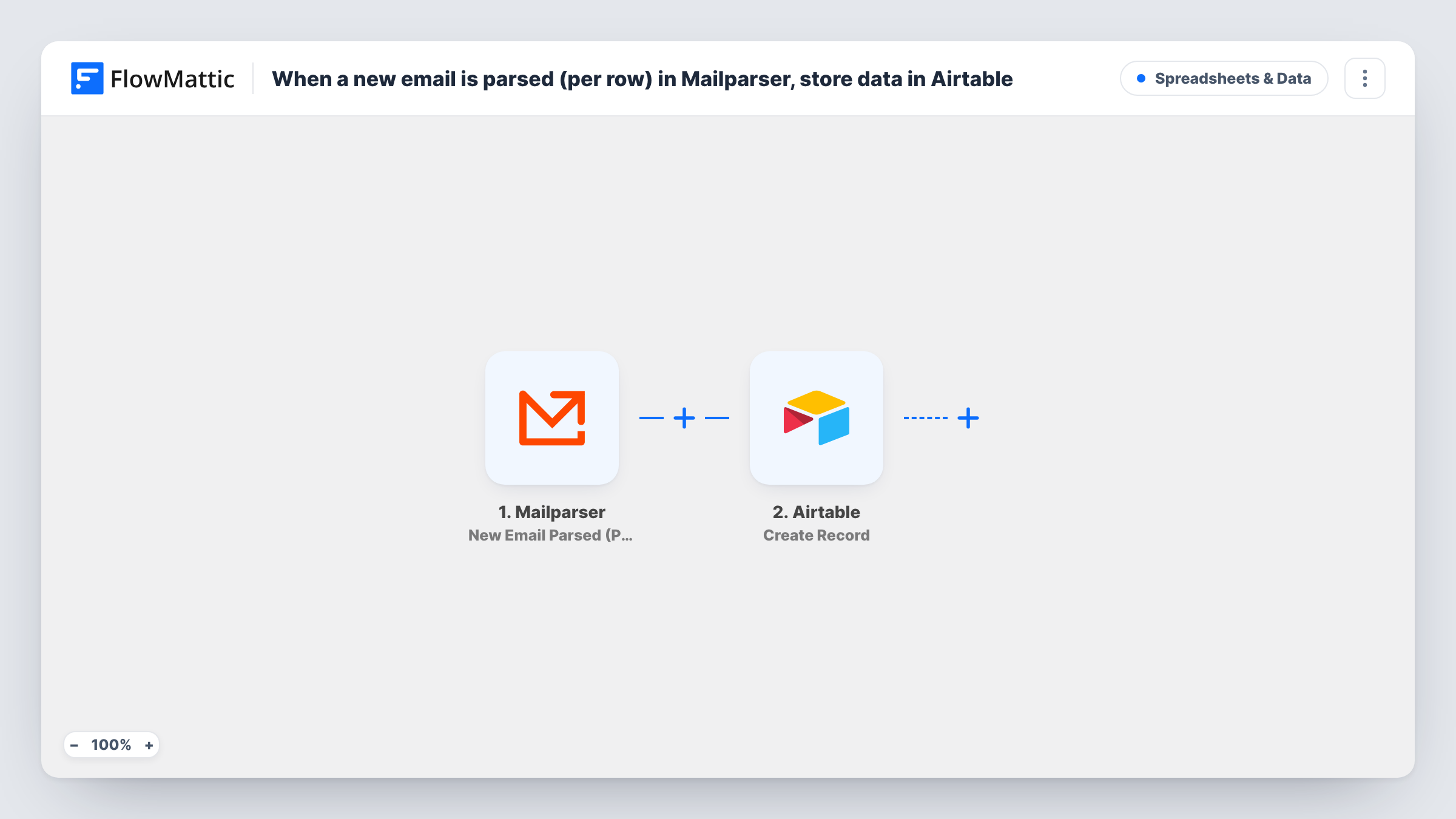
The Mailparser trigger starts the workflow after Mailparser processes a newly arrived email in your parsing inbox. With the Per Row version, Mailparser sends a separate request for each row when the parsed result contains tabular data, so each row starts its own run. FlowMattic passes that row's values to Airtable, where Create Record adds a record to the base and table you choose.
An email with five table rows gives five Airtable records. An email without tabular data gives one request. Task History lists every run, which helps when you check that all rows arrived.
Order lines from supplier emails
Each product line in a supplier's order confirmation becomes its own Airtable record, ready to link to your inventory table.
Booking reports
A venue emails a daily table of bookings. Every booking row lands in Airtable, where a calendar view shows them by date.
Expense statements
Card statement emails parsed by Mailparser add one record per transaction, so you can categorise them in Airtable.
How this workflow runs
What happens at each step once the workflow is on, and what you need before you import it.
 Mailparser New Email Parsed (Per Row)
Fires when Mailparser parses a new email in your inbox, sending one request per table row when the result contains tabular data. Each row's values go to Airtable.
- Airtable Create Record
Adds a record for the current row to the Airtable base and table you select. Map Mailparser's row values to your Airtable fields after a test email shows them.
What you need
- FlowMatticCore
- Mailparser AccountAccount
- Airtable AccountAccount
After importing, map your own data. To keep the template universal, not every step is pre-filled. Open each step in the builder and connect your accounts and fields (channels, lists, sheets, recipients) before you switch the workflow on.
Make it yours
Changes worth making after you import it.
- Set up your Mailparser parsing rules and parse a sample email before mapping, so FlowMattic receives the real row fields.
- Map the email's subject or date into every record, if Mailparser sends it with each row, so rows from the same email can be grouped in Airtable.
- If you need one record per email instead, switch the trigger to Mailparser's New Email Parsed (Per Email) version.
Questions about this workflow
How many Airtable records does one Mailparser email create?
One per table row when the parsed result has tabular data, because the Per Row trigger sends a request for each row. Otherwise it is one record for the email.
What if Mailparser parses the same email twice?
Create Record adds new records each time, so reprocessing an email in Mailparser can create duplicate rows in Airtable.
Do my Airtable fields have to match the Mailparser field names?
No. You pick which Mailparser value goes into which Airtable field in the Create Record step.
More Spreadsheets & Data workflows
Other ready-to-import templates from the same category.




Import this workflow into your WordPress site
Download the JSON, import it from the Workflows screen and connect your accounts. Every run stays on your server, with no per-task fees.
30-day money-back guarantee Unlimited workflows and runs Self-hosted