

When a new form is submitted in Webapi.ai, send a notification via WhatsApp Cloud API
When a form response arrives in Webapi.ai, this workflow sends a WhatsApp text through the WhatsApp Cloud API to the number you choose, so you hear about new responses on your phone.
 Webapi.ai
 WhatsApp Cloud API
2 steps Setup ~5 min Used on 2.1k sites Free to import
What this workflow does
Forms collected through Webapi.ai are only useful if someone sees them in time. If your team lives on WhatsApp, a text there is harder to miss than a dashboard. This workflow sends one for each new response.
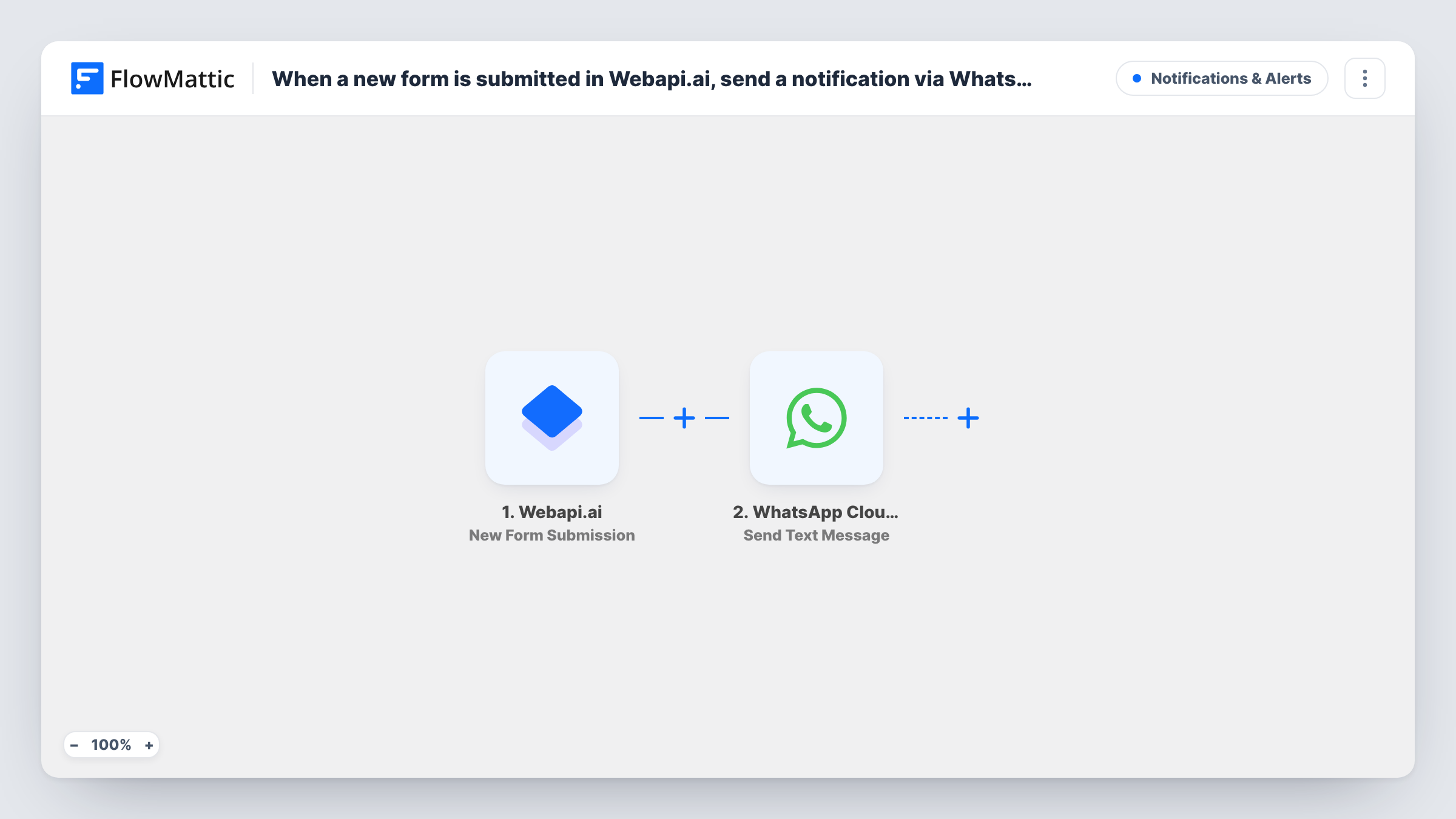
The Webapi.ai trigger fires when the response of a form is received, and the answers become data you can map. FlowMattic then runs the Send Text Message action of the WhatsApp Cloud API from the business number you connect. You choose who receives it and write the text, pulling in answers from the form.
WhatsApp has a rule that matters here. A free-form text is delivered only within 24 hours of the recipient messaging your business number. That applies to your own team's phones too, so a teammate who hasn't written to the number recently may not get the alert. For dependable delivery, switch the step to Send Template Message with a template WhatsApp has approved.
Booking requests from a website chat
Visitors fill in a booking form in your Webapi.ai chatbot. The owner gets the name and preferred time on WhatsApp and can call back.
Lead forms for a sales team on the road
Field sales reps work from their phones. Each new Webapi.ai form response is texted to the rep's number with the lead's details.
Support requests after hours
An on-call staff member gets a WhatsApp text whenever the Webapi.ai support form is filled in, without logging in to check.
How this workflow runs
What happens at each step once the workflow is on, and what you need before you import it.
 Webapi.ai New Form Submission
Fires when Webapi.ai receives a response to your form. The submitted answers are passed on so you can place them in the WhatsApp text.
- WhatsApp Cloud API Send Text Message
Sends a free-form WhatsApp text from your connected business number. Choose the recipient, write the message and map in form answers. A test response shows which answers are available.
What you need
- FlowMatticCore
- Webapi.ai AccountAccount
- WhatsApp Cloud API AccountAccount
After importing, map your own data. To keep the template universal, not every step is pre-filled. Open each step in the builder and connect your accounts and fields (channels, lists, sheets, recipients) before you switch the workflow on.
Make it yours
Changes worth making after you import it.
- Change the action to WhatsApp Cloud API Send Template Message with an approved template if the recipient may not have messaged your business number in the last 24 hours.
- Add a Filter after the trigger on a form answer, such as a priority or service field, so only the responses that need quick attention trigger a WhatsApp text.
- Add a Google Sheets Add New Row step after the text to keep a record of every Webapi.ai response alongside the alert.
Questions about this workflow
Why did a Webapi.ai alert not arrive on WhatsApp?
Most often because the recipient hasn't messaged your business number within 24 hours, which free-form texts require. Use Send Template Message instead, and check Task History for the response WhatsApp sent.
Can the WhatsApp text go to the person who filled in the Webapi.ai form?
You can map their number if the form collects it. The same 24-hour rule applies, so a template message is the safer choice for people who haven't written to you.
Can I send the alert to several team members?
Each Send Text Message step goes to the recipient you set. Add one step per teammate if more people need the alert.
Which WhatsApp number do the Webapi.ai alerts come from?
From the WhatsApp Cloud API business number you connect to FlowMattic. Every alert this workflow sends uses that number.
More Notifications & Alerts workflows
Other ready-to-import templates from the same category.





Import this workflow into your WordPress site
Download the JSON, import it from the Workflows screen and connect your accounts. Every run stays on your server, with no per-task fees.
30-day money-back guarantee Unlimited workflows and runs Self-hosted