

When a new order is completed, create a corresponding task in ClickUp
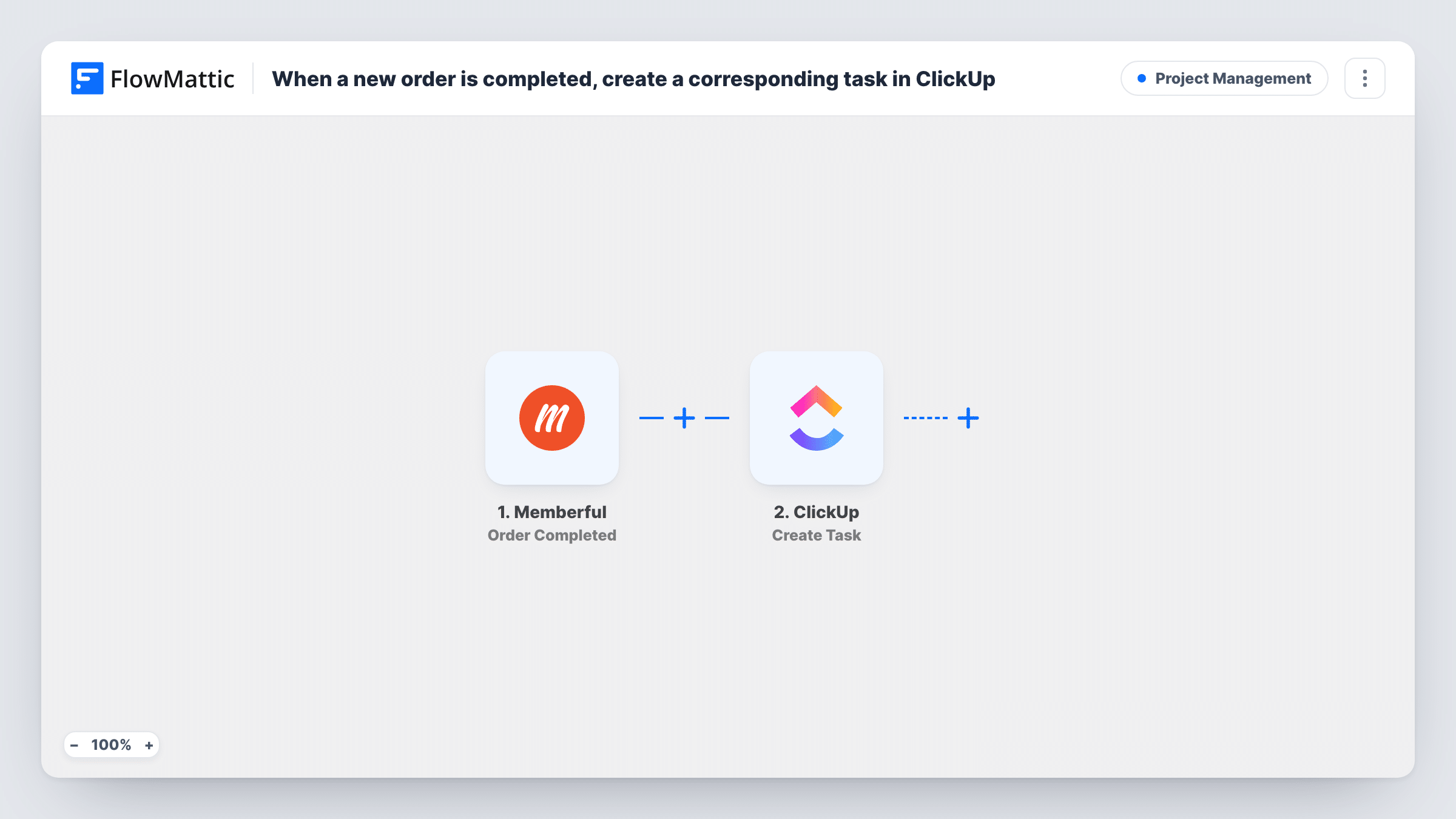
Each completed Memberful order creates a new task in ClickUp with the order details you map, so onboarding, fulfilment or a welcome call lands on your team’s task list.
 Memberful
 ClickUp
2 steps Setup ~5 min Used on 355 sites Productivity Free to import
What this workflow does
A new Memberful purchase often means work for someone: sending a welcome pack, booking an onboarding call, adding the buyer to a private group. When that work lives in ClickUp, somebody has to notice the order and make the task. This workflow makes it for them.
The Memberful trigger fires when an order is completed. FlowMattic receives the order data and passes it to ClickUp, where the Create Task action adds a new task. You decide where the task goes and build its name and description from whatever order values the trigger delivers.
One completed order produces one task, every time. A member who buys again creates another task, because the trigger counts each order on its own. Check Task History after a test purchase to confirm the task was created where you expect.
Onboarding calls for coaching members
Each new coaching purchase in Memberful creates a ClickUp task for your coach to book the first call with that member.
Shipping a welcome pack
Your membership includes a printed welcome kit. Every completed order puts a fulfilment task in the ClickUp list your team ships from.
Manual access to an outside community
If members join a private group you manage by hand, each order becomes a task to send the invite, with the buyer's email in the description.
How this workflow runs
What happens at each step once the workflow is on, and what you need before you import it.
 Memberful Order Completed
Fires when an order is completed in Memberful. The data that comes with the order event becomes available to map into ClickUp; a test purchase shows you exactly which values arrive.
- ClickUp Create Task
Creates a new task in ClickUp. Connect your ClickUp account, choose where the task should go, and build the task name and description from the Memberful order values.
What you need
- FlowMatticCore
- Memberful AccountAccount
- ClickUp AccountAccount
After importing, map your own data. To keep the template universal, not every step is pre-filled. Open each step in the builder and connect your accounts and fields (channels, lists, sheets, recipients) before you switch the workflow on.
Make it yours
Changes worth making after you import it.
- Put the buyer's name and the plan in the ClickUp task name, if the order data includes them, so your list shows who bought what without opening each task.
- Add a Filter after the trigger if only some plans need follow-up work, for example continue only when the plan name matches your coaching tier.
- Place a Router after the trigger with one route per plan name, each with its own ClickUp step, if different plans need tasks in different lists. Use distinct plan names so each order matches one route.
Questions about this workflow
Will a Memberful renewal also create a ClickUp task?
That depends on whether Memberful reports the renewal as a completed order. Watch Task History after a renewal comes in; if it triggers the workflow and you don't want that, add a Filter.
Who is the Memberful order task assigned to in ClickUp?
The template doesn't set anyone for you. Run a test order after import and look at the options the Create Task step shows in your FlowMattic setup. Map an assignee there if the step offers one.
Does a member who buys twice get two ClickUp tasks?
Yes. Every completed order runs the workflow, so a second purchase creates a second task.
Do I need anything installed for Memberful or ClickUp?
No plugins. Both are connected to FlowMattic with your accounts. You only need FlowMattic on your WordPress site.
More Project Management workflows
Other ready-to-import templates from the same category.







Import this workflow into your WordPress site
Download the JSON, import it from the Workflows screen and connect your accounts. Every run stays on your server, with no per-task fees.
30-day money-back guarantee Unlimited workflows and runs Self-hosted