

When a new order is received in WooCommerce, create the contact and tag them in Groundhogg
Every new WooCommerce order adds the buyer to Groundhogg as a contact and applies the tags you pick, so your Groundhogg funnels and broadcasts can reach customers by tag.
 WooCommerce
 Groundhogg
3 steps Setup ~5 min Used on 339 sites Free to import
What this workflow does
Groundhogg runs its funnels and broadcasts from tags, so a buyer who never gets a tag never gets your post-purchase emails. This workflow takes each new WooCommerce order, adds the buyer to Groundhogg and tags them, all on the same WordPress site.
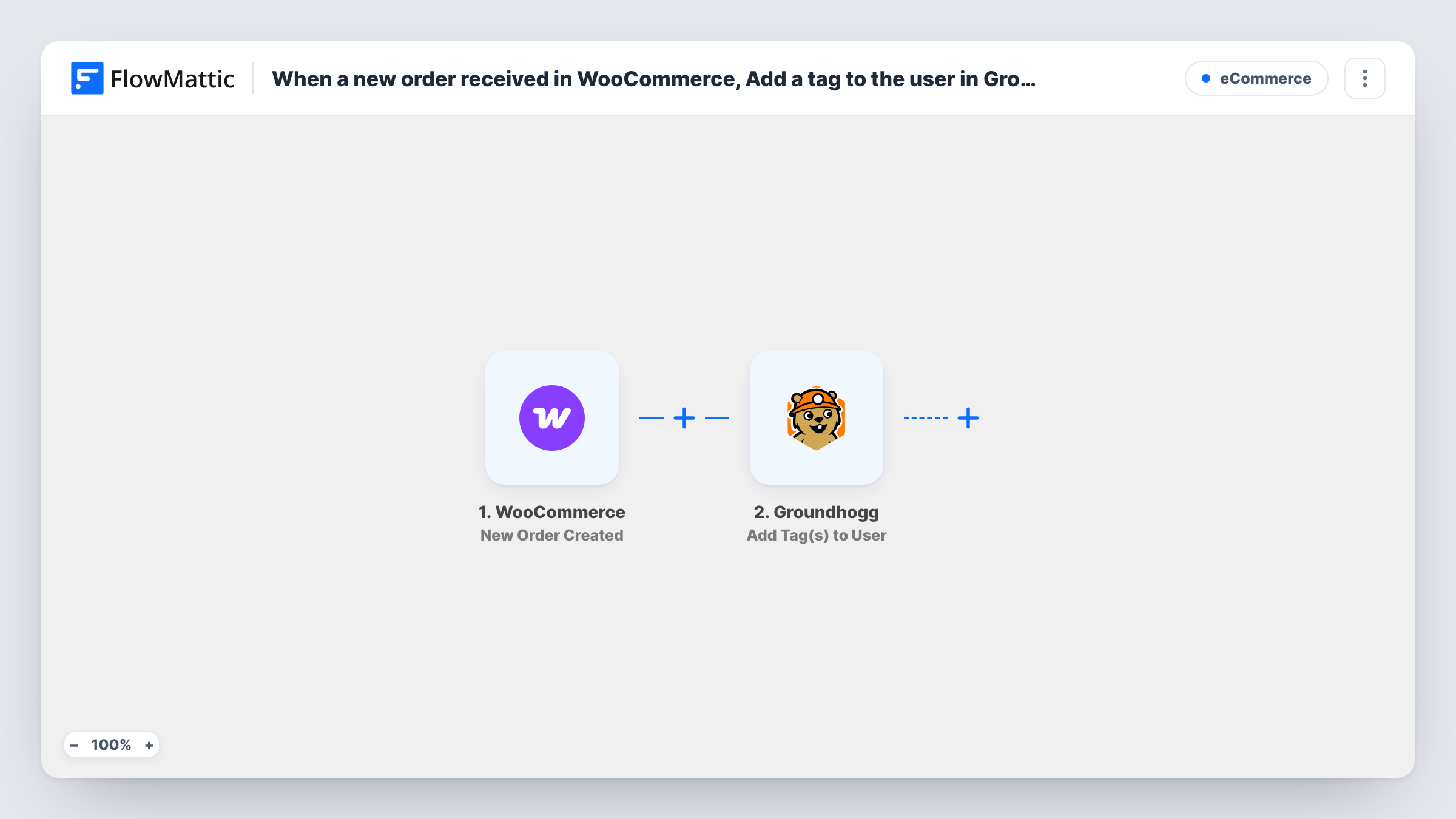
The trigger runs when a new order is created and passes the billing name, email and other order details on. The Create New Contact step then adds the buyer as a Groundhogg contact. The Add Tag(s) to User step follows and applies one or more tags to that person, using the contact the previous step created.
Neither Groundhogg step comes mapped. After import you map the billing email, first name and last name into Create New Contact, then in the tag step map the contact or email from step 2 and choose your tags. Place a test order and check Task History to confirm both steps returned what you expect.
Every order starts a run, so a customer who buys again goes through both steps again. Groundhogg decides what to do when the email is already a contact, so place a second order with the same email as a test and see what each Groundhogg step returned.
Post-purchase funnel
A store tags every buyer "customer" in Groundhogg, which starts a funnel with a thank-you email and a review request a week later.
Customers separated from leads
A shop that also collects newsletter sign-ups tags buyers so broadcasts about discounts for first purchases skip people who have already bought.
Product-line segments
With a Filter on the product name, buyers of a starter kit get a "starter-kit" tag and a how-to email series built for that product.
How this workflow runs
What happens at each step once the workflow is on, and what you need before you import it.
 WooCommerce New Order Created
Starts the workflow when a new WooCommerce order is created. The buyer's billing name and email, plus the order details, are passed on to Groundhogg.
- Groundhogg Create New Contact
Adds the buyer as a contact in Groundhogg. The step ships unmapped: after import, map the order's billing email, first name and last name, plus any phone or address fields you keep.
- Groundhogg Add Tag(s) to User
Tags the Groundhogg contact that step 2 just added. Pick the tags and map that contact or its email after import, then place a test order to check the tags appear in Groundhogg.
What you need
- FlowMatticCore
- WooCommerce PluginPlugin
- Groundhogg PluginPlugin
After importing, map your own data. To keep the template universal, not every step is pre-filled. Open each step in the builder and connect your accounts and fields (channels, lists, sheets, recipients) before you switch the workflow on.
Make it yours
Changes worth making after you import it.
- To tag only buyers of certain products, put a Filter between the Create New Contact step and the Add Tag(s) step. Every buyer still becomes a contact, and only matching orders get the tag. The product is an example to set.
- Map the order total or payment method into a custom field in the contact step if your Groundhogg funnels need it.
- Build the Groundhogg funnel that starts on your tag before switching this on, so the first order already enters it.
Questions about this workflow
What if the buyer is already a Groundhogg contact?
Create New Contact still asks Groundhogg to add the person, and Groundhogg decides how to treat an email it already has. Test with an existing contact's email and read the result in Task History.
Do repeat WooCommerce customers get tagged again?
Each new order starts a run, so repeat customers go through both Groundhogg steps on every purchase. Check a repeat order in Task History to see how Groundhogg responded.
Which Groundhogg tags does each buyer get?
The ones you pick in the Add Tag(s) to User step after import. The template sets none, so choose your tags there before you switch the workflow on.
More E-Commerce workflows
Other ready-to-import templates from the same category.





Import this workflow into your WordPress site
Download the JSON, import it from the Workflows screen and connect your accounts. Every run stays on your server, with no per-task fees.
30-day money-back guarantee Unlimited workflows and runs Self-hosted