

When a new submission is received in Fluent Forms, check if the email is valid with MailRefine, and create a new contact in FluentCRM
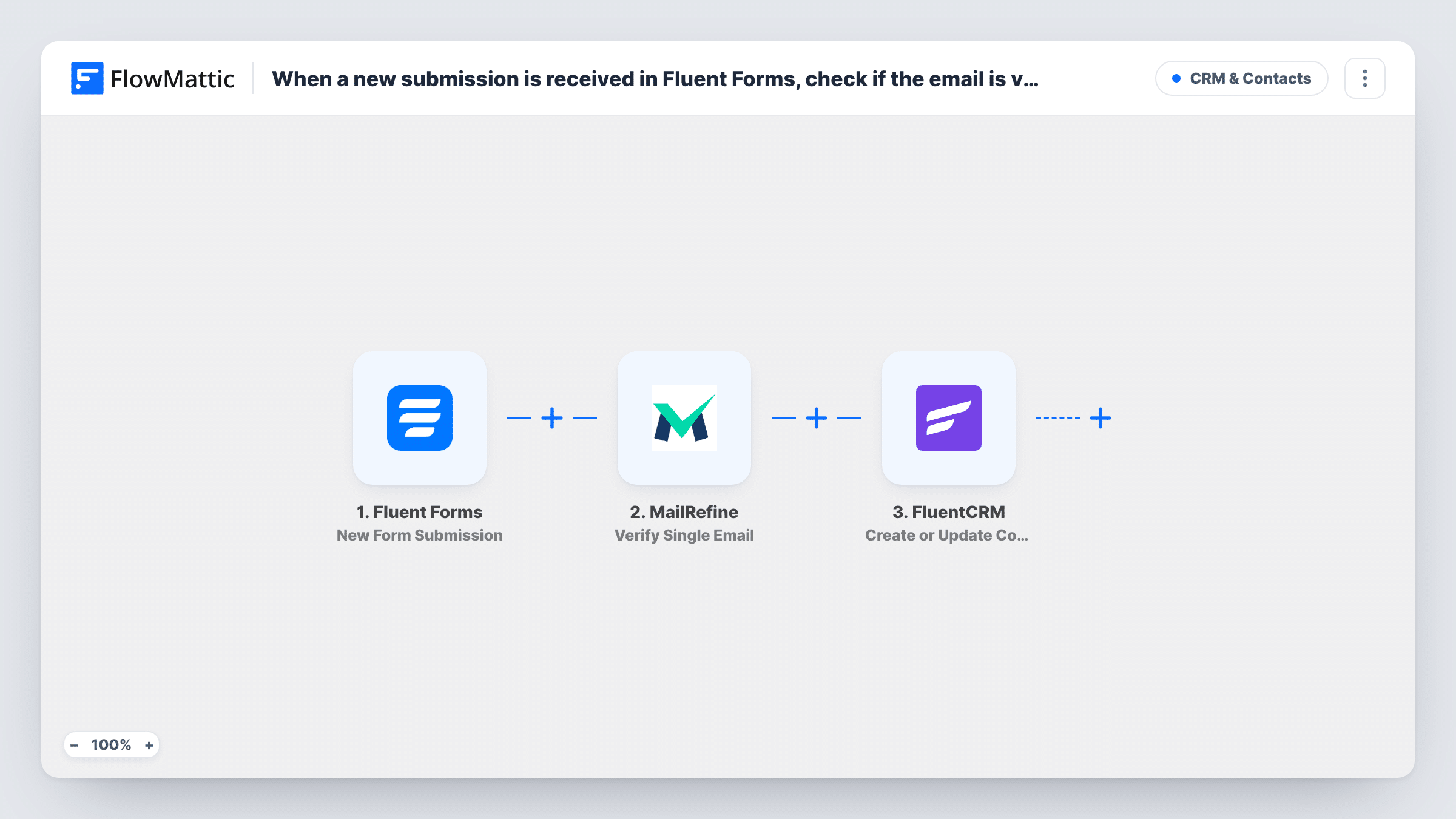
Each Fluent Forms submission has its email checked by MailRefine, then the person is created or updated as a FluentCRM contact, with the verification response available to map alongside their details.
 Fluent Forms
 MailRefine
 FluentCRM
3 steps Setup ~5 min Used on 882 sites Free to import
What this workflow does
A mailing list built from a website form collects mistyped and fake addresses along with the real ones. Once those sit in FluentCRM, they are included in every campaign you send to that list. This workflow puts a verification check between the form and the CRM, so you see each result as the contact is added.
When someone submits a Fluent Forms form, FlowMattic sends the entry to MailRefine using Verify Single Email. MailRefine's response joins the form answers as data for the last step. That step uses Create or Update Contact in FluentCRM, so a returning person's contact is updated rather than duplicated.
The template comes without mapping. After import, map the form's email field into MailRefine, then map the contact details into FluentCRM, and use a test entry to see what MailRefine returns. As imported, every submission reaches FluentCRM whatever the check says. Put a Filter between MailRefine and FluentCRM if you want only verified addresses added.
Newsletter form feeding FluentCRM
Sign-ups are checked before they become contacts, and with a Filter in place only addresses that pass end up on your FluentCRM lists.
Lead forms on a service site
Enquiries go into FluentCRM for follow-up, and the MailRefine result tells you which leads gave a working address.
Free download in exchange for an email
People who request a guide are added to FluentCRM, with the check showing which addresses look made up just to get the file.
How this workflow runs
What happens at each step once the workflow is on, and what you need before you import it.
 Fluent Forms New Form Submission
Starts on every new Fluent Forms entry. The email address and other answers are passed on to the next two steps.
- MailRefine Verify Single Email
Verifies the submitted address with MailRefine. Map the form's email field into this step after import and connect your MailRefine account. Its response is available to the FluentCRM step.
- FluentCRM Create or Update Contact
Creates a FluentCRM contact from the submission, or updates the contact if that email is already in your CRM. Map the email and name fields after a test entry.
What you need
- FlowMatticCore
- Fluent Forms PluginPlugin
- MailRefine AccountAccount
- FluentCRM PluginPlugin
After importing, map your own data. To keep the template universal, not every step is pre-filled. Open each step in the builder and connect your accounts and fields (channels, lists, sheets, recipients) before you switch the workflow on.
Make it yours
Changes worth making after you import it.
- Insert a Filter after MailRefine that continues only when the response shows a valid address. Look at a test run first to find the exact value to compare against.
- Use a Router instead of a Filter if you want failed addresses kept too, with routes on distinct result values, each leading to its own FluentCRM step that you map differently.
- Test with your own address and a made-up one after import so both kinds of MailRefine response are captured before you build conditions.
Questions about this workflow
Are invalid emails kept out of FluentCRM as imported?
No. Every Fluent Forms submission continues to FluentCRM whatever MailRefine returns. Add a Filter after the MailRefine step to block failed addresses.
What if the person already exists in FluentCRM?
The step is Create or Update Contact, so the existing contact is updated with the new submission instead of a second contact being made.
Is a MailRefine account required for the email check?
Yes. The verification runs through the MailRefine account you connect in FlowMattic. Check your MailRefine plan for its verification allowance.
Does Fluent Forms still save the entry?
Yes. The workflow starts after the submission and leaves the Fluent Forms entry in place. The check only decides what you do in FluentCRM.
More CRM & Contacts workflows
Other ready-to-import templates from the same category.







Import this workflow into your WordPress site
Download the JSON, import it from the Workflows screen and connect your accounts. Every run stays on your server, with no per-task fees.
30-day money-back guarantee Unlimited workflows and runs Self-hosted