

When a new task is created in ClickUp, list feedback from Harvestr
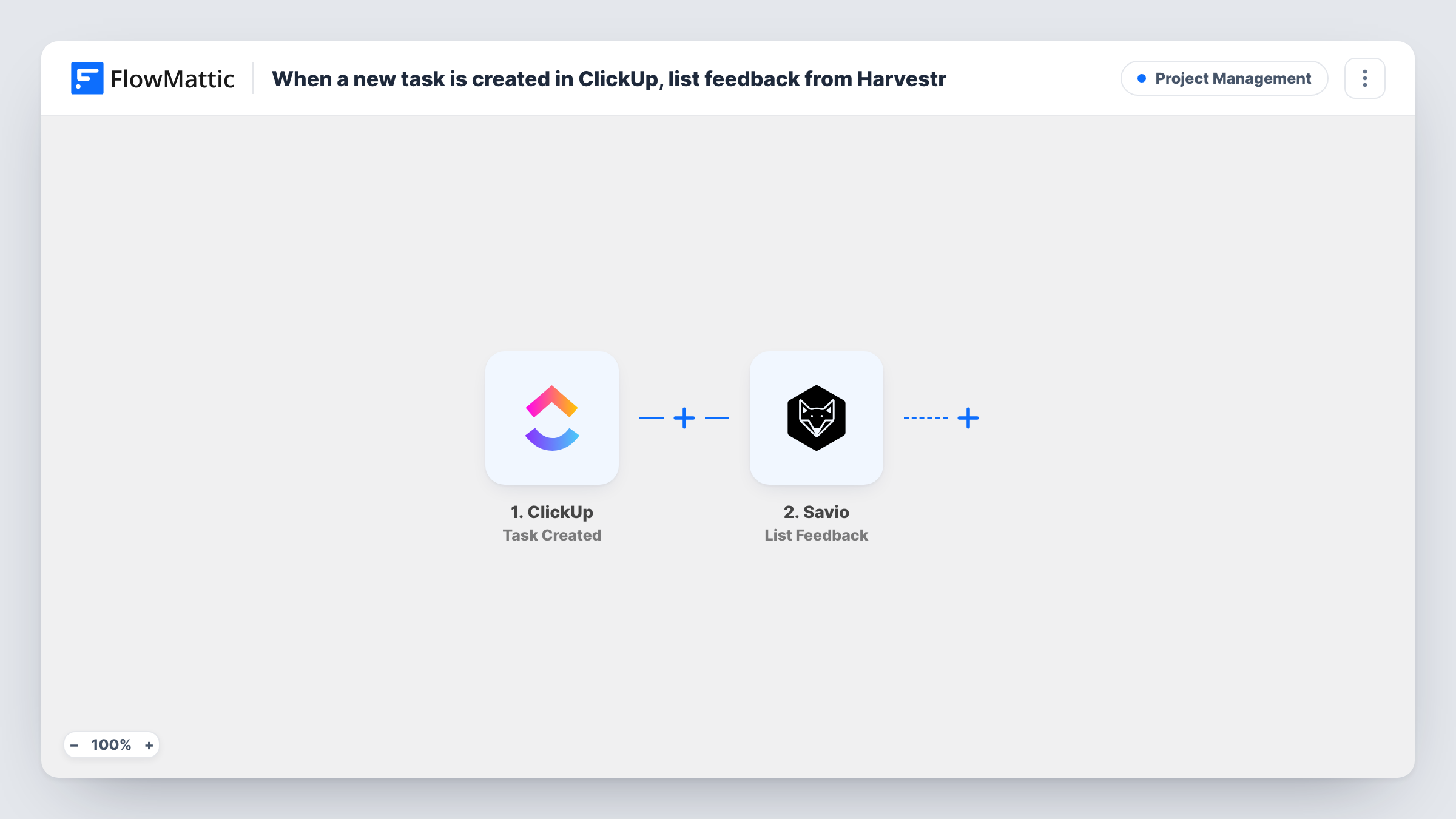
Each new ClickUp task makes FlowMattic fetch a list of feedback from Harvestr, ready for steps you add to post, log or send it. As imported, the workflow only reads the feedback.
 ClickUp
 Harvestr
2 steps Setup ~5 min Used on 1.7k sites Productivity Free to import
What this workflow does
Product teams plan in ClickUp and collect customer feedback in Harvestr. When a new task appears, the useful question is what customers have said about that area. This template is the starting point for that: it pulls feedback from Harvestr each time a task is created, so the next step you add can put it in front of whoever picks up the task.
The ClickUp Task Created trigger runs when a new task is created. The task's details, such as its name and list, are passed on.
The Harvestr step then runs List Feedback, which FlowMattic describes as retrieving all feedback with optional filters. It ships unmapped, so after import you connect Harvestr and set any filters the step offers to narrow the list.
Be clear on what you're importing: the workflow only reads. It doesn't change the ClickUp task or anything in Harvestr, and nothing uses the feedback until you add a step that does. A common choice is ClickUp's Post Task Comment action, which can add the feedback to the new task. Create a test task and check Task History to see what Harvestr returned before you map it anywhere.
Feedback beside new feature tasks
A product manager adds a Post Task Comment step so each new ClickUp task gets the related Harvestr feedback as a comment for the developer.
Starting point for a feedback digest
A team uses this template as the base for sending a Harvestr feedback summary to Slack whenever planning work is added in ClickUp.
Checking the Harvestr connection
A no-code builder imports it to see the shape of Harvestr's feedback data in Task History before building a larger workflow around it.
How this workflow runs
What happens at each step once the workflow is on, and what you need before you import it.
 ClickUp Task Created
Starts a run for every task added in your ClickUp workspace. Its details, such as the task name, description and list, are available to map into later steps or Harvestr filters.
- Harvestr List Feedback
Retrieves feedback from Harvestr with whatever filters you set. The step ships unmapped and only reads data; add a step after it to use the feedback, since the template stops here.
What you need
- FlowMatticCore
- ClickUp AccountAccount
- Harvestr AccountAccount
After importing, map your own data. To keep the template universal, not every step is pre-filled. Open each step in the builder and connect your accounts and fields (channels, lists, sheets, recipients) before you switch the workflow on.
Make it yours
Changes worth making after you import it.
- Add ClickUp's Post Task Comment action after the Harvestr step and map the new task's ID from the trigger, so the feedback lands on the task that started the run.
- List Feedback returns many entries in one result. To handle them one by one, put an Iterator between the Harvestr step and the step that uses them.
- Narrow the list with the step's filters if it offers ones that fit, so a busy Harvestr workspace doesn't return everything on every new task.
- Every new task starts a run. Put a Filter between the ClickUp trigger and the Harvestr step that continues only for the list or tag your product team uses, if other teams share the workspace.
Questions about this workflow
Does this workflow change anything in ClickUp or Harvestr?
No. The Harvestr step only reads feedback, and the template ends there. Add a step after it, such as Post Task Comment in ClickUp, to do something with the result.
How do I see the Harvestr feedback the workflow fetched?
Open the run in Task History. The List Feedback step's response shows the entries Harvestr returned, and their field names, which you then map into the steps you add.
Can it fetch only feedback related to the new ClickUp task?
Only as far as the List Feedback filters allow. Check which filters the step offers after you connect Harvestr, and map task details into them where they fit.
More Project Management workflows
Other ready-to-import templates from the same category.




Import this workflow into your WordPress site
Download the JSON, import it from the Workflows screen and connect your accounts. Every run stays on your server, with no per-task fees.
30-day money-back guarantee Unlimited workflows and runs Self-hosted