

When a new user is created in WordPress, add a new contact in Sendinblue
Each time someone registers an account on your WordPress site, this workflow creates a matching contact in Brevo (formerly Sendinblue), so new members reach your email list without an export and import.
 WordPress
 Brevo ( Sendinblue )
2 steps Setup ~5 min Used on 1.9k sites Free to import
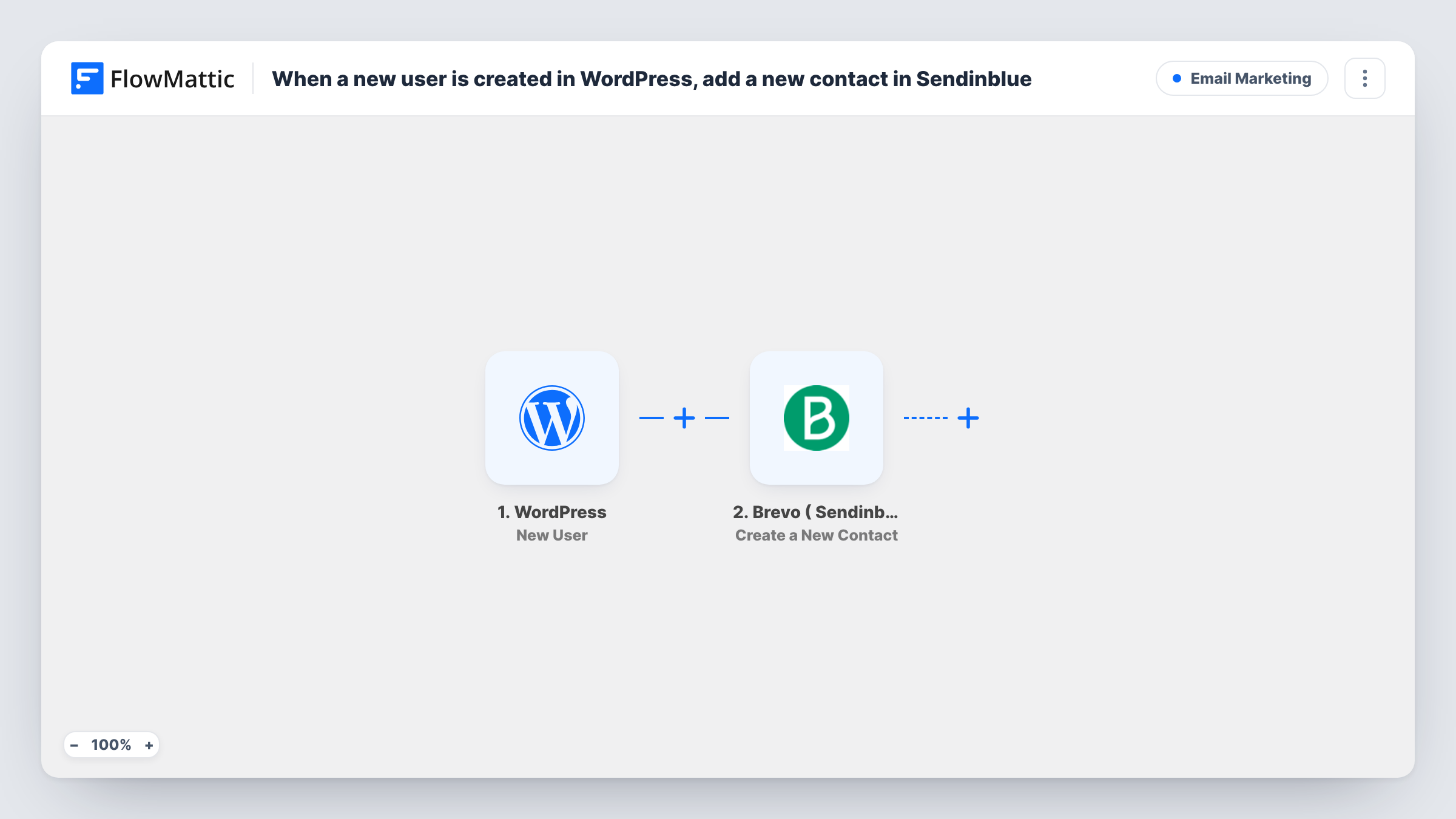
What this workflow does
A membership site, shop or community collects WordPress accounts every day. Those people often belong on your Brevo list too, but WordPress keeps them in its own users table. Moving them over by hand means exporting users, cleaning a CSV and importing it again. This workflow passes each new account to Brevo as it is created.
The WordPress trigger fires when a new user is registered on your site. FlowMattic hands the user's details, such as the email address and name, to the next step. The Brevo ( Sendinblue ) step then creates a new contact from the fields you map.
Everything happens per registration, so the contact appears in Brevo soon after the account exists. Task History logs each run with the data sent and the response Brevo returned, which is where you look if a contact did not show up.
Welcome series for new members
A membership site starts a welcome email sequence in Brevo for each new account, because every registration now arrives there as a contact.
Customer accounts from a WooCommerce store
Shoppers who create an account at checkout become WordPress users, and each one is copied into Brevo for your store newsletter.
Course or community sign-ups
Students who register on a learning or forum site land in Brevo, where you send course announcements and community updates.
How this workflow runs
What happens at each step once the workflow is on, and what you need before you import it.
 WordPress New User
Fires when a new user account is registered on your WordPress site. The new user's details, including the email address, become available to map in the Brevo step.
- Brevo ( Sendinblue ) Create a New Contact
Creates a new contact in Brevo (Sendinblue) from the WordPress user data. Map the user's email to the contact email and add name fields if you want them. Link your Brevo account to this step when you import the workflow.
What you need
- FlowMatticCore
- Brevo ( Sendinblue ) AccountAccount
After importing, map your own data. To keep the template universal, not every step is pre-filled. Open each step in the builder and connect your accounts and fields (channels, lists, sheets, recipients) before you switch the workflow on.
Make it yours
Changes worth making after you import it.
- Add a Filter after the trigger that continues only for a chosen user role, such as Subscriber or Customer, so staff accounts you create do not reach Brevo.
- Map the user's first and last name into the Brevo step as well as the email, so your campaigns can greet each contact by name.
- Register a test account after import so FlowMattic captures the user fields, then map them in the Brevo step and check Task History for the result.
Questions about this workflow
Does every WordPress registration go to Brevo?
Yes, as imported. There is no Filter, so each new user account, whatever its role, runs the Brevo step. Add a Filter on the user role if you want to limit it.
What if the email is already a Brevo contact?
This step runs the Create a New Contact action for every new WordPress account. Brevo may refuse an address that is already in your contacts, and Task History shows the response it sent back for that run.
Are existing WordPress users sent to Brevo?
No. The trigger fires only for accounts registered after you turn the workflow on. Import older users into Brevo separately.
Do I need a Brevo account to use this WordPress workflow?
Yes. The Brevo step runs through your own Brevo account, which you connect in FlowMattic when you import the workflow.
More Email Marketing workflows
Other ready-to-import templates from the same category.







Import this workflow into your WordPress site
Download the JSON, import it from the Workflows screen and connect your accounts. Every run stays on your server, with no per-task fees.
30-day money-back guarantee Unlimited workflows and runs Self-hosted