

When a pledge is created in Patreon, send a thank-you email to the member using the Email SMTP module
When someone creates a pledge on your Patreon page, this workflow sends them a thank-you email through FlowMattic’s Email module, using WordPress mail or the SMTP server you set up.
 Patreon
 Email
Email2 steps Setup ~5 min Used on 2.1k sites Free to import
What this workflow does
Creators like to thank each new supporter personally, but writing a note for every pledge gets hard to keep up with. This workflow sends your thank-you email for you, written once and filled in with each supporter's details.
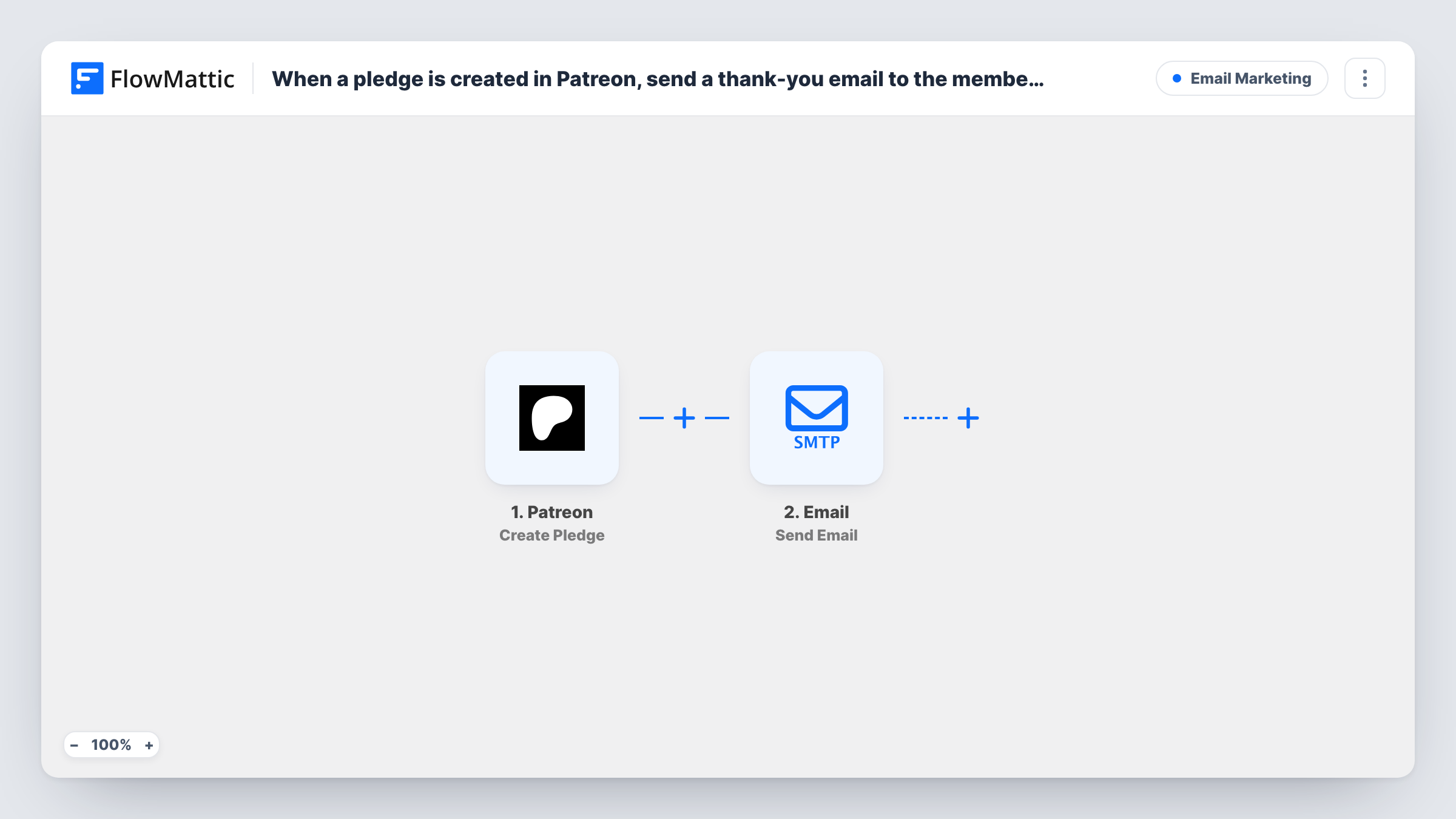
The Patreon trigger fires when a pledge is created on your campaign. FlowMattic receives the pledge data and hands it to the Email step. That step sends a message using the built-in WordPress mail function or a custom SMTP server you configure. You write the subject and body once, insert values from the pledge such as the supporter's name, and map the recipient address from the trigger data.
Every pledge created runs the workflow, so each new supporter gets the same email with their own details filled in. The email leaves from your own site or mail server, not from Patreon, so it looks like any other message you send. Task History shows each run and the data the trigger delivered, which helps you check that the right address was used.
A personal welcome from a podcaster
Each new patron gets an email in your own voice that thanks them by name and tells them where to find the bonus episodes.
Onboarding notes for an art community
An illustrator sends every new supporter a short message explaining when sketches are posted and how to join the Discord server.
Branded mail from your own domain
Route the thank-you through your SMTP provider so it comes from your studio address and sits alongside the rest of your email to fans.
How this workflow runs
What happens at each step once the workflow is on, and what you need before you import it.
 Patreon Create Pledge
Fires when a pledge is created on your Patreon campaign. The pledge data Patreon sends is passed to the email step for mapping.
 Email Send Email
Sends an email through WordPress mail or the custom SMTP server you set up. Map the supporter's address from the Patreon data, then write the subject and message with their details filled in.
What you need
- FlowMatticCore
- Patreon AccountAccount
After importing, map your own data. To keep the template universal, not every step is pre-filled. Open each step in the builder and connect your accounts and fields (channels, lists, sheets, recipients) before you switch the workflow on.
Make it yours
Changes worth making after you import it.
- Make one test pledge, or wait for the first real one, before you finish mapping. Then check in Task History which fields Patreon sent and confirm the email address you need is among them.
- Set up a custom SMTP server in the Email step rather than relying on WordPress mail if your host's default mail often lands in spam.
- Add a Delay before the Email step if you would rather the thank-you arrive an hour or a day after the pledge instead of straight away.
Questions about this workflow
Does Patreon send its own message as well?
This workflow does not change anything in Patreon. Whatever Patreon already sends to new members still goes out, and your FlowMattic email arrives as a separate message.
Do I need an SMTP service for the Email step?
No. The step can use the built-in WordPress mail function. A custom SMTP server is optional and lets you send through a mail provider you already use.
Will a patron who changes their pledge get the email again?
The trigger listens for pledges being created, not updated. Patreon also has an Update Pledge trigger in FlowMattic, but this template does not use it.
Can I send different emails for different Patreon tiers?
Not as imported. Every created pledge gets the same email. Add a Router whose routes check a value from the pledge data, such as the amount if your test run shows Patreon sends it, and give each route its own Email step.
More Email Marketing workflows
Other ready-to-import templates from the same category.






Import this workflow into your WordPress site
Download the JSON, import it from the Workflows screen and connect your accounts. Every run stays on your server, with no per-task fees.
30-day money-back guarantee Unlimited workflows and runs Self-hosted