

When a quote is accepted, send WhatsApp notification via WhatsApp Cloud API
When a customer accepts a quote in Quotient, this workflow sends a free-form WhatsApp text through the WhatsApp Cloud API. WhatsApp only delivers that kind of message inside a 24-hour window, so read the notes below.
 Quotient
 WhatsApp Cloud API
2 steps Setup ~5 min Used on 3.4k sites Free to import
What this workflow does
An accepted quote in Quotient is the signal to start work, and many teams coordinate on WhatsApp. This workflow sends a WhatsApp text the moment a quote is accepted, to the number you set, using details from the quote.
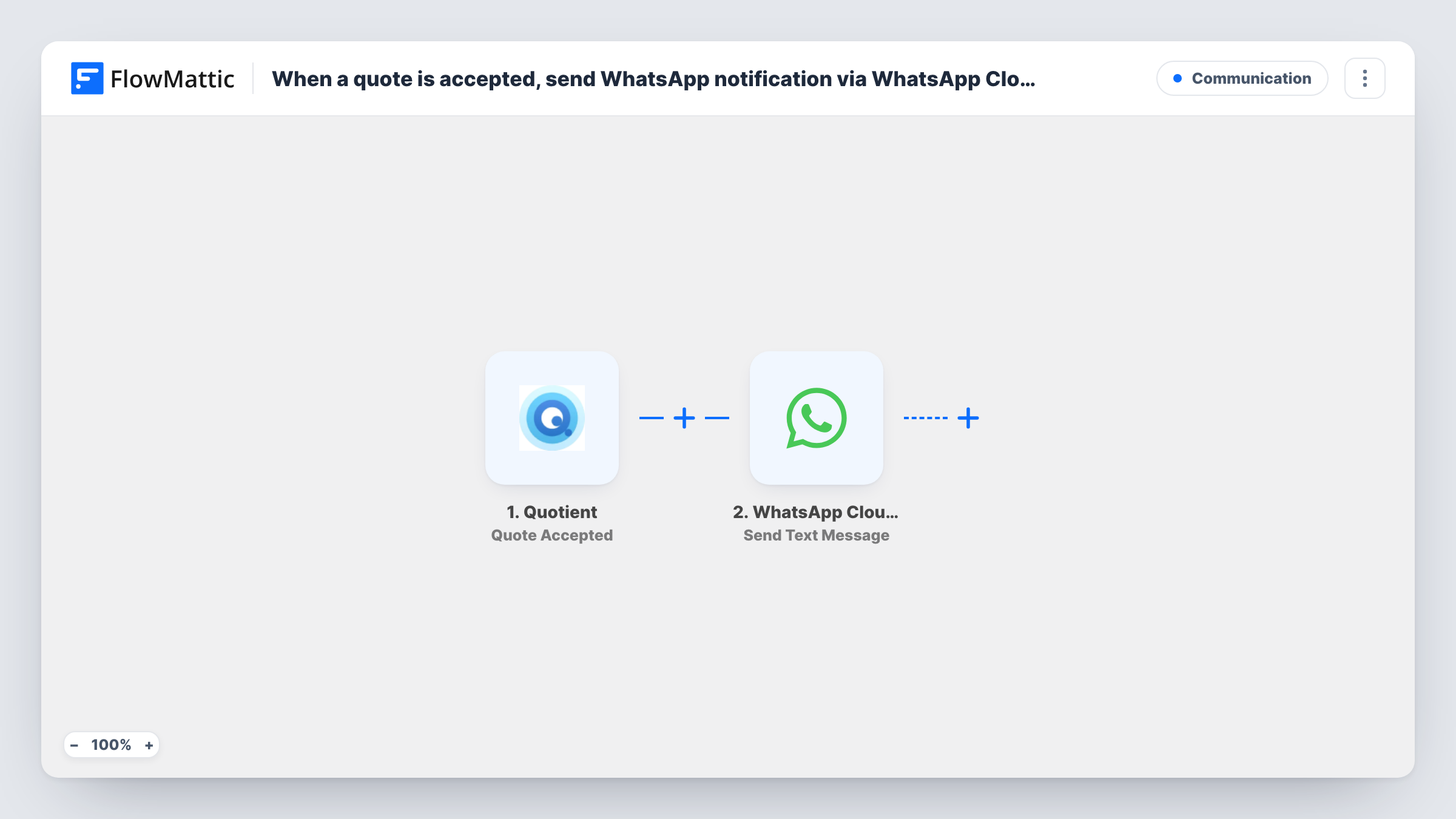
The Quotient Quote Accepted trigger fires when a quote is accepted and passes the quote data on. FlowMattic then runs WhatsApp Cloud API Send Text Message. You set the recipient's number, either a fixed team number or the customer's phone from the quote, and write the message with values such as the quote title and amount.
WhatsApp only delivers free-form text to a number that has messaged your business number in the last 24 hours. A customer who never wrote to you, or a teammate who hasn't recently, will usually not receive it. For those people, switch the step to Send Template Message and use a template WhatsApp has approved.
Alert the owner of a small trades business
A builder's office sends quotes from Quotient. The owner, who messages the business number regularly, gets a WhatsApp text when a job is accepted.
Thank a customer who is already chatting
A customer asks questions about the quote on WhatsApp and then accepts it. The thank-you text reaches them because they wrote in within the last day.
Kick off a project
A web studio's project lead receives the accepted quote's details on WhatsApp and books the kickoff call.
How this workflow runs
What happens at each step once the workflow is on, and what you need before you import it.
 Quotient Quote Accepted
Runs when a quote is accepted in Quotient. The quote and customer details are passed on for the WhatsApp message.
- WhatsApp Cloud API Send Text Message
Texts the number you choose from your WhatsApp business number, as free-form text. It is delivered only if that number messaged you within the last 24 hours.
What you need
- FlowMatticCore
- Quotient AccountAccount
- WhatsApp Cloud API AccountAccount
After importing, map your own data. To keep the template universal, not every step is pre-filled. Open each step in the builder and connect your accounts and fields (channels, lists, sheets, recipients) before you switch the workflow on.
Make it yours
Changes worth making after you import it.
- Switch the action to Send Template Message with an approved WhatsApp template if the recipient may not have messaged your business number in the past 24 hours.
- Accept a test quote in Quotient after import so FlowMattic captures the fields, then map the quote title and amount into the message.
- Add an email step after WhatsApp if you need a notice that arrives whatever WhatsApp's window allows.
Questions about this workflow
Why didn't my WhatsApp message arrive?
WhatsApp only delivers free-form text to numbers that messaged your business number within the last 24 hours. Check Task History for the response, and use Send Template Message for people outside that window.
Can the Quotient customer receive the WhatsApp message?
Only if their phone number is in the quote data you map, and only if they messaged your business number recently. Otherwise use an approved template message.
Do other Quotient events start this workflow?
No. Only Quote Accepted does. Quotient also has triggers such as Quote Declined and Quote Sent that you can use in separate workflows.
What do I need to set up for the WhatsApp Cloud API?
A WhatsApp Business number set up on Meta's WhatsApp Cloud API, connected to FlowMattic with the credentials Meta gives you.
More Communication workflows
Other ready-to-import templates from the same category.





Import this workflow into your WordPress site
Download the JSON, import it from the Workflows screen and connect your accounts. Every run stays on your server, with no per-task fees.
30-day money-back guarantee Unlimited workflows and runs Self-hosted