

When a security scan completes, create a task in ClickUp for resolution
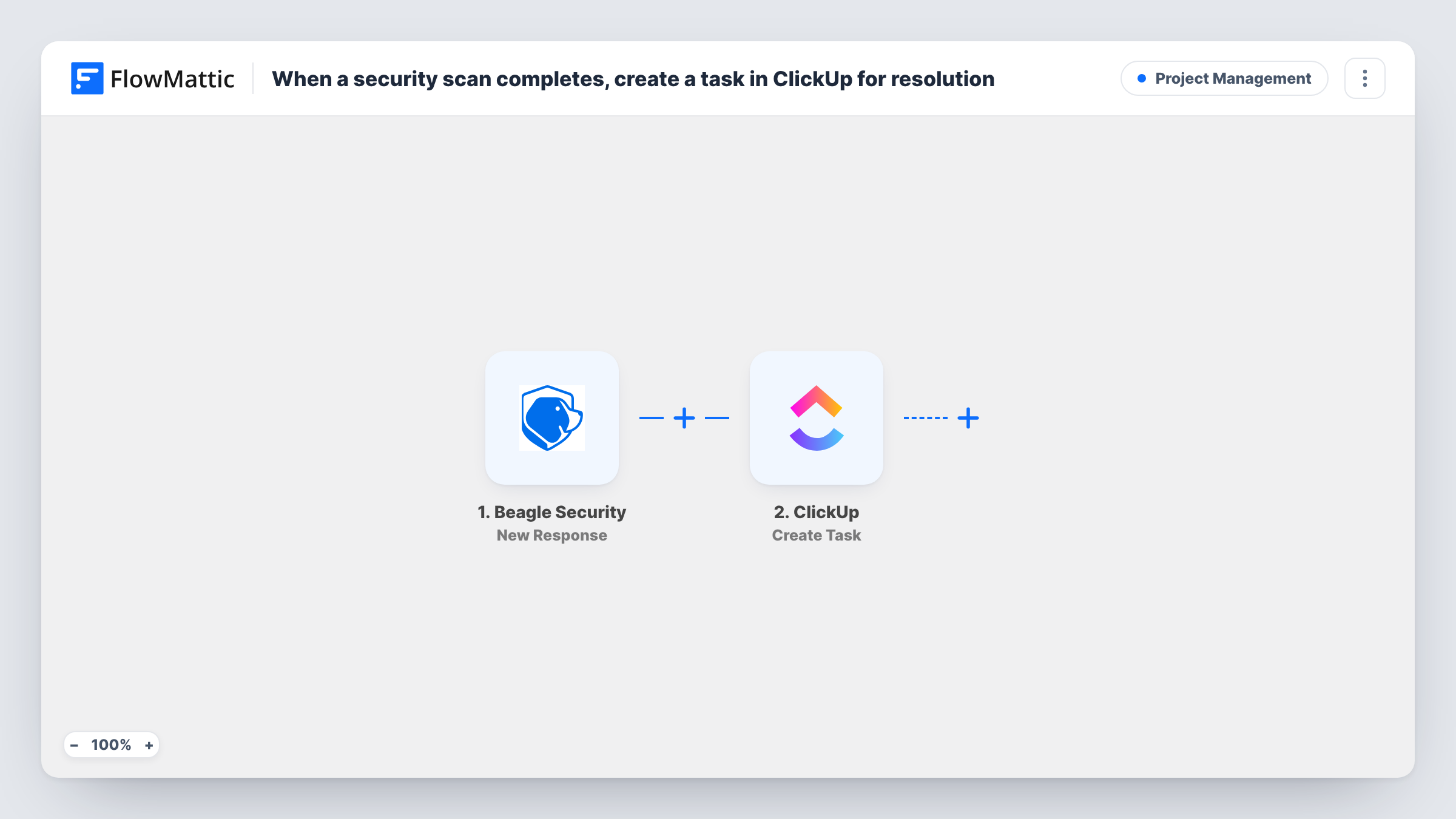
When Beagle Security sends a new response after a scan, this workflow creates a ClickUp task from it, so someone on your team owns the follow-up in the list where work is tracked.
 Beagle Security
 ClickUp
2 steps Setup ~5 min Used on 2.7k sites Productivity Free to import
What this workflow does
A scan result only helps once someone acts on it. When results arrive by email, they are easy to read and forget, and nobody is clearly responsible. This workflow turns each Beagle Security response into a ClickUp task, so the follow-up sits next to your other work.
The Beagle Security trigger, New Response, receives what Beagle Security sends to FlowMattic, such as the result of a completed scan. FlowMattic passes that data to the Create Task action in ClickUp. You choose where the task is created and build it from the response values.
Each response creates one task, whether or not the scan found anything. If you only want tasks for results that need work, add a Filter after the trigger. Nothing in the template decides who handles the task, so look at the ClickUp step after a test run and set what you need there.
Security backlog for a dev team
Each scan result becomes a task in a Security list in ClickUp, where the team triages it in its normal planning.
Agency handling client sites
Results for each client application become tasks in your ClickUp workspace, giving you a record of which scans were reviewed.
Audit trail of scan follow-up
Closed tasks in ClickUp show when each scan result was looked at, which helps when someone asks what was done about a report.
How this workflow runs
What happens at each step once the workflow is on, and what you need before you import it.
 Beagle Security New Response
Runs when Beagle Security sends a new response to FlowMattic, for example after a scan completes. The response data is passed to the ClickUp step.
- ClickUp Create Task
Creates a task in ClickUp from the Beagle Security response. Pick where the task goes, build it from the response values, and run a test to check it.
What you need
- FlowMatticCore
- Beagle Security AccountAccount
- ClickUp AccountAccount
After importing, map your own data. To keep the template universal, not every step is pre-filled. Open each step in the builder and connect your accounts and fields (channels, lists, sheets, recipients) before you switch the workflow on.
Make it yours
Changes worth making after you import it.
- Run a scan after import so FlowMattic captures a real Beagle Security response. Then map its values into the ClickUp task and check the result.
- Add a Filter after the trigger so only responses that show findings create a task. Look at a captured response to choose the value to check.
- Add a Slack step after ClickUp if the team should also hear about each new security task in chat.
Questions about this workflow
Does a clean Beagle Security scan also create a ClickUp task?
Yes, as imported. Every response creates a task. Add a Filter after the trigger to skip responses with nothing to fix.
Is the ClickUp task assigned to anyone?
Not by the template itself. Look at the ClickUp step after import and set an assignee there if the step offers one.
Does the workflow close the ClickUp task when the issue is fixed?
No. It only creates tasks. Closing them is up to your team in ClickUp.
What can the ClickUp task include from the Beagle Security result?
Whatever Beagle Security includes in the response. Capture a real one and open it in the ClickUp step to see what you can map.
More Project Management workflows
Other ready-to-import templates from the same category.





Import this workflow into your WordPress site
Download the JSON, import it from the Workflows screen and connect your accounts. Every run stays on your server, with no per-task fees.
30-day money-back guarantee Unlimited workflows and runs Self-hosted