

When a Freshdesk ticket is received, email it to a team member in rotation using a Counter
Each new Freshdesk ticket moves a FlowMattic Counter on by one, cycling through 1, 2 and 3, and a Router emails the ticket to whichever of three team members holds the current number.
 Freshdesk
 Counter
 Router
 Email
Email6 steps Setup ~12 min Used on 2.1k sites Free to import
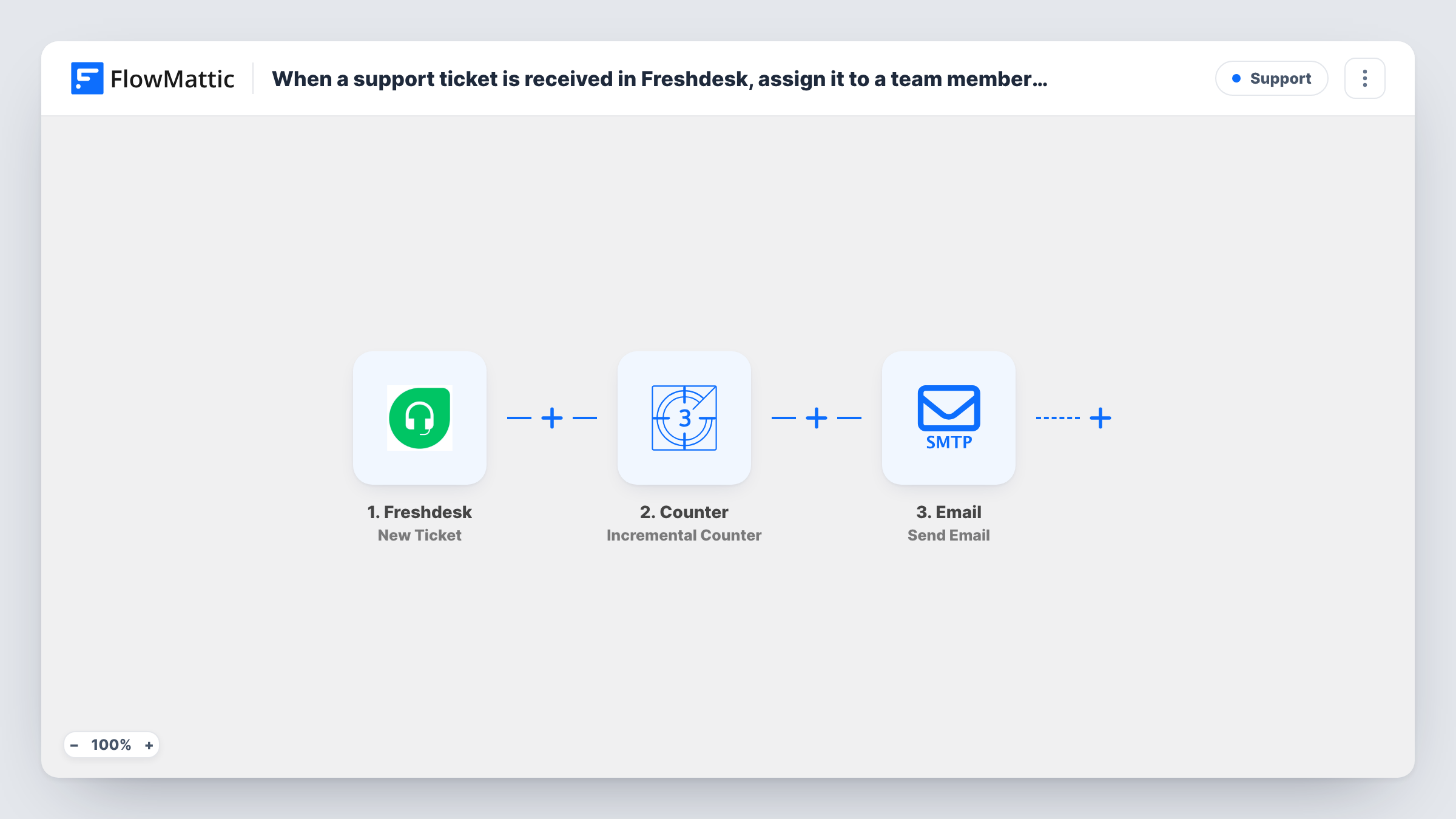
What this workflow does
Small support teams often share one Freshdesk inbox, and tickets get picked unevenly: the fastest person takes the most, or everyone assumes someone else has it. A simple rotation fixes that. This workflow hands new tickets out in turn to three people by email, so each one knows which tickets are theirs.
The Freshdesk New Ticket trigger fires when a ticket is created. Next, the Counter step's Incremental Counter adds 1 to a number stored for this workflow and resets it after it reaches 3. The number starts at 1, so the first ticket makes it 2, the second 3, the third resets it to 1, and the cycle repeats. The step returns the new number as final_value.
A Router then sends the run down one of three routes. Team member 1 runs when the value is exactly 1, Team member 2 at 2 and Team member 3 at 3. Each run carries one number, so only one route matches. Every route ends in FlowMattic's Email step with the subject "New Freshdesk ticket for you" already set.
After import, enter each person's address in their route's email and write the body, mapping the ticket subject, requester and link from the trigger. The emails tell people which tickets to take; the workflow doesn't assign the ticket inside Freshdesk.
Fair share for a three-person help desk
A small software company's three support agents each get every third new ticket by email, so no one ends up with the whole morning queue.
Rotating sales enquiries in Freshdesk
A business that logs pre-sales questions as Freshdesk tickets passes them in turn to three account managers to answer.
Shared on-call coverage
A web agency that handles client issues through Freshdesk spreads new tickets across three developers, each taking the ones emailed to them.
How this workflow runs
What happens at each step once the workflow is on, and what you need before you import it.
 Freshdesk New Ticket
Starts a run for every ticket that opens in your Freshdesk help desk. Its details, such as the subject, description and requester, become available to map into the three emails.
- Counter Incremental Counter
Adds 1 to a number stored for this workflow, starting at 1 and resetting to 1 once it has reached 3, so runs return 2, 3, 1, 2, 3 and so on. The current number is passed on as final_value.
- Router 3 paths
Reads the Counter's final_value and runs the route that matches it exactly: Team member 1 for 1, Team member 2 for 2 and Team member 3 for 3. The values can't overlap, so each ticket follows one route.
 Email Send Email
Team member 1 route. Sends an email with the subject New Freshdesk ticket for you. Enter this person's address after import and map the ticket details into the body.
- Email Send Email
Team member 2 route. Emails the second person with the same pre-set subject. Add their address and a body with the ticket subject, requester and link.
- Email Send Email
Team member 3 route. Emails the third person their ticket. Fill in the address and body after import, as for the other two routes.
What you need
- FlowMatticCore
- Freshdesk AccountAccount
After importing, map your own data. To keep the template universal, not every step is pre-filled. Open each step in the builder and connect your accounts and fields (channels, lists, sheets, recipients) before you switch the workflow on.
Make it yours
Changes worth making after you import it.
- Include the Freshdesk ticket link and requester email in each body, so the person can open the ticket straight from the message.
- For a fourth team member, set the Counter's reset value to 4 and add a route to the Router, which sits between the Counter step and the email steps, matching exactly 4 with its own Send Email step.
- If the rotation should skip spam or automated tickets, put a Filter between the Freshdesk trigger and the Counter step, so those tickets don't take a turn.
Questions about this workflow
Does this assign the ticket to the agent in Freshdesk?
No. Each route sends an email telling one person the ticket is theirs. The ticket's agent field in Freshdesk stays as it was unless you add a step that changes it.
Who gets the first Freshdesk ticket after I import this?
Team member 2. The Counter starts at 1 and adds 1 on the first run, so the first ticket returns 2. The third ticket resets it to 1, and the turn order then repeats.
Can one ticket be emailed to two team members?
Not as imported. The Router runs every route whose condition matches, but each run carries a single Counter value, and each route checks a different exact number.
What if someone is on holiday?
The rotation doesn't know. Change that route's address to a colleague's for the time they are away, or forward their emails, then switch it back.
More Support workflows
Other ready-to-import templates from the same category.





Import this workflow into your WordPress site
Download the JSON, import it from the Workflows screen and connect your accounts. Every run stays on your server, with no per-task fees.
30-day money-back guarantee Unlimited workflows and runs Self-hosted