

When a Timetics booking is cancelled, update Google Calendar and notify the team in Slack
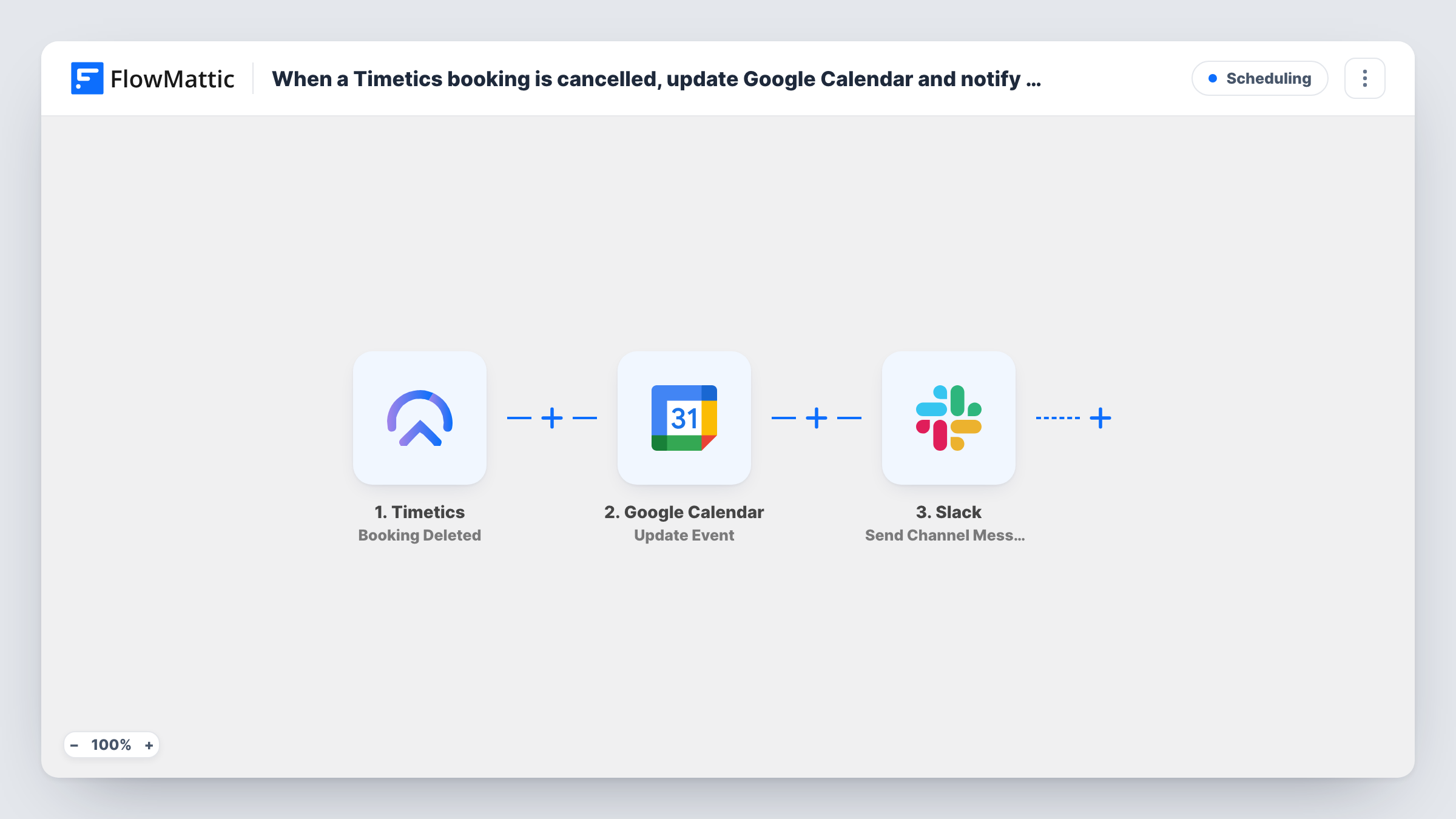
When a booking is deleted in Timetics, FlowMattic lists the matching Google Calendar events, updates the event you map, and posts a message to your team’s Slack channel.
 Timetics
 Google Calendar
 Slack
4 steps Setup ~8 min Used on 1.2k sites Free to import
What this workflow does
A cancelled appointment leaves loose ends: the slot still shows as busy on the calendar, and the person who was going to take the meeting may not know it's off. This workflow tidies both when a booking is removed from Timetics.
Timetics' FlowMattic triggers are Booking Created, Booking Updated and Booking Deleted, so this template uses Timetics Booking Deleted. It runs when a booking is deleted. If your team cancels bookings in a way that doesn't delete them, run a test to check whether that starts the workflow.
Next, a Google Calendar step lists events from your calendar, using filters you set after import, such as the booking's date or the customer's name, to narrow the list to that booking's event. The Update Event step then changes an existing event: map the event ID from the list result and set what should change, for example adding Cancelled to the title.
Last, a Slack step posts a message to a channel you choose, so the team sees which booking went. None of the Google Calendar or Slack steps come pre-mapped. Delete a test booking and check Task History to confirm the right event was found.
Consultants with a shared calendar
A consulting firm takes bookings through Timetics and mirrors them in a team Google Calendar. When a client's booking is deleted, the event is marked as cancelled and the team channel hears about it.
Clinic front desk awareness
A clinic's receptionist removes a booking in Timetics after a patient calls to cancel, and the practitioner sees the update on their calendar and in Slack.
Freeing up studio time
A music studio posts deleted sessions in its #bookings channel so staff can offer the free slot to someone on the waiting list.
How this workflow runs
What happens at each step once the workflow is on, and what you need before you import it.
 Timetics Booking Deleted
Fires when a booking is deleted in Timetics. The booking's details, such as the customer, service and time, are passed to the Google Calendar and Slack steps.
- Google Calendar List Events
Lists events from your Google Calendar. After import, set the optional filters, using values from the Timetics booking, so the list contains the event for this booking.
- Google Calendar Update Event
Updates an existing Google Calendar event. Map the event ID of the matching event from the List Events result, then set the changes you want, such as a new title or description that marks it cancelled.
- Slack Send Channel Message
Lets your team know in a public Slack channel that the booking is gone. Write it after import and map in the booking details, such as the customer's name and the original time, so the team knows which booking was removed.
What you need
- FlowMatticCore
- Timetics AccountAccount
- Google Calendar AccountAccount
- Slack AccountAccount
After importing, map your own data. To keep the template universal, not every step is pre-filled. Open each step in the builder and connect your accounts and fields (channels, lists, sheets, recipients) before you switch the workflow on.
Make it yours
Changes worth making after you import it.
- Swap Update Event for Google Calendar's Delete Event action if you'd rather remove the event than mark it, keeping the same event ID mapping from the list step.
- Store the Timetics booking ID in each event's description when you create it, then search on it in the List Events filters, so the lookup finds exactly one event.
- Use Slack's Send Private Channel Message action if your bookings channel is private, or Send Direct Message to tell the assigned staff member directly.
Questions about this workflow
Does cancelling a Timetics booking start this workflow?
It starts when a booking is deleted, since Timetics has no separate cancellation trigger in FlowMattic. If cancelling in your setup doesn't delete the booking, test it, or, if the booking data carries a status, use Booking Updated with a Filter on it between the trigger and the Google Calendar step.
How does the workflow find the right Google Calendar event?
Through the filters you set in the List Events step, using values from the deleted booking. Then map the matching event's ID into Update Event. Check a test run to make sure only the right event comes back.
What does Update Event change on the calendar?
Whatever you set after import. The template leaves it empty, so decide what marks the event as off, such as a title prefix or a note in the description.
Do I need Google Calendar and Slack accounts for this Timetics flow?
Yes. Connect the Google Calendar that holds your booking events and the Slack workspace you want notified, alongside your Timetics setup.
More Scheduling workflows
Other ready-to-import templates from the same category.





Import this workflow into your WordPress site
Download the JSON, import it from the Workflows screen and connect your accounts. Every run stays on your server, with no per-task fees.
30-day money-back guarantee Unlimited workflows and runs Self-hosted