

When a user is added in Storyblok, create a new team member record in ClickUp
When someone is added to your Storyblok space, this workflow creates a ClickUp task for that person, giving you one task per new team member to track their onboarding and access.
 Storyblok
 ClickUp
2 steps Setup ~5 min Used on 3.3k sites Productivity Free to import
What this workflow does
Adding an editor or developer to Storyblok is usually only part of bringing them on. Someone still has to set up their other accounts, share guidelines and confirm their role. If that work lives in ClickUp, a new Storyblok user should show up there too, without anyone remembering to create the task.
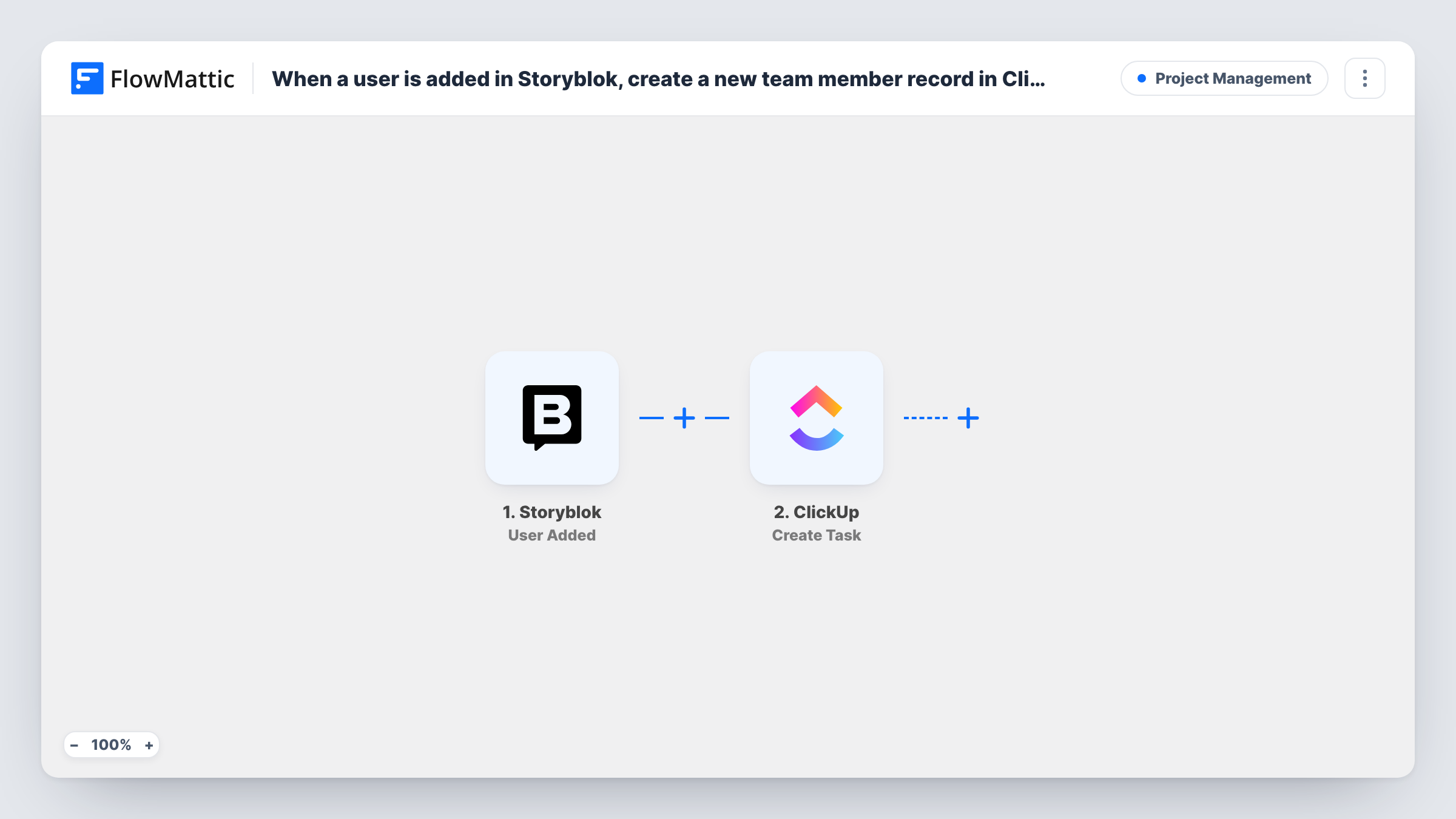
The Storyblok trigger fires when a user is added to your space. FlowMattic receives the details Storyblok sends about that user and passes them to the ClickUp step. That step creates a new task, which becomes the team member's record in your workspace. You decide what goes into the task name and description by mapping the Storyblok data into the step.
The workflow only adds tasks. It doesn't change anything in Storyblok, and removing a user later doesn't close or delete their ClickUp task. Each run appears in Task History, so you can see which user started it and what ClickUp returned.
Agency onboarding a freelance writer
You invite a freelance writer to a client's Storyblok space. A ClickUp task with their name appears in your onboarding list, ready for you to add the brief and style guide.
Access tracking for a content team
Every Storyblok user gets a matching ClickUp task, so the team lead has one list showing who was given access to the CMS and when.
Handover between marketing and IT
Marketing adds people to Storyblok, and IT works from ClickUp. The task tells IT that a new person needs their other accounts set up.
How this workflow runs
What happens at each step once the workflow is on, and what you need before you import it.
 Storyblok User Added
Runs when a user is added to your Storyblok space. The data Storyblok sends about the new user becomes available to map in the ClickUp step.
- ClickUp Create Task
Creates a new ClickUp task for the added user. Connect your ClickUp account, set where the task should be created, and map Storyblok's user details into the task. A test run confirms the result.
What you need
- FlowMatticCore
- Storyblok AccountAccount
- ClickUp AccountAccount
After importing, map your own data. To keep the template universal, not every step is pre-filled. Open each step in the builder and connect your accounts and fields (channels, lists, sheets, recipients) before you switch the workflow on.
Make it yours
Changes worth making after you import it.
- Put the new user's name or email in the ClickUp task name, so each team member's task is easy to find in the list.
- Build a second workflow on Storyblok's User Removed trigger, so you also get a ClickUp task to revoke access when someone leaves the space.
- Add one test user to Storyblok after import so FlowMattic captures a real event, then map the fields in the ClickUp step from that sample.
Questions about this workflow
Does the ClickUp task get updated if the Storyblok user's role changes?
No. This workflow only reacts to a user being added, and it only creates tasks. A role change in Storyblok doesn't touch the existing ClickUp task.
Where in ClickUp does the team member task end up?
You set the destination in the Create Task step after import. Picking a place used only for onboarding keeps these tasks apart from project work; run a test to confirm the task lands where you expect.
Will Storyblok users added before import get ClickUp tasks?
No. The trigger reacts to users added after the workflow is on, so earlier members need their tasks made by hand.
More Project Management workflows
Other ready-to-import templates from the same category.





Import this workflow into your WordPress site
Download the JSON, import it from the Workflows screen and connect your accounts. Every run stays on your server, with no per-task fees.
30-day money-back guarantee Unlimited workflows and runs Self-hosted