

When a webhook response is received, create a new user in WordPress and create a ticket in Desku.io
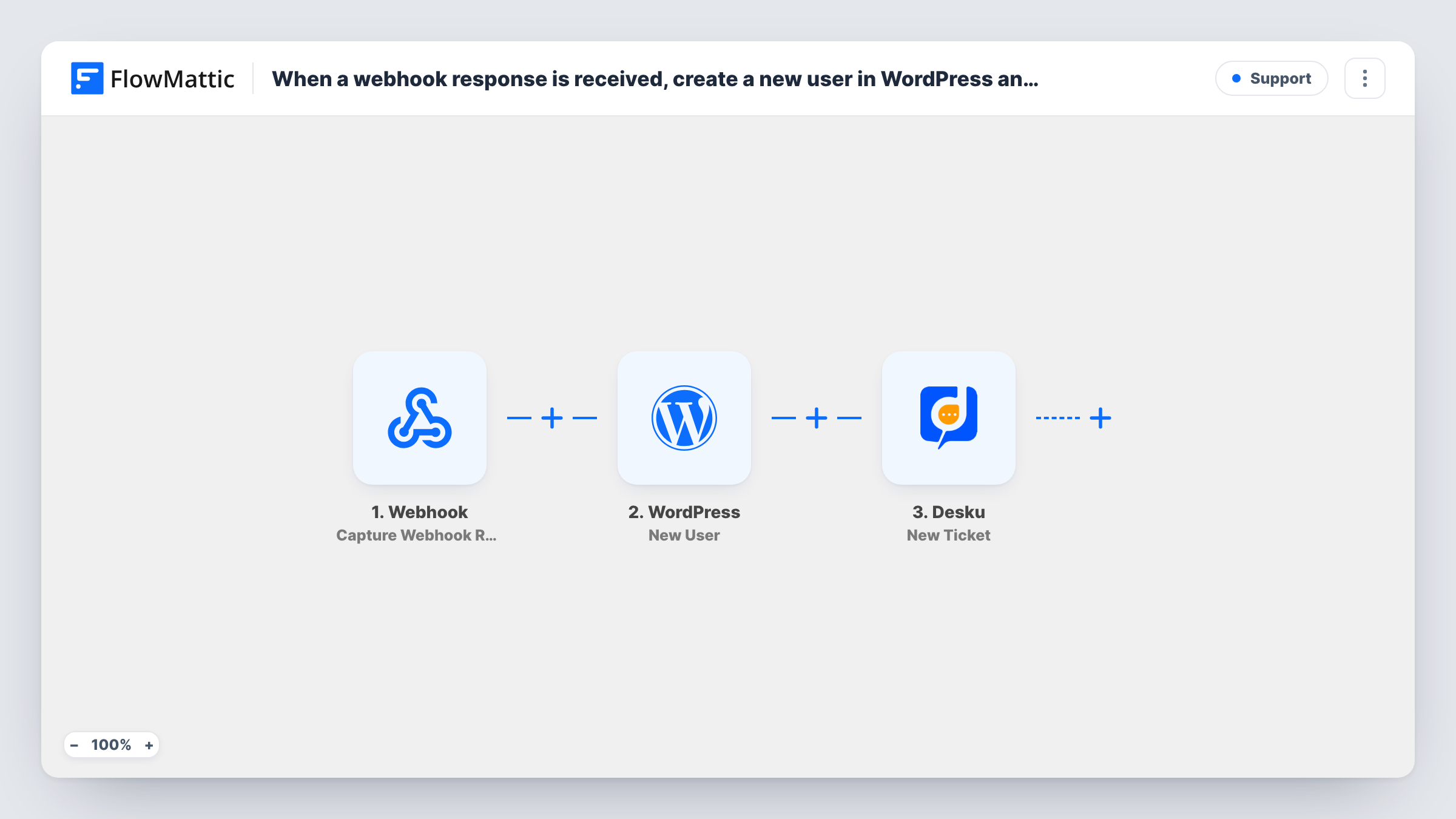
Data posted to a FlowMattic webhook URL creates a WordPress user account and then opens a Desku ticket, so a signup from any outside system arrives with both a site login and a support case.
 Webhook
 WordPress
 Desku
3 steps Setup ~5 min Used on 3.5k sites Free to import
What this workflow does
Some signups don't start on your WordPress site: a payment page, a custom app, a partner's system or another automation tool. If that system can send a webhook, this workflow turns each request into a WordPress account and a Desku ticket, so onboarding and the first support conversation begin at once.
The Webhook trigger, Capture Webhook Response, gives you a URL. Whatever the sending system posts there, such as a name, email and a note about what the person needs, becomes data for the next steps. You decide what goes in the payload, so include everything both later steps need.
The WordPress New User step creates an account from the details you map, including a username and email. When the address already belongs to an account, no second one is made, and the step returns the ID of the account it found. The Desku step then creates a ticket, for example a welcome or setup request your team works through.
Nothing in the WordPress or Desku step is filled in when you import. Send one sample request to the webhook URL so the fields appear, then map them. Unless you turn on the webhook's authentication setting, anyone with the URL can start a run, so keep it private or require a key.
Onboarding after an external checkout
A coaching business takes payments on a hosted checkout page that posts each buyer to the webhook, giving them a WordPress login and a Desku ticket for the kickoff call.
Accounts requested from a mobile app
A startup's mobile app sends sign-up requests to the webhook, so each person gets a WordPress account for the web portal and support sees a setup ticket.
Partner referrals
A reseller's system posts referred clients to the webhook, creating their site account and a Desku ticket so the support team can arrange onboarding.
How this workflow runs
What happens at each step once the workflow is on, and what you need before you import it.
 Webhook Capture Webhook Response
Provides the URL your outside system posts to; every request it receives begins a new run. The fields in the request, such as name, email and message, become available to the WordPress and Desku steps.
- WordPress New User
Creates a WordPress user from the username, email and other details you map from the webhook. If the email is already registered, WordPress keeps the existing account and the step returns its user ID.
- Desku Create Ticket
Creates a new ticket in Desku. The step ships unmapped: connect your Desku account, then map the requester's email and a subject and message built from the webhook data.
What you need
- FlowMatticCore
- Desku.io AccountAccount
After importing, map your own data. To keep the template universal, not every step is pre-filled. Open each step in the builder and connect your accounts and fields (channels, lists, sheets, recipients) before you switch the workflow on.
Make it yours
Changes worth making after you import it.
- Turn on Require authentication on incoming requests in the Webhook trigger, and have the sending system include the key, so only that system can create accounts on your site.
- Choose the role for accounts made by this webhook, such as customer or member, in the New User step, and confirm it on the test account in your Users screen.
- Include a source or plan field in the webhook payload, and map it into the Desku ticket subject, so agents can see where each new user came from.
Questions about this workflow
Which fields should the sending system include for WordPress and Desku?
Whatever the WordPress and Desku steps need: at least an email address and a username or name for the account, plus anything you want on the ticket. You build the payload in the sending system.
What happens when the posted email already belongs to a WordPress user?
New User keeps the existing account rather than creating a duplicate, and returns that account's ID; a role you map is added to it. Task History lists the user ID it returned for that run.
Will people created through the webhook get a set-password email?
Only if you choose it. The New User step has a notification setting that can send WordPress's standard new-user email to the admin, the user or both, with a link for the user to set a password.
Can I protect this webhook URL so others can't create WordPress users?
Yes. The Webhook trigger has a setting to require authentication on incoming requests. Turn it on and send the key from your system, or use signature verification if the sender signs its webhooks.
More Support workflows
Other ready-to-import templates from the same category.






Import this workflow into your WordPress site
Download the JSON, import it from the Workflows screen and connect your accounts. Every run stays on your server, with no per-task fees.
30-day money-back guarantee Unlimited workflows and runs Self-hosted