

When a Whereby session ends, add a row in Google Sheets, notify the team in Slack, then mark the session logged
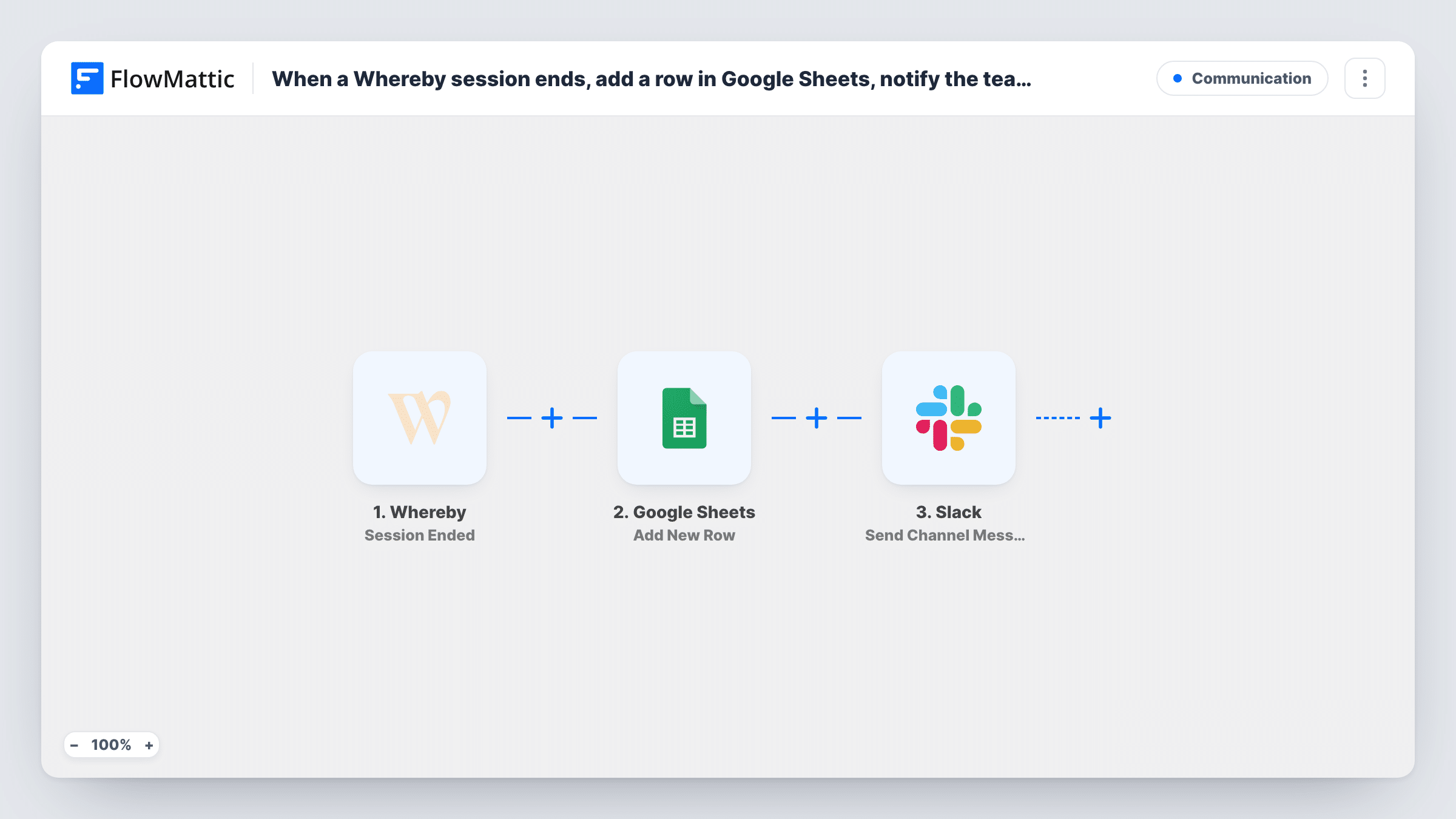
When a Whereby room session ends, FlowMattic adds a row for it in Google Sheets, posts a Slack channel message, and then updates that same row, found by its row number, to mark the session logged.
 Whereby
 Google Sheets
 Slack
4 steps Setup ~8 min Used on 2.6k sites Free to import
What this workflow does
Teams that run calls, coaching sessions or consultations in Whereby often need a record of when meetings took place, for billing, attendance or simple reporting. This workflow writes each ended session to a Google Sheet, tells the team in Slack, and stamps the row as logged.
The Whereby Session Ended trigger fires when a room session ends, which Whereby decides once fewer than two participants have been in the room for some time. Google Sheets Add New Row then records the session and returns the number of the new row. Slack posts a message to the channel you choose. Update Row comes last, with {google_spreadsheets2.row_number} mapped as its row number so it edits the row for this session.
Everything else is set after import. Hold a short test session and let it end, then choose the spreadsheet and sheet, map the Whereby fields into columns, pick a Slack channel and write the message. In Update Row, select the same sheet and set the status column to Logged.
Because the end of a session depends on people leaving, a session may end later than the call itself did, and a room left with one person in it still counts. Task History shows each ended session and how every step replied.
Billable session log for coaches
A business coach reviews the Whereby session sheet at month end to check which client calls took place before sending invoices.
Telehealth attendance records
A small therapy practice keeps a dated list of ended Whereby sessions in Google Sheets to compare against its appointment book.
Team awareness of finished calls
A sales team's #calls Slack channel shows when each demo room session has ended, so the rep's manager knows to ask how it went.
How this workflow runs
What happens at each step once the workflow is on, and what you need before you import it.
 Whereby Session Ended
Fires when a Whereby room session ends, once fewer than two participants have been in the room for some time. Use a test session and check Task History for the room and time fields it sends.
- Google Sheets Add New Row
Records the ended session as a new row in the spreadsheet and sheet you choose and returns that row's number. The template maps no columns, so match Whereby fields to your headers after import.
- Slack Send Channel Message
Posts a message to the Slack channel you pick saying the session has ended. Write the wording after import and map in Whereby details such as the room name.
- Google Sheets Update Row
Marks the row from step 2 as logged, using the row number that step returned, which the template maps. Choose the same spreadsheet and sheet, then type Logged into your status column field.
What you need
- FlowMatticCore
- Whereby AccountAccount
- Google Sheets AccountAccount
- Slack AccountAccount
After importing, map your own data. To keep the template universal, not every step is pre-filled. Open each step in the builder and connect your accounts and fields (channels, lists, sheets, recipients) before you switch the workflow on.
Make it yours
Changes worth making after you import it.
- Map the room name into its own column in Add New Row, if your test session shows one, so you can see which Whereby room each row belongs to.
- Add a Client column you fill in by hand when several clients share one room, since the session data may not say who attended.
- For alerts that should stay private, switch the Slack step to Slack's Send Private Channel Message action.
Questions about this workflow
When exactly does Whereby count a session as ended?
FlowMattic describes the trigger as firing when a room session ends once there have been fewer than two participants for some time. A session can therefore end a little after the call wraps up.
How does Update Row mark the Whereby session's own row?
The Add New Row step hands back the number of the row it wrote for the session. Update Row ships with {google_spreadsheets2.row_number} mapped in, so the Logged status goes on that same row.
Which session details end up in the sheet?
The ones you map from the Whereby trigger data. The template leaves Add New Row empty, so run a test session and match the fields shown in Task History to your columns.
More Communication workflows
Other ready-to-import templates from the same category.







Import this workflow into your WordPress site
Download the JSON, import it from the Workflows screen and connect your accounts. Every run stays on your server, with no per-task fees.
30-day money-back guarantee Unlimited workflows and runs Self-hosted