

When a workflow changes in Storyblok, then update the corresponding project in Monday.com
When a Storyblok workflow stage changes, FlowMattic looks up the matching Monday.com item by a column value and renames it, so your board shows where each piece of content stands.
 Storyblok
 Monday.com
3 steps Setup ~5 min Used on 3.5k sites Productivity Free to import
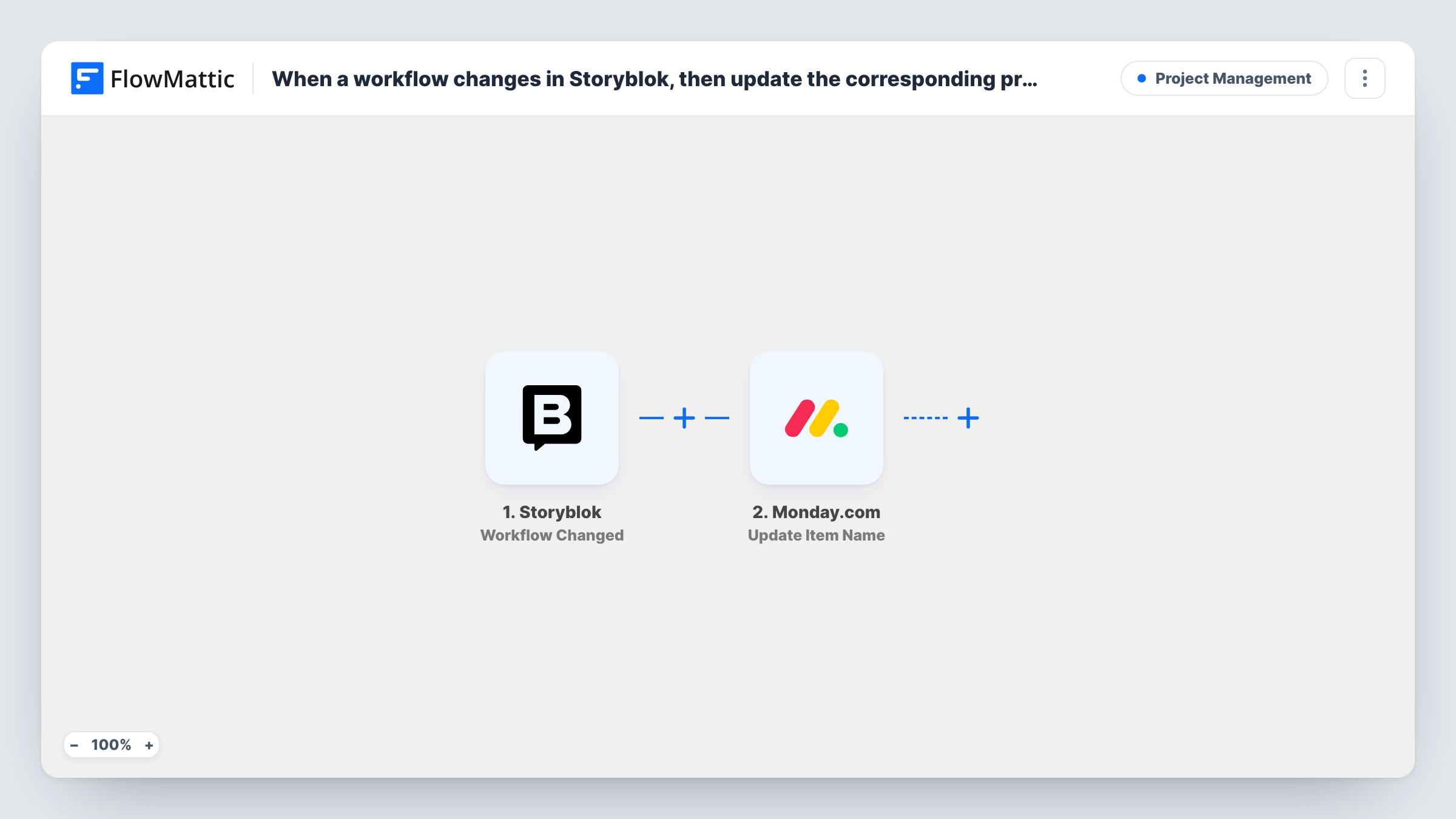
What this workflow does
Content teams often plan articles and landing pages on a Monday.com board while the writing and review happen in Storyblok. The two drift apart as soon as a story moves from draft to review to approved. This workflow keeps the board item in step with the Storyblok workflow without anyone retyping it.
The Storyblok trigger fires when a workflow changes, which in practice means a story moves to another stage of your Storyblok workflow. The data Storyblok sends about that change is passed to the Monday.com steps.
The first Monday.com step runs Get Item by Column Value. It searches one column of your board for a value from the Storyblok data, such as a story ID or slug that you keep on each item. Your board needs that column for the lookup to find the right project. The second step updates that item's name, for example to add the new stage. Both steps ship unmapped: after import you pick the board and column, map the Storyblok value to search for, then map the found item and the new name.
Run a stage change on a test story and check Task History. It shows which item the lookup returned and what Monday.com did with the new name.
Editorial calendar that tracks review stages
A content lead plans each article as a Monday.com item and sees its Storyblok stage in the item name, such as Draft, In review or Approved.
Agency projects built in a client's CMS
An agency builds client pages in Storyblok and keeps a Monday.com board per client, where each page item shows its current workflow step.
Launch checklist for product pages
A marketing team tracks every launch page on a board and knows at a glance which ones have reached the final Storyblok stage.
How this workflow runs
What happens at each step once the workflow is on, and what you need before you import it.
 Storyblok Workflow Changed
Fires when a workflow changes in Storyblok, such as a story moving to a new stage. The details of that change are passed to the Monday.com lookup.
- Monday.com Get Item by Column Value
Searches a column on your Monday.com board for a value from the Storyblok data. The step ships unmapped: pick the board and column, and map the value, such as a story ID stored on each item.
- Monday.com Update Item Name
Renames the Monday.com item the lookup found. Map that item from the previous step and build the new name, for example the story title plus the stage it just reached.
What you need
- FlowMatticCore
- Storyblok AccountAccount
- Monday.com AccountAccount
After importing, map your own data. To keep the template universal, not every step is pre-filled. Open each step in the builder and connect your accounts and fields (channels, lists, sheets, recipients) before you switch the workflow on.
Make it yours
Changes worth making after you import it.
- Add a text column to your board that holds each story's Storyblok ID or slug, and fill it when you create the item, so the lookup has something exact to match.
- If you would rather keep the item name fixed, swap Update Item Name for Change Multiple Column Values and write the stage into a status or text column.
- Add a Monday.com Create Update step after the rename to leave a note on the item each time the Storyblok stage changes.
Questions about this workflow
How does the workflow know which Monday.com item belongs to the Storyblok story?
Through the Get Item by Column Value step. It searches the column you choose for the value you map from Storyblok, so each item needs that value, such as the story ID, stored in that column.
What if no Monday.com item matches the story?
The lookup returns no item to rename. Check Task History for that run, then add the story's ID to the right item on your board.
Does it change anything besides the item name?
No. The last step only updates the item's name. FlowMattic's Monday.com integration also has actions for column values and updates if you want to change more.
Which Storyblok changes start a run?
Workflow changes, such as a story moving between stages. Publishing, saving or deleting entries are separate Storyblok triggers in FlowMattic and don't start this one.
More Project Management workflows
Other ready-to-import templates from the same category.






Import this workflow into your WordPress site
Download the JSON, import it from the Workflows screen and connect your accounts. Every run stays on your server, with no per-task fees.
30-day money-back guarantee Unlimited workflows and runs Self-hosted