

When an ACF field is updated in user profile, add a tag to the user in FluentCRM
When a custom field made with Advanced Custom Fields changes on a WordPress user profile, this workflow adds a tag to that user’s existing FluentCRM contact, so your segments reflect profile data.
 Advanced Custom Fields
 FluentCRM
2 steps Setup ~5 min Used on 2.4k sites Free to import
What this workflow does
Advanced Custom Fields often holds the profile details that matter for marketing: an interest, a plan level, a region. FluentCRM can segment contacts by tag, but it doesn't see ACF values on its own. This workflow tags the contact when a profile field changes, so you can email people based on that data.
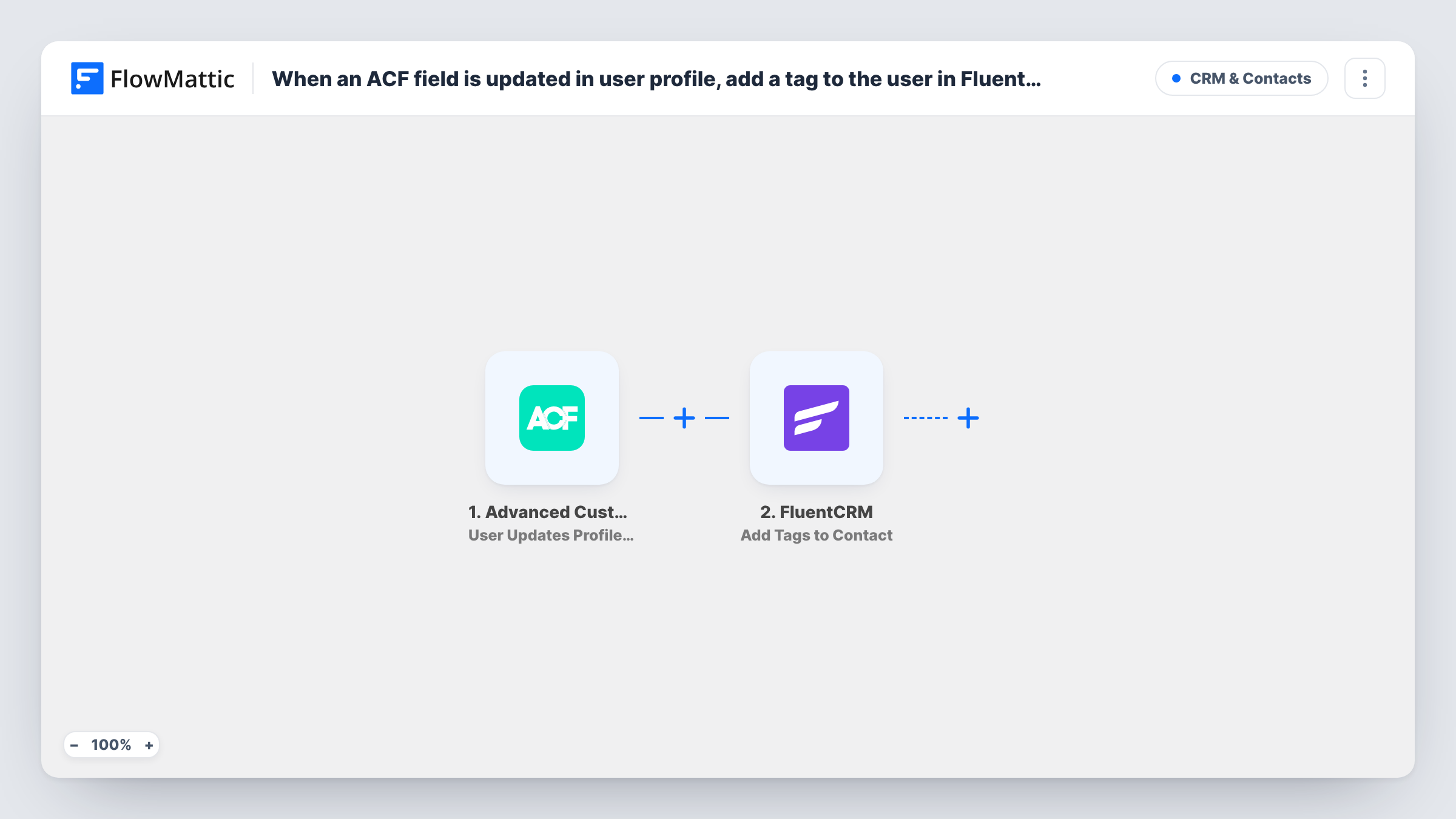
A run starts when someone saves a new value in an Advanced Custom Fields field on a WordPress user's profile. FlowMattic passes the user's data and the field values to FluentCRM, where Add Tags to Contact adds the tags you choose to that person's contact record.
The FluentCRM step works on contacts that already exist. A WordPress user who isn't a FluentCRM contact won't be tagged, and Task History shows the result. As imported, every profile field update adds the same tag, whatever the new value is. Add a Filter if the tag should depend on the value.
Interest field on a membership profile
Members choose a topic in an ACF field on their profile. Add a Filter on that value, and only members who pick it get the matching FluentCRM tag for topic-based newsletters.
Flag profiles that have been completed
When a user fills in an extra ACF profile field, their FluentCRM contact gets a tag, so you can stop sending profile reminder emails to them.
Account manager changes
Staff update an ACF field that holds a client's account manager. The client's contact is tagged so the right team sees it in FluentCRM.
How this workflow runs
What happens at each step once the workflow is on, and what you need before you import it.
 Advanced Custom Fields User Updates Profile Field
Runs when a custom field created with Advanced Custom Fields is updated on a WordPress user profile. The user's details and the field data are passed to FluentCRM.
- FluentCRM Add Tags to Contact
Adds tags to the user's existing FluentCRM contact. Choose the tags and map the user from the trigger data into the step, then test with a user who is already a contact.
What you need
- FlowMatticCore
- Advanced Custom Fields PluginPlugin
- FluentCRM PluginPlugin
After importing, map your own data. To keep the template universal, not every step is pre-filled. Open each step in the builder and connect your accounts and fields (channels, lists, sheets, recipients) before you switch the workflow on.
Make it yours
Changes worth making after you import it.
- Add a Filter after the trigger on the ACF field's new value, so a tag is added only when the profile holds the value you segment on.
- Use a Router with one route per possible field value, each with its own Add Tags to Contact step, if different values need different tags.
- Make sure your WordPress users are FluentCRM contacts before you rely on this flow, for example by importing them in FluentCRM, since the tag step only works on existing contacts.
Questions about this workflow
What happens if the WordPress user isn't in FluentCRM?
Add Tags to Contact only works on existing contacts, so that user isn't tagged and Task History shows the step's result. Add the user to FluentCRM first if they should be tagged.
Does the FluentCRM tag change when the ACF value changes back?
No. The workflow only adds tags and never removes them. Add FluentCRM's Remove Tags From Contact action in a workflow of its own if a tag should come off.
Does every ACF profile update add the tag again?
Yes. Each update that fires the trigger runs the tag step again for that user. Check Task History after a second test update to see how FluentCRM handles a tag the contact already has.
More CRM & Contacts workflows
Other ready-to-import templates from the same category.





Import this workflow into your WordPress site
Download the JSON, import it from the Workflows screen and connect your accounts. Every run stays on your server, with no per-task fees.
30-day money-back guarantee Unlimited workflows and runs Self-hosted