

When an affiliate earns commission for a sale he referred in ThriveCart, send the affiliate a congratulations email, and create a coupon for him in WooCommerce
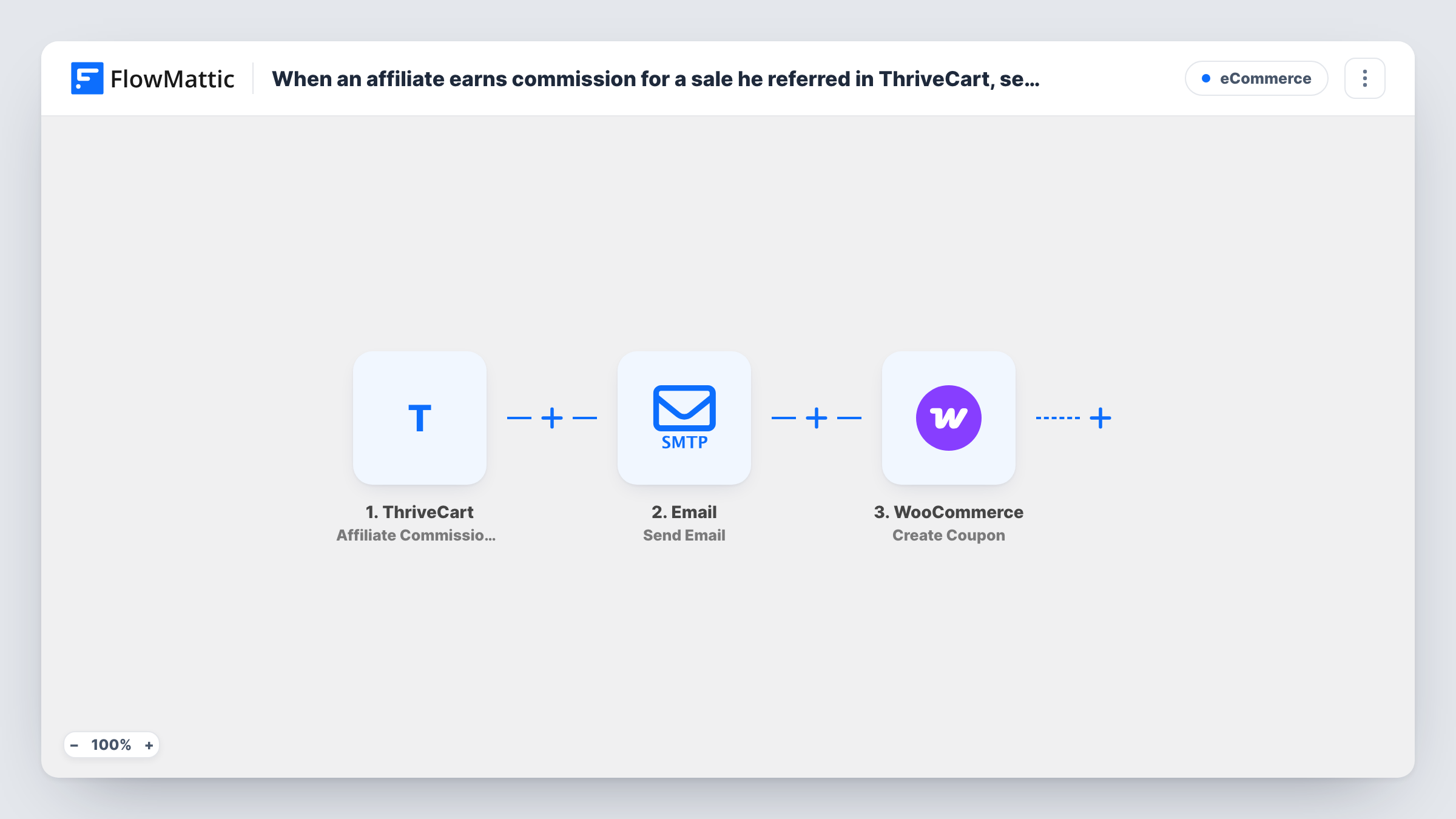
When a ThriveCart affiliate earns commission on a sale they referred, this workflow emails them a congratulations note and then creates a coupon in your WooCommerce store.
 ThriveCart
 Email
Email
 WooCommerce
3 steps Setup ~5 min Used on 1.8k sites Free to import
What this workflow does
An affiliate who has just earned a commission is a good audience for a quick thank-you, and a coupon gives them something extra to share or use. Doing that by hand means watching ThriveCart for commissions, writing each email and then creating coupons one by one in WooCommerce. This workflow handles all three in a single run.
The ThriveCart trigger fires when an affiliate earns commission for a sale they referred. Details from that event become data you can map. The second step is FlowMattic's Email module, which sends your congratulations message through WordPress mail or the SMTP account you set. The last step creates a new coupon in WooCommerce on the same WordPress site as FlowMattic.
Note the order: the email goes out before the coupon exists, so it can't include anything WooCommerce returns about the coupon. If the email should carry the code, move the email step after the coupon step. Every commission event runs both actions, so an affiliate who earns several commissions gets several emails and several coupons.
Thank affiliates on every referred sale
A course creator selling through ThriveCart sends each affiliate a short note naming the product they just earned on, and adds a WooCommerce coupon for the merch store.
Coupons affiliates can pass to their audience
Each commission produces a fresh WooCommerce coupon the affiliate can share with followers who want something from your store.
Rewarding partners who sell both catalogs
A business that sells digital products in ThriveCart and physical goods in WooCommerce uses each commission to give the partner a reason to visit the shop.
How this workflow runs
What happens at each step once the workflow is on, and what you need before you import it.
 ThriveCart Affiliate Commission Earned
Runs when a ThriveCart affiliate earns commission for a sale they referred. The event's details are passed on for the email and the coupon.
 Email Send Email
Sends the congratulations email with FlowMattic's Email module, using WordPress mail or your own SMTP settings. Map the affiliate's email address from the trigger as the recipient and write the message.
- WooCommerce Create Coupon
Adds a WooCommerce coupon on your store for this commission. Set up the coupon in this step after import, using trigger data where it helps, and check a test run to confirm the coupon looks right.
What you need
- FlowMatticCore
- ThriveCart AccountAccount
- WooCommerce PluginPlugin
After importing, map your own data. To keep the template universal, not every step is pre-filled. Open each step in the builder and connect your accounts and fields (channels, lists, sheets, recipients) before you switch the workflow on.
Make it yours
Changes worth making after you import it.
- Rebuild the order so the Email step comes after the WooCommerce step. The congratulations message can then include the coupon details WooCommerce returns.
- Make the coupon code unique per run by combining trigger data, such as an order or affiliate value, so two commissions never try to create the same code.
- Set your SMTP details in the Email step if WordPress mail on your host lands in spam folders.
Questions about this workflow
Does the ThriveCart event include the affiliate's email address?
Send a test commission or check a recent event after import. FlowMattic shows every field ThriveCart passes, and you map the affiliate's address from there.
Can the coupon be created in a WooCommerce store on another site?
No. The Create Coupon step works with WooCommerce on the WordPress site where FlowMattic is installed.
Is the coupon restricted to the affiliate?
Not by the template. The step ships unmapped, so any restrictions are what you set in the WooCommerce step after import.
Does the email go through ThriveCart or Gmail?
Neither. It uses FlowMattic's Email module, which sends through WordPress mail or the SMTP server you enter.
More E-Commerce workflows
Other ready-to-import templates from the same category.




Import this workflow into your WordPress site
Download the JSON, import it from the Workflows screen and connect your accounts. Every run stays on your server, with no per-task fees.
30-day money-back guarantee Unlimited workflows and runs Self-hosted