

When Appointment Booking Status Changed in WP Amelia, send an email to site admins using Email SMTP module
Whenever an appointment’s booking status changes in WP Amelia, FlowMattic sends an email to the site admins you list, through WordPress mail or your SMTP account, so the team sees every booking update.
 WP Amelia
 Email
2 steps Setup ~5 min Used on 483 sites Free to import
What this workflow does
Booking statuses change all day: a pending request is approved, a customer cancels, a slot is rejected. Staff who don't sit in the Amelia dashboard often hear about these changes late. This workflow sends an email each time an appointment's status moves, so the people who manage the calendar can react.
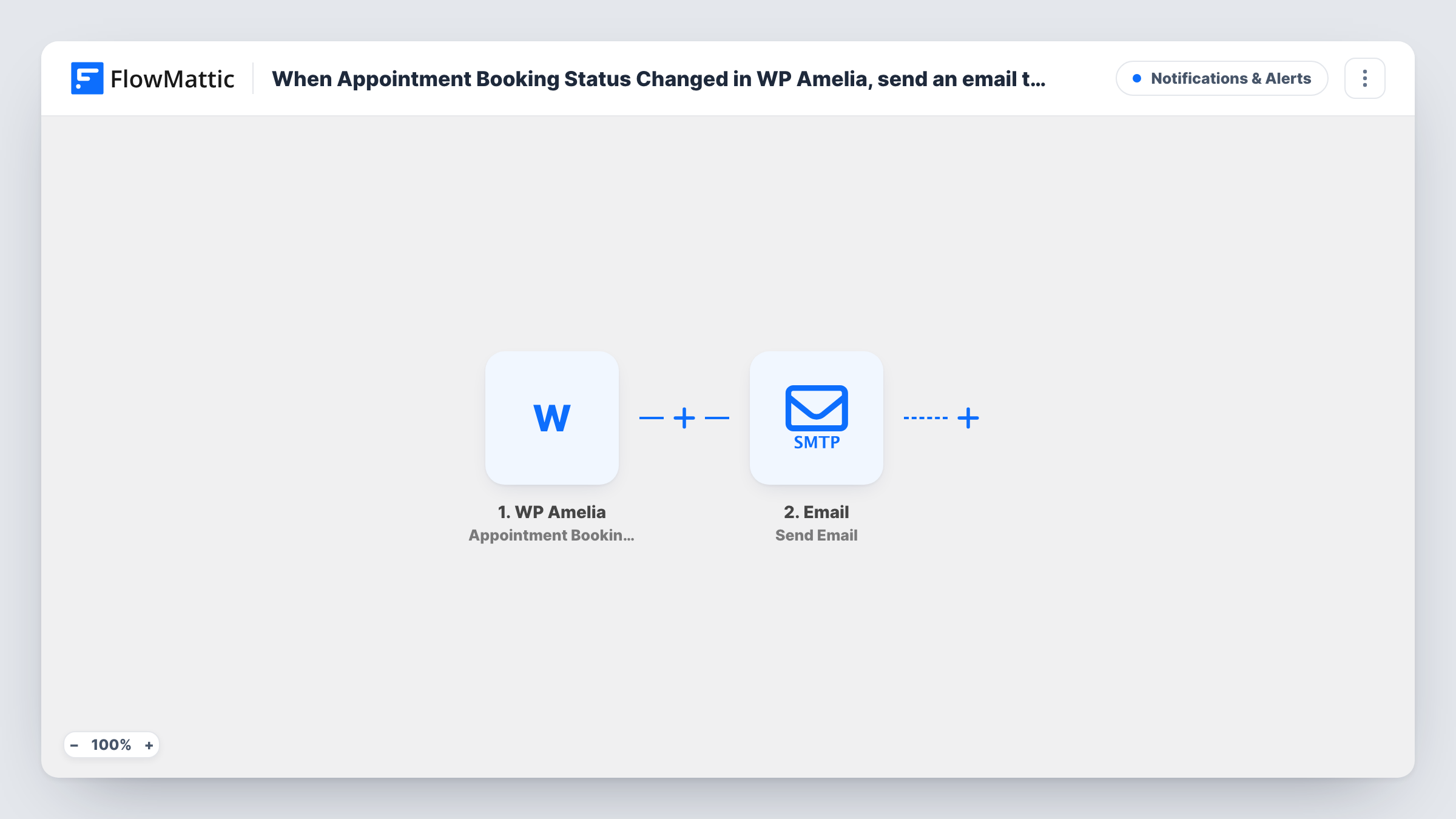
The WP Amelia Appointment Booking Status Changed trigger fires when an appointment's booking status is changed, whichever status it moves to. It passes the appointment and booking details on.
The Email step is FlowMattic's own module and sends through the built-in WordPress mail function or a custom SMTP account. It ships empty: after import you enter the admin addresses, write a subject and body, and map in the details that matter, such as the service, the customer's name, the appointment time and the new status.
Every status change sends a message, so a busy calendar produces a steady stream of email. If you only care about some changes, narrow it as the tips describe. Change a test booking's status and check Task History to see the data Amelia sent and whether the email went out.
Front desk aware of cancellations
A salon's reception gets an email when an Amelia appointment is canceled, so the free slot can be offered to someone on the waiting list.
Manager oversight of approvals
A clinic manager receives a note each time staff approve or reject a pending request, keeping a record outside the dashboard.
Shared inbox for a small team
A tutoring business sends every booking update to a shared mailbox the whole team reads, rather than each tutor checking Amelia.
How this workflow runs
What happens at each step once the workflow is on, and what you need before you import it.
 WP Amelia Appointment Booking Status Changed
Fires whenever an appointment's booking status changes in WP Amelia, for any new status. The appointment and booking details, including the status, are passed to the email step.
 Email Send Email
Emails the admins through WordPress mail or your SMTP account. The step ships empty, so enter the recipient addresses, a subject and the message, and map the Amelia booking details into them.
What you need
- FlowMatticCore
- WP Amelia AccountAccount
After importing, map your own data. To keep the template universal, not every step is pre-filled. Open each step in the builder and connect your accounts and fields (channels, lists, sheets, recipients) before you switch the workflow on.
Make it yours
Changes worth making after you import it.
- Put the new status in the email subject, so admins can tell a cancellation from an approval without opening the message.
- To email only for certain statuses, put a Filter between the Amelia trigger and the Email step that checks the status value, such as canceled. Change a test booking first to see how Amelia names that status.
- If you only need cancellations, FlowMattic's WP Amelia integration also has an Appointment Booking Canceled trigger you can use instead.
- Use a custom SMTP account for the Email step rather than the built-in WordPress mail, so admin alerts don't rely on your server's default mail setup.
Questions about this workflow
Which WP Amelia status changes send an email?
All of them. The trigger fires whenever an appointment's booking status changes, whatever the new status is. Add a Filter between the trigger and the Email step to pick specific ones.
Who receives the Amelia booking alert?
The addresses you enter in the Email step. The template leaves the recipient, subject and body for you to fill in.
Does the customer get this email too?
Not unless you add their address. This workflow is meant for admins; Amelia's own notifications to customers keep working as you have them set.
Can I send the WP Amelia alert through Gmail?
Yes. Enter Gmail's SMTP details in the Email module, or swap the step for the Gmail app's Send Email action.
More Notifications & Alerts workflows
Other ready-to-import templates from the same category.





Import this workflow into your WordPress site
Download the JSON, import it from the Workflows screen and connect your accounts. Every run stays on your server, with no per-task fees.
30-day money-back guarantee Unlimited workflows and runs Self-hosted