

When booking is rescheduled in Book Like a Boss, email your team mate about the new schedule
When a client moves a booking in Book Like a Boss, FlowMattic emails a teammate the updated date and time, so the person running the session works from the new schedule.
 Book Like a Boss
 Email
2 steps Setup ~5 min Used on 1.9k sites Free to import
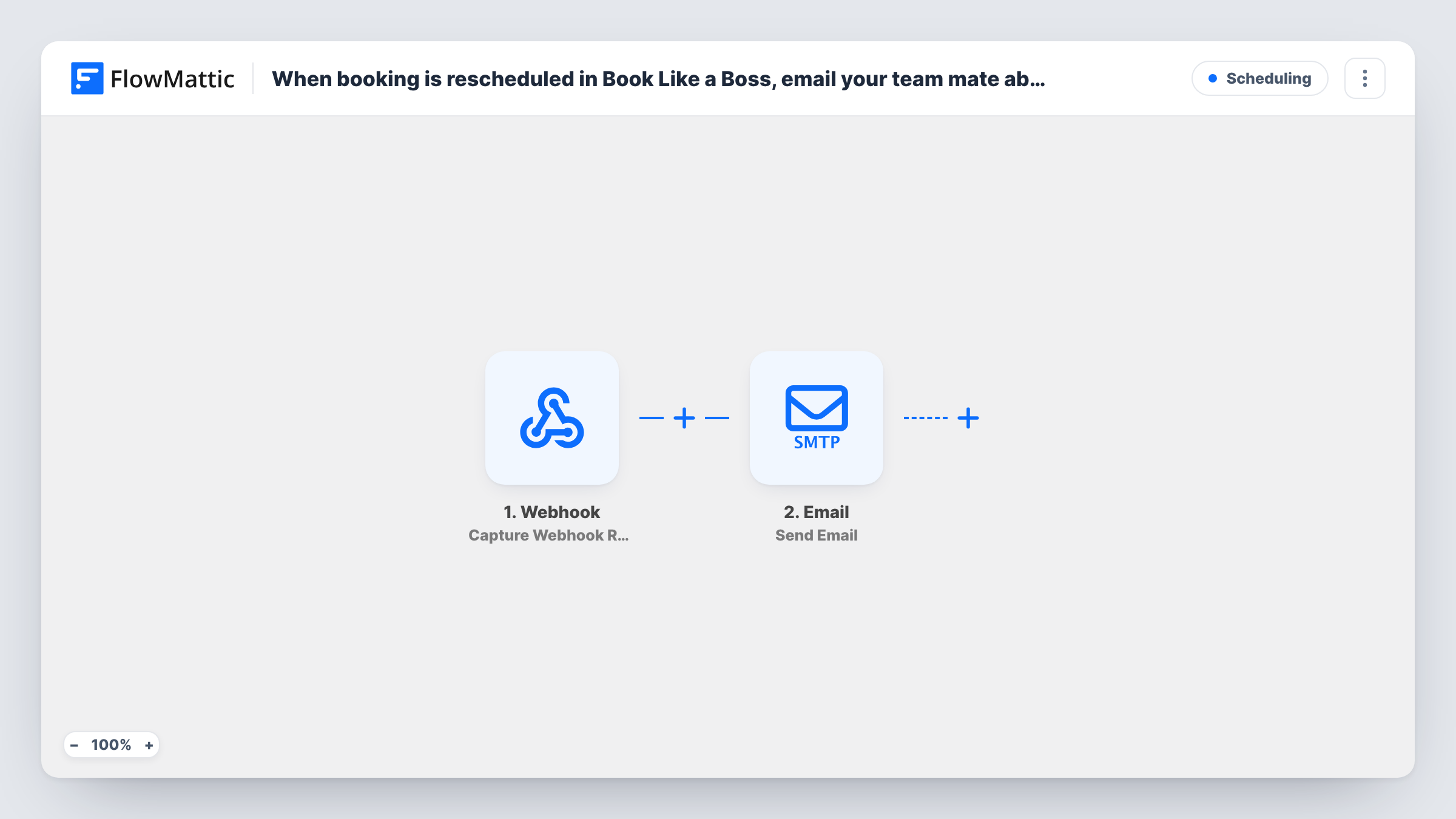
What this workflow does
A rescheduled appointment is easy to miss when the booking calendar belongs to one person and the session is run by another. This workflow tells your teammate as soon as Book Like a Boss records the change, so they don't turn up at the old time or keep a slot blocked that is now free.
The Book Like a Boss trigger fires each time a booking is rescheduled. The booking data it sends, such as the client's details and the new time, can be mapped into the message. New bookings and cancellations don't start this workflow; they have triggers of their own.
The second step is FlowMattic's Email module, which sends through WordPress mail or the SMTP account you set up. It ships unmapped, so after import you type the teammate's address as the recipient, write a subject, and build the body from the booking fields. Run a test reschedule and check Task History to see which fields Book Like a Boss passes and what the Email step sent.
Coach and assistant sharing one calendar
A business coach takes bookings through Book Like a Boss while an assistant prepares each session, and the assistant gets an email whenever a client picks a new slot.
Salon stylist told about moved appointments
The front desk owns the booking page, and the stylist booked for that client receives the updated time by email straight away.
Consultants covering for each other
A small agency emails the colleague assigned to a discovery call when the prospect moves it, so the handover notes stay with the right date.
How this workflow runs
What happens at each step once the workflow is on, and what you need before you import it.
 Book Like a Boss Booking Rescheduled
Fires whenever a booking is rescheduled in Book Like a Boss. The booking's details, including the new date and time, are passed on to map into the email.
 Email Send Email
Emails your teammate using WordPress's mailer or an SMTP account of your choice. Nothing is filled in yet, so add your teammate's email as the recipient, then write the subject and map the client name and new booking time into the body.
What you need
- FlowMatticCore
- Book Like a Boss AccountAccount
After importing, map your own data. To keep the template universal, not every step is pre-filled. Open each step in the builder and connect your accounts and fields (channels, lists, sheets, recipients) before you switch the workflow on.
Make it yours
Changes worth making after you import it.
- Add more teammates to the recipient field if several people need the new time, such as the person running the session and a manager.
- Put a Filter between the Book Like a Boss trigger and the Email step on the service or booking type field, so each teammate only hears about the sessions they run. A test reschedule shows which fields you can check.
- Set up an SMTP account in the Email step if your site's default WordPress mail tends to land in spam folders.
Questions about this workflow
Does this email go out for new Book Like a Boss bookings too?
No. The trigger only fires on a reschedule. For new bookings or cancellations, import or build a workflow with Book Like a Boss's Booking Created or Booking Canceled trigger.
Can the message show the old time as well as the new one?
Only if Book Like a Boss includes it in the reschedule data. Run a test reschedule and look at the trigger's fields in Task History before you write the email.
Does the client also get this rescheduling email?
Not as imported. You set the recipient yourself, so the template only reaches the teammate address you enter. To email the client too, add their address from the booking data or add a second Email step.
Is a Gmail or Outlook account required for the Email step?
No. FlowMattic's Email step can send with WordPress's built-in mail or any SMTP account you configure, which can be your Gmail or Outlook SMTP details if you prefer.
More Scheduling workflows
Other ready-to-import templates from the same category.






Import this workflow into your WordPress site
Download the JSON, import it from the Workflows screen and connect your accounts. Every run stays on your server, with no per-task fees.
30-day money-back guarantee Unlimited workflows and runs Self-hosted