

When image URL received via webhook, generate background using PhotoRoom and upload the image to WordPress media library
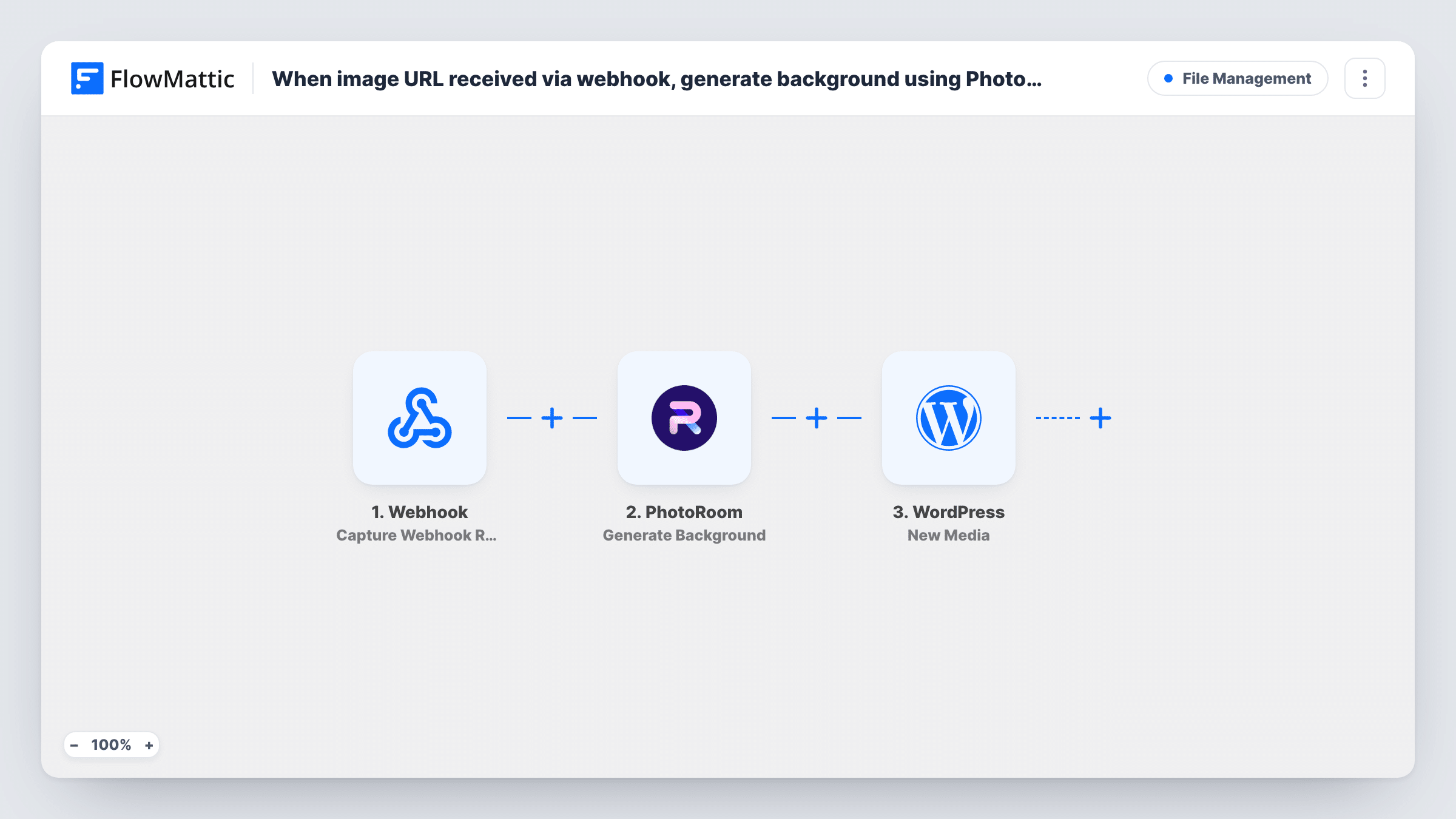
Post an image URL to this workflow’s webhook and PhotoRoom generates a new background for the image from a prompt, then the result is added to your WordPress media library.
 Webhook
 PhotoRoom
 WordPress
3 steps Setup ~5 min Used on 2.0k sites Free to import
What this workflow does
Product photos shot on a table or in a warehouse rarely match the look of a store or a blog. Editing each one by hand to give it a cleaner setting takes time, and then the file still has to be uploaded to WordPress. This workflow chains both jobs, starting from nothing more than an image URL.
Step one is FlowMattic's Webhook trigger, which gives you a URL to send data to from any app, script or form. Include the image URL in what you send. PhotoRoom then runs Generate Background, which creates a new background for that image from a prompt you write or map in. The final step uses New Media in WordPress to add the PhotoRoom result to your media library.
Every request to the webhook starts a run and calls PhotoRoom once, so turn on the trigger's authentication setting if the URL could reach the wrong hands. Send one test request after import and check in Task History what PhotoRoom returned and what WordPress saved.
Store product shots with a styled setting
A script sends each new product photo URL to the webhook. PhotoRoom places the product on a background matching your store's look, and the image is ready in the media library.
Blog images from a content tool
Your content planning tool posts image links when an article is drafted. Each one comes back with a generated background, ready to insert in the post.
Seasonal backgrounds for existing photos
Before a holiday sale, send the URLs of your best sellers with a seasonal prompt and collect the new versions in WordPress.
How this workflow runs
What happens at each step once the workflow is on, and what you need before you import it.
 Webhook Capture Webhook Response
Starts a run whenever a request reaches the webhook URL FlowMattic creates for this workflow. Include the image URL, and a prompt if you want it to vary, in each request.
- PhotoRoom Generate Background
Sends the image to PhotoRoom to generate a new background from a prompt. Connect PhotoRoom, map the image URL from the webhook data, and write or map the prompt.
- WordPress New Media
Adds the PhotoRoom result to your WordPress media library on the same site. Map the image PhotoRoom returned into this step, then confirm with a test that the file appears.
What you need
- FlowMatticCore
- PhotoRoom AccountAccount
After importing, map your own data. To keep the template universal, not every step is pre-filled. Open each step in the builder and connect your accounts and fields (channels, lists, sheets, recipients) before you switch the workflow on.
Make it yours
Changes worth making after you import it.
- Turn on Require authentication on incoming requests in the Webhook trigger and include the key in your requests, so only your own tools can start a run.
- Send the prompt in the webhook payload instead of fixing it in the PhotoRoom step, so one workflow can produce different styles.
- If you only want the subject cut out without a new scene, swap Generate Background for PhotoRoom's Remove Background action.
Questions about this workflow
What does the webhook request to PhotoRoom need to contain?
At least the image URL, and the prompt if you send it per request. Send a test with those values after import so FlowMattic captures them for mapping.
Can anyone start this workflow with the webhook URL?
Anyone holding the URL can, unless authentication is on. Turn on the trigger's Require authentication on incoming requests setting and send the key with each request.
Where do the PhotoRoom images end up in WordPress?
In the media library of the site running FlowMattic. Map the PhotoRoom result into the New Media step and check a test run to confirm the file arrived.
What happens if the webhook sends a broken PhotoRoom image link?
PhotoRoom returns an error for that step and Task History shows it. The WordPress step still runs, but has no new image to save, so check failed runs there.
More File Management workflows
Other ready-to-import templates from the same category.





Import this workflow into your WordPress site
Download the JSON, import it from the Workflows screen and connect your accounts. Every run stays on your server, with no per-task fees.
30-day money-back guarantee Unlimited workflows and runs Self-hosted