

When new contact created in FluentCRM, Create a new WordPress user and set custom field value using Metabox
Each new FluentCRM contact gets a WordPress user account created from their details, and a Meta Box custom field is then set on that new user, all inside your own WordPress site.
 FluentCRM
 WordPress
 Metabox
3 steps Setup ~5 min Used on 2.8k sites Free to import
What this workflow does
FluentCRM keeps contacts and WordPress keeps user accounts, and the two don't have to match. If your CRM contacts should also be able to log in, or you keep extra profile data in Meta Box fields, you end up creating users by hand. This workflow does it as each contact is added.
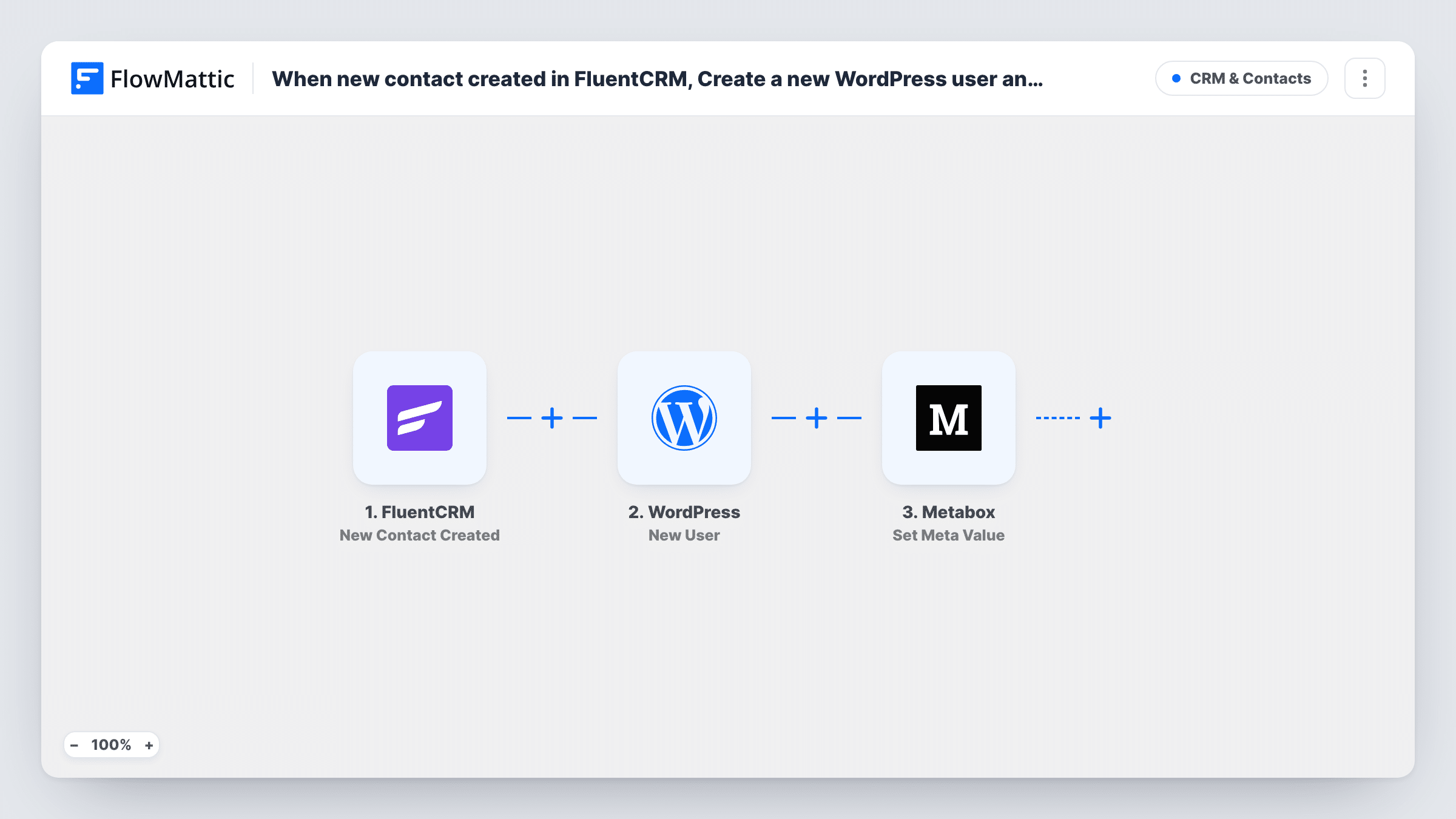
The FluentCRM trigger starts a run whenever FluentCRM gains a new contact. FlowMattic passes the contact's details to the WordPress New User action, which creates an account from the email and name you map. The Metabox step then sets a meta value on that user, using the user ID that the WordPress step returns.
Everything happens on your own site, with no outside service involved. A contact whose email already belongs to a WordPress user doesn't get a second account; the New User step returns that user's ID, so the Metabox step sets the value on the existing user. Test with a new contact first and check Task History to see what each step returned.
Members area for newsletter subscribers
People who join your FluentCRM list get a WordPress account they can use to log in to subscriber-only pages, with a Meta Box field marking where they signed up.
Client portal accounts for new leads
An agency adds a lead to FluentCRM and the matching user account is ready for its client portal, with a status field set in Meta Box for the team to update later.
Imported contacts for a course launch
Contacts added to FluentCRM ahead of a launch each get a user account, and a Meta Box field records the cohort they belong to.
How this workflow runs
What happens at each step once the workflow is on, and what you need before you import it.
 FluentCRM New Contact Created
Starts each time a contact is added to FluentCRM for the first time. The contact's details, such as email and name, are passed on to create the user.
- WordPress New User
Creates a new WordPress user from the FluentCRM contact. Map the email and any name fields from the contact. The step's response includes the ID of the account it made.
- Metabox Set Meta Value
Sets a Meta Box field value on the user the WordPress step returns. Map the user ID from the WordPress step's response and choose the field and the value to store.
What you need
- FlowMatticCore
- FluentCRM PluginPlugin
- Metabox PluginPlugin
After importing, map your own data. To keep the template universal, not every step is pre-filled. Open each step in the builder and connect your accounts and fields (channels, lists, sheets, recipients) before you switch the workflow on.
Make it yours
Changes worth making after you import it.
- Add a Filter between the FluentCRM trigger and the WordPress step that continues only for contacts with a given tag or list, if the trigger data carries it, so not every contact gets a site account.
- Run a test with a brand new contact, then open the WordPress step's response and map its user ID into the Metabox step before you turn the workflow on.
- If you need to set more than one Meta Box field, add another Set Meta Value step after this one and map the same user ID.
Questions about this workflow
What if a new FluentCRM contact's email already belongs to a WordPress user?
WordPress won't create a second user with that email. The New User step returns the existing user's ID, and the Metabox step sets the field value on that account. Task History shows both steps' results.
Will the person get an email about their new WordPress account?
Don't count on it. Create a test contact and see whether WordPress sends anything, then add an email step at the end if you want to send login details yourself.
Do I need the Meta Box plugin on the same site as FluentCRM?
Yes. FluentCRM, Meta Box and FlowMattic all run on the same WordPress site, and the Meta Box field must exist before you set a value on it.
Can a FluentCRM contact created by a new WordPress user start this flow?
If FluentCRM adds contacts for new users on your site, those contacts fire the trigger too. Their email already has an account, so the New User step returns that user's ID rather than creating one, and the Metabox step sets the value on that existing user.
More CRM & Contacts workflows
Other ready-to-import templates from the same category.







Import this workflow into your WordPress site
Download the JSON, import it from the Workflows screen and connect your accounts. Every run stays on your server, with no per-task fees.
30-day money-back guarantee Unlimited workflows and runs Self-hosted