

When new order created in WooCommerce, send data to webhook URL
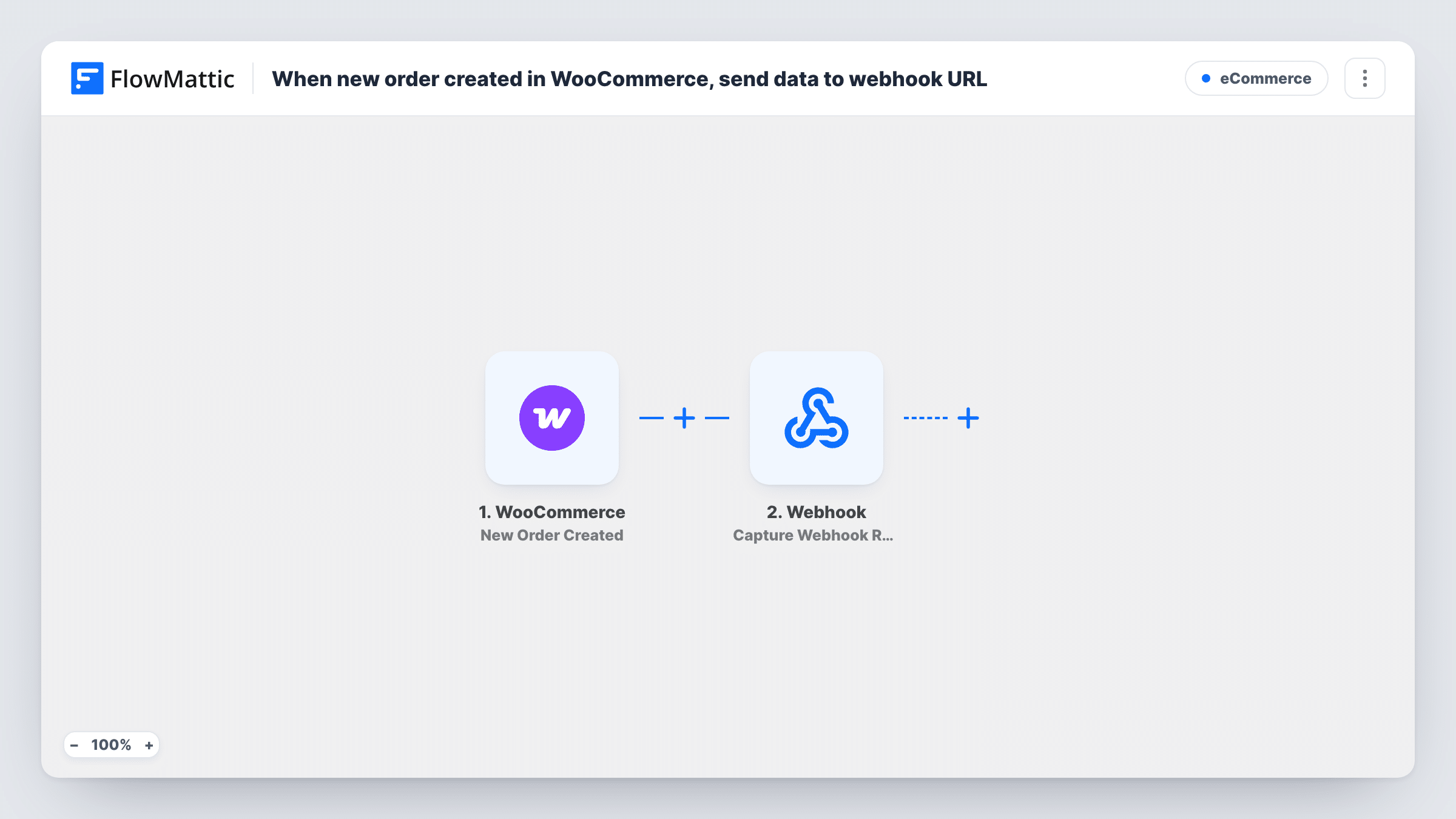
As soon as a new WooCommerce order is created, FlowMattic sends the order data you map as a JSON POST request to a webhook URL, so an outside system such as a warehouse, ERP or custom app hears about every order.
 WooCommerce
 Webhook Outgoing
2 steps Setup ~5 min Used on 831 sites Free to import
What this workflow does
Plenty of order tools aren't in any app directory: a fulfilment partner's intake endpoint, an in-house ERP, a reporting script. If they accept a webhook, this workflow can feed them every WooCommerce order without a custom plugin.
The WooCommerce New Order Created trigger fires when a new order is created in your store. The order's details, such as billing and shipping information, items and totals, become available to map.
The Webhook Outgoing Submit Data to Webhook step sends a POST request in JSON format to the URL you enter. Nothing is configured in the template. After import, paste the receiving URL and add each value you want to send, giving it the key name the other system expects, such as order_id or total.
An order is created before payment completes for some payment methods, so the receiving system may hear about unpaid orders too. Place a test order and look at Task History for the exact JSON FlowMattic sent and the response it got back.
Orders to a fulfilment partner
A store that ships through a third-party warehouse posts each new order to the warehouse's intake webhook with the address and items.
Feeding an in-house dashboard
A brand sends order totals and product names to its own reporting endpoint, which updates a sales dashboard the team watches.
Triggering another automation tool
A shop that runs part of its back office in another automation platform sends each WooCommerce order to that platform's incoming webhook URL.
How this workflow runs
What happens at each step once the workflow is on, and what you need before you import it.
 WooCommerce New Order Created
Starts a run for each order your WooCommerce store records. The order details, from customer and address to line items and totals, are passed to the webhook step.
- Webhook Outgoing Submit Data to Webhook
Sends the mapped order data as JSON in a POST request to the URL you set. It ships empty: enter the receiving URL, then add a key for each order value the other system needs.
What you need
- FlowMatticCore
- WooCommerce PluginPlugin
After importing, map your own data. To keep the template universal, not every step is pre-filled. Open each step in the builder and connect your accounts and fields (channels, lists, sheets, recipients) before you switch the workflow on.
Make it yours
Changes worth making after you import it.
- Put a Filter between the WooCommerce trigger and the webhook step that continues only for orders with a paid status, if the receiving system shouldn't get pending orders.
- Send the order ID in every request, so the receiving system can recognise an order it has already seen.
- Point the step at a request-inspection test URL first to see the JSON, then switch to the real endpoint.
Questions about this workflow
What format does the WooCommerce order data use?
Submit Data to Webhook sends a POST request with a JSON body made of the keys and values you add in the step. The receiving system reads those key names.
Are the order's line items sent too?
If you map them. Place a test order, then look at the trigger data to see how WooCommerce passes the items and map the parts the receiving system needs.
Does the webhook fire for orders that aren't paid yet?
It fires when the order is created, which for some payment methods is before payment completes. Add a Filter on the order status between the trigger and the webhook step if only paid orders should be sent.
How do I know the receiving URL accepted the WooCommerce order?
Task History shows each request and the response code and body the receiving URL returned.
More E-Commerce workflows
Other ready-to-import templates from the same category.






Import this workflow into your WordPress site
Download the JSON, import it from the Workflows screen and connect your accounts. Every run stays on your server, with no per-task fees.
30-day money-back guarantee Unlimited workflows and runs Self-hosted