

When a task status is updated in ClickUp, create an invoice in Zoho Invoice
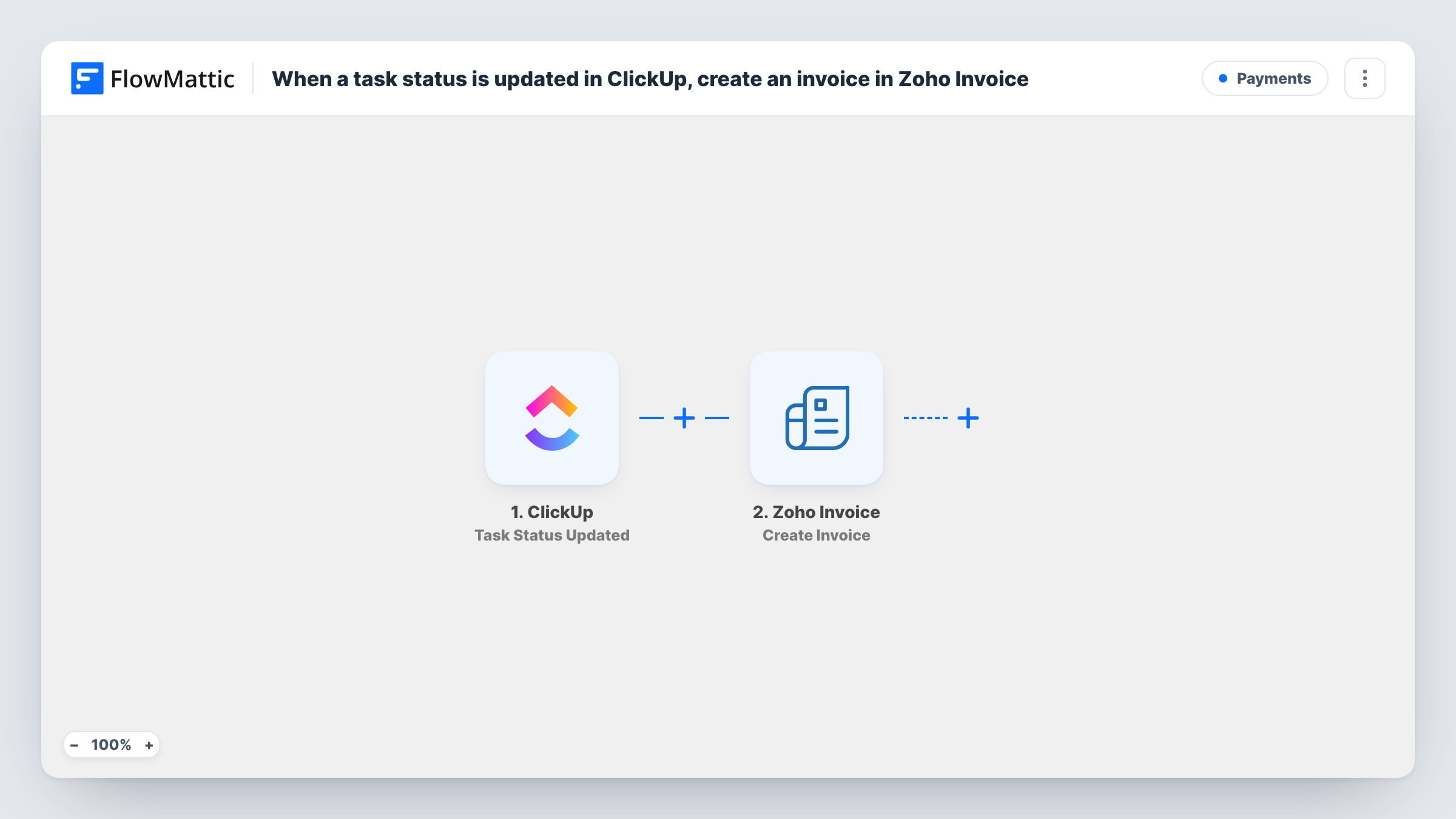
Each time a ClickUp task’s status is updated, FlowMattic creates an invoice in Zoho Invoice, so work tracked in ClickUp can be billed without retyping it.
 ClickUp
 Zoho Invoice
2 steps Setup ~5 min Used on 2.5k sites Free to import
What this workflow does
If you bill clients for tasks you track in ClickUp, the invoice usually waits until someone remembers to copy the work into Zoho Invoice. This workflow starts the invoice from ClickUp itself: when a task's status changes, a new invoice is created in Zoho Invoice.
The ClickUp trigger starts a run whenever a task moves to a new status. That means any status change, not only a move to complete. The task's details are passed on; run a test with a real status change to see which fields ClickUp sends, including the new status.
The Zoho Invoice step then creates a new invoice. It ships without mapping, so after import you connect Zoho Invoice, set the customer the invoice is for and add what it charges. ClickUp data such as the task name can describe the line item where the test run shows it. A ClickUp task doesn't carry a Zoho Invoice customer, so this setup suits a list or space where every task belongs to one client.
As imported, every status change on a watched task creates an invoice, so a task moved from "to do" to "in progress" is billed too. Add a Filter for the status you bill on before you turn the workflow on; the first tip says where it goes.
Retainer client with its own ClickUp list
A marketing freelancer keeps one ClickUp list per client. When a deliverable's status changes to complete, an invoice for that client is created in Zoho Invoice.
Fixed-price jobs billed on approval
A web studio moves a task to an "approved" status when the client signs off on a page. With a Filter on that status, the approval creates the invoice for that piece of work.
Repair tickets tracked as tasks
A small IT support firm logs each repair job as a ClickUp task and invoices its single maintenance client once a job reaches done.
How this workflow runs
What happens at each step once the workflow is on, and what you need before you import it.
 ClickUp Task Status Updated
Fires whenever a task's status is updated in ClickUp, whichever status it moves to. The task details are passed on; check a test run for the fields and the new status before you map anything.
- Zoho Invoice Create Invoice
Creates a new invoice in Zoho Invoice. The step ships unmapped: connect your Zoho Invoice organization, set the customer and the items the invoice charges, and map ClickUp task data where it fits.
What you need
- FlowMatticCore
- ClickUp AccountAccount
- Zoho Invoice AccountAccount
After importing, map your own data. To keep the template universal, not every step is pre-filled. Open each step in the builder and connect your accounts and fields (channels, lists, sheets, recipients) before you switch the workflow on.
Make it yours
Changes worth making after you import it.
- Put a Filter between the ClickUp trigger and the Zoho Invoice step that continues only when the new status is the one you bill on, such as complete. Without it, every status change creates an invoice.
- If your test run shows ClickUp custom fields, keep each task's price in one and map it into the invoice item, so the amount comes from ClickUp instead of a fixed value.
- Add Zoho Invoice's Email Invoice action after Create Invoice if you want the invoice sent to the client straight away instead of reviewing it first.
- If your test run shows the ClickUp task ID, add it to the invoice item's description, so each invoice can be traced back to the task it came from.
Questions about this workflow
Does moving a ClickUp task to any status create a Zoho invoice?
Yes, as imported. The trigger fires on every status update. Add a Filter between the ClickUp trigger and the Zoho Invoice step for the status you bill on, such as complete.
How does Zoho Invoice know which customer to bill?
ClickUp doesn't send a Zoho Invoice customer, so you set it in the Create Invoice step after import. That works best when the tasks this workflow sees all belong to one client.
Can the invoice amount come from the ClickUp task?
Only if the task carries it, for example in a custom field. Run a test status change and check whether that value arrives, then map it into the invoice item.
What if a task is moved back and then forward again?
Each status update starts a new run. With a Filter on the final status, a task that reaches it twice creates two invoices, so review new invoices in Zoho Invoice before you send them.
More Payments workflows
Other ready-to-import templates from the same category.







Import this workflow into your WordPress site
Download the JSON, import it from the Workflows screen and connect your accounts. Every run stays on your server, with no per-task fees.
30-day money-back guarantee Unlimited workflows and runs Self-hosted